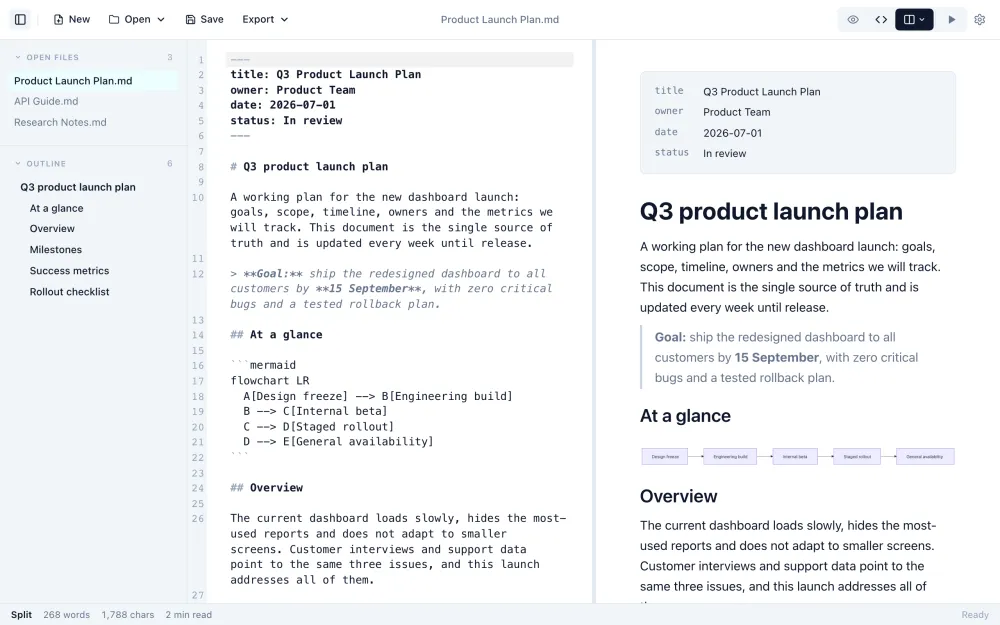
Markdown to PDF Converter Online
Convert Markdown to PDF online for free. Paste Markdown or upload an .md file, check the paginated preview, and save a PDF with selectable text, right in your browser.
Save as PDF opens your browser's print dialog. Set the destination to Save as PDF and save. The PDF is written by your browser, on your device.
- Runs in your browser
- Free, no watermark
- No account
- Selectable text in the PDF
How to convert Markdown to PDF
To convert Markdown to PDF, paste your Markdown or upload the .md file above, check the page preview, select Save as PDF, and choose Save as PDF as the destination in the print dialog. The conversion runs in your browser, so the file is not uploaded, and the PDF keeps selectable text.
- Paste Markdown, or drop a
.mdfile onto the editor. - Choose page size (Letter, A4 or Legal), orientation, margins and theme.
- Select Save as PDF, set the destination to Save as PDF, and save.
How it works
Three steps, no account and no upload.
Add your Markdown
Paste it into the editor, or drop a .md file onto it.
Set up the pages
Pick the page size, orientation, margins and theme. The preview shows each page as it will print.
Save as PDF
Select Save as PDF, then choose Save as PDF as the destination in your browser's print dialog.
From Markdown to paginated pages
The preview lays the document out on real pages, so you see every page break before you save.
---
title: Project Handbook
author: Platform Team
---

# Goals

1. Ship the billing export
2. Cut p95 latency to 200 ms

| # | Task | Owner |
| --- | --- | --- |
| 1 | Freeze branch | Maya |Project HandbookPage 1 of 3
GoalsClean theme
- Ship the billing export
- Cut p95 latency to 200 ms
| # | Task | Owner |
|---|---|---|
| 1 | Freeze branch | Maya |
Header row repeats when a table continues on the next page.
What the converter handles
The parts that usually break when Markdown is printed.
Real page layout
Letter, A4 or Legal, portrait or landscape, three margin sizes, with page numbers and a running header.
Tables across pages
Long tables split between rows, never through a row, and the header row repeats on each page.
Highlighted code
Fenced code keeps its syntax colors, and long lines wrap to fit the page.
Math and diagrams
KaTeX math and Mermaid diagrams render, and diagrams stay sharp vector graphics.
Title and contents pages
A title page from YAML front matter and a contents page with real page numbers.
Selectable text
The PDF is written by the browser's print engine, so text can be selected and searched.
What converts, and what has limits
Most documents come through as they look in the preview.
Converts
- Headings, paragraphs, bold, italic, strikethrough, highlight and links
- Tables split row by row with the header repeated
- Code blocks with syntax highlighting, wrapped to fit
- KaTeX math and Mermaid diagrams
- Task lists, footnotes, blockquotes, definition lists and emoji
- Images from
https://URLs and data URIs
Converts with limits
- The file is saved through the print dialog, not downloaded directly
- Images with relative paths (
./img.png) cannot be loaded by a web page - Very long documents take a few seconds to lay out
- Fonts come from the chosen theme, not your own
- Raw HTML and scripts are removed for safety
Convert Markdown to PDF on any system
This page works the same in any modern browser. These are the local alternatives.
On a Mac
- Browser: Safari, Chrome or Firefox, then Save as PDF in the print dialog.
- Pandoc:
brew install pandoc, thenpandoc notes.md -o notes.pdf(needs MacTeX or BasicTeX, or another--pdf-engine). - Markdific app: Export to PDF, with images stored next to the file included.
On Windows
- Browser: Edge or Chrome, then choose Save as PDF as the printer.
- Pandoc:
winget install --id JohnMacFarlane.Pandocplus MiKTeX, thenpandoc notes.md -o notes.pdf. - Markdific app: from the Microsoft Store; export to PDF is part of the one-time purchase.
On Linux
- Browser: Chrome, Chromium and Firefox all save to PDF from the print dialog.
- Pandoc: install
pandocand a TeX Live package, thenpandoc notes.md -o notes.pdf.
VS Code, Obsidian and GitHub
- VS Code: a Markdown PDF extension adds an export command to the Command Palette.
- Obsidian: the note's menu has Export to PDF, with Obsidian's own theme.
- GitHub README: open the file, select Raw, copy the text and paste it here.
Troubleshooting
Fixes for the usual print-dialog surprises.
| Problem | Fix |
|---|---|
| Images are missing | Relative paths such as ./img/chart.png cannot be read by a web page. Use full https:// URLs, embed the image as a data URI, or export from the Markdific desktop app. |
| The date or page address appears at the edges | Turn off Headers and footers in the print dialog's settings. |
| Colors or code highlighting are missing | Turn on Background graphics in the print dialog (Chrome and Edge show it under More settings). |
| Page size in the PDF is wrong | Set the paper size in the print dialog to match the size chosen here, or leave it on the default. |
| A heading sits alone at the bottom of a page | Add <!-- pagebreak --> above it to start it on a new page. |
Markdown to PDF FAQ
Is the Markdown to PDF converter free?
Yes. No signup, no watermark, no daily limit. Open the page, make as many PDFs as you like, and close the tab.
Are my files uploaded anywhere?
No. The Markdown is rendered and paginated by JavaScript in your browser, and the PDF is written by your browser's own print engine. Nothing is sent to a server. Images that your Markdown links by URL are loaded from wherever they are hosted, the same as on any web page.
Why does it open the print dialog instead of downloading a file?
The PDF is made by your browser's print engine, which writes a real vector PDF with selectable text. A one-click download would mean either uploading your file to a server or turning each page into a picture. In the print dialog, set the destination to Save as PDF (Chrome and Edge), PDF (Safari), or Save to PDF (Firefox), then save.
Can I select and search the text in the PDF?
Yes. Text, code and math stay as real text, not images, so you can select, copy and search them. Diagrams are kept as vector graphics, so they stay sharp when you zoom.
Will a long table break across pages?
Yes. Tables split between rows, a row is never cut in half, and the header row repeats at the top of each page the table continues on. A long table does not jump to the next page and leave a blank gap.
Does it handle math, code and Mermaid diagrams?
Yes. LaTeX math between $ and $$ renders with KaTeX, fenced code blocks keep their syntax highlighting colors, and mermaid code blocks are drawn as diagrams.
Can I choose the page size and margins?
Yes. Pick Letter, A4 or Legal, portrait or landscape, and narrow (0.5 in), normal (0.75 in) or wide (1 in) margins. The preview updates to show exactly where each page breaks.
Can I add page numbers, a title page or a table of contents?
Yes. Page numbers are on by default. The title page uses title, subtitle, author and date from YAML front matter, or the first heading if there is none. The contents page lists your headings with the page each one starts on.
How do I start a new page?
Put <!-- pagebreak --> or \newpage on its own line where the new page should start.
Do images show up in the PDF?
Images linked with a full https:// URL and images embedded as data URIs appear in the PDF. Relative paths such as ./images/chart.png point to files on your computer, which a web page cannot read, so use a full URL or the Markdific desktop app for those.
Why do I see the date or a web address at the edge of the pages?
That is the browser's own header and footer. Turn off Headers and footers in the print dialog's settings. The page numbers and running header from this tool are part of the page and stay.
How do I convert an MD file to PDF?
Open this page, select Upload .md (or drop the .md file onto the editor), check the pages in the preview, then select Save as PDF and choose Save as PDF as the destination in the print dialog. A .md file is plain Markdown text, so any file with that extension works.
How do I convert a GitHub README to PDF?
Open the README on GitHub, select Raw, and copy the text. Paste it here and save as PDF. Images in the README that use relative paths will not load, so replace them with the full https://raw.githubusercontent.com/ address of each image first.
Can I convert Markdown to PDF with Pandoc instead?
Yes. Pandoc converts from the command line, for example pandoc notes.md -o notes.pdf. By default it uses LaTeX to write the PDF, so a LaTeX distribution must be installed, or you can choose another engine with the --pdf-engine option. This page needs no install and shows the pages before you save.
What is the best way to convert Markdown to PDF?
For a single file, a browser-based converter such as this one is the fastest: no install, a page preview, and a PDF with selectable text. For scripts or many files, Pandoc on the command line is the usual choice. For files with local images, a desktop app such as Markdific exports with the images included.
Can I convert Markdown to PDF without Pandoc or LaTeX?
Yes. This converter needs no install. It renders the Markdown and lays out the pages in your browser, and the browser's print engine writes the PDF.
Will code blocks keep their formatting in the PDF?
Yes. Fenced code blocks keep their monospace font, indentation and syntax highlighting colors, and long lines wrap to fit the page. If colors are missing, turn on Background graphics in the print dialog.
Is it safe to convert confidential documents?
The Markdown is processed in your browser and is not sent to a server, so the document stays on your device. Images that your Markdown links by URL are loaded from where they are hosted.
Does it work on a phone?
Yes. Paste or upload your Markdown, then tap Save as PDF. Your phone opens its print screen, where you can save the PDF or share it.
Markdific for desktop
Export PDFs straight from your Markdown files
Markdific is a Markdown viewer and editor for Mac, Windows and Linux. Open .md files with a double-click, edit with a live preview, and export. See all features.
- Export to PDF with page size, margins and themes (Mac and Windows)
- Images stored next to the file are included
- Export to Word, HTML and 11 more formats
Free Markdown viewer · 14-day free trial of Premium features
30-day money-back guarantee. For Mac, Windows and Linux.