
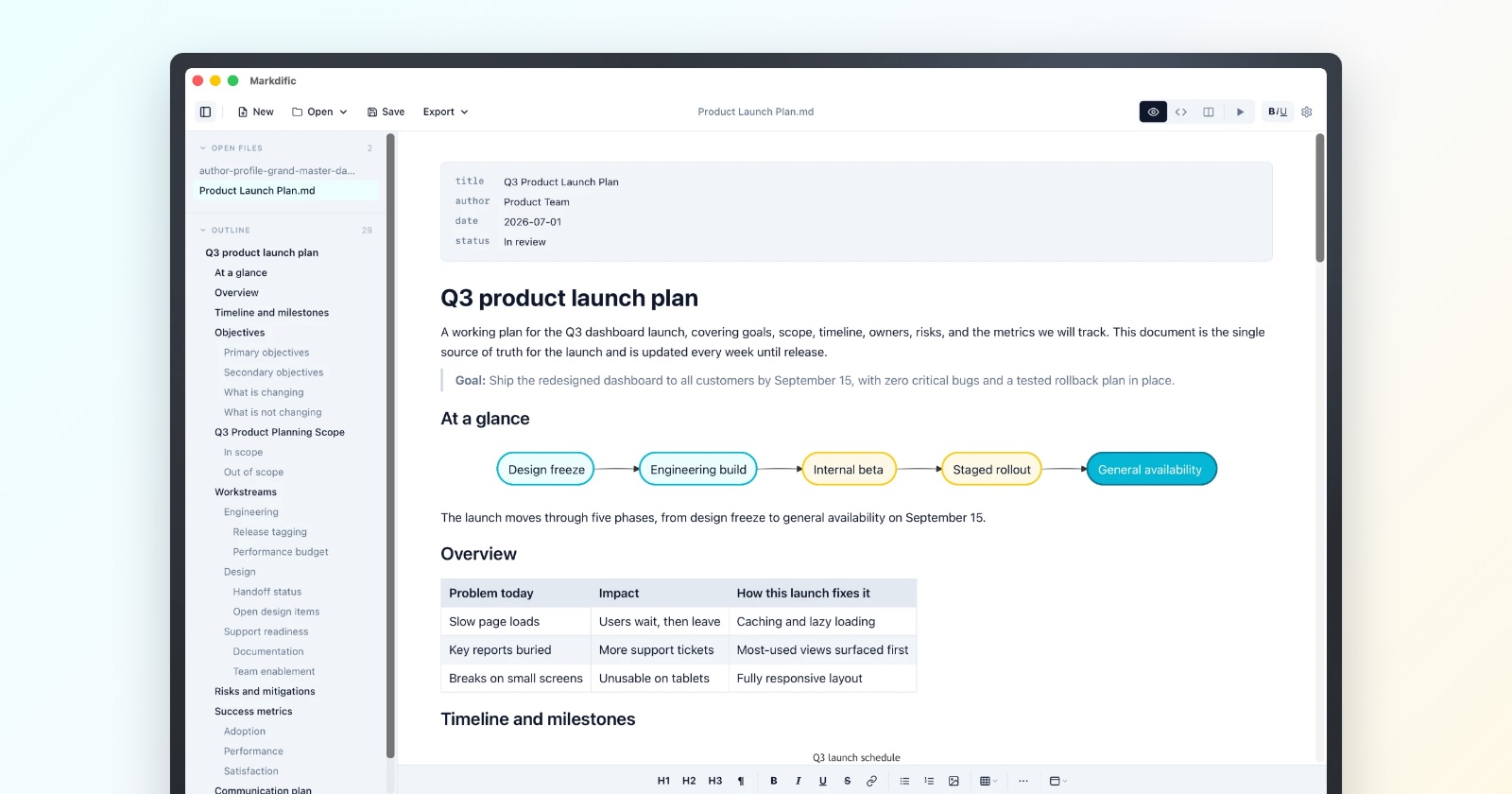
A .md file holds Markdown, which is plain text with formatting marks such as # for headings and ** for bold. macOS recognizes the file type, but its built-in apps open it as plain text. What you see depends on which app opens the file.
What is the fastest way to open a .md file on a Mac?
Use Open With in Finder. It works for any app you already have.
- In Finder, Control-click (or right-click) the .md file.
- Choose Open With, then pick an app from the list.
- If the app you want is missing, choose Other…, select it in Applications and click Open.
This opens the file once. To change what a double-click does, see how to change the default app.
How do you open a .md file on a Mac?
There are eight ways, and they differ in one thing: whether you see the formatted document or the raw text with its symbols.
| Method | What you see | Cost |
|---|---|---|
| Markdific | Formatted, source or both | Free to read, $14.99 once to edit |
| Quick Look | Plain text, formatted with an extension | Built in |
| TextEdit | Plain text | Built in |
| VS Code | Source plus a formatted preview | Free |
| Notes | A formatted copy as a note (macOS 26 and later) | Built in |
| Safari or Chrome | Plain text | Free |
| Terminal | Plain text | Built in |
| Markdific online editor | Formatted, source or both | Free |
Method 1: Open .md file with Markdific
What you see: the formatted document, or the Markdown source, or both side by side. Markdific is a Markdown viewer and editor for Mac. It registers for .md and .markdown files, so it appears under Open With, and once you make it the default, a double-click in Finder opens the file as a formatted document in a tab.
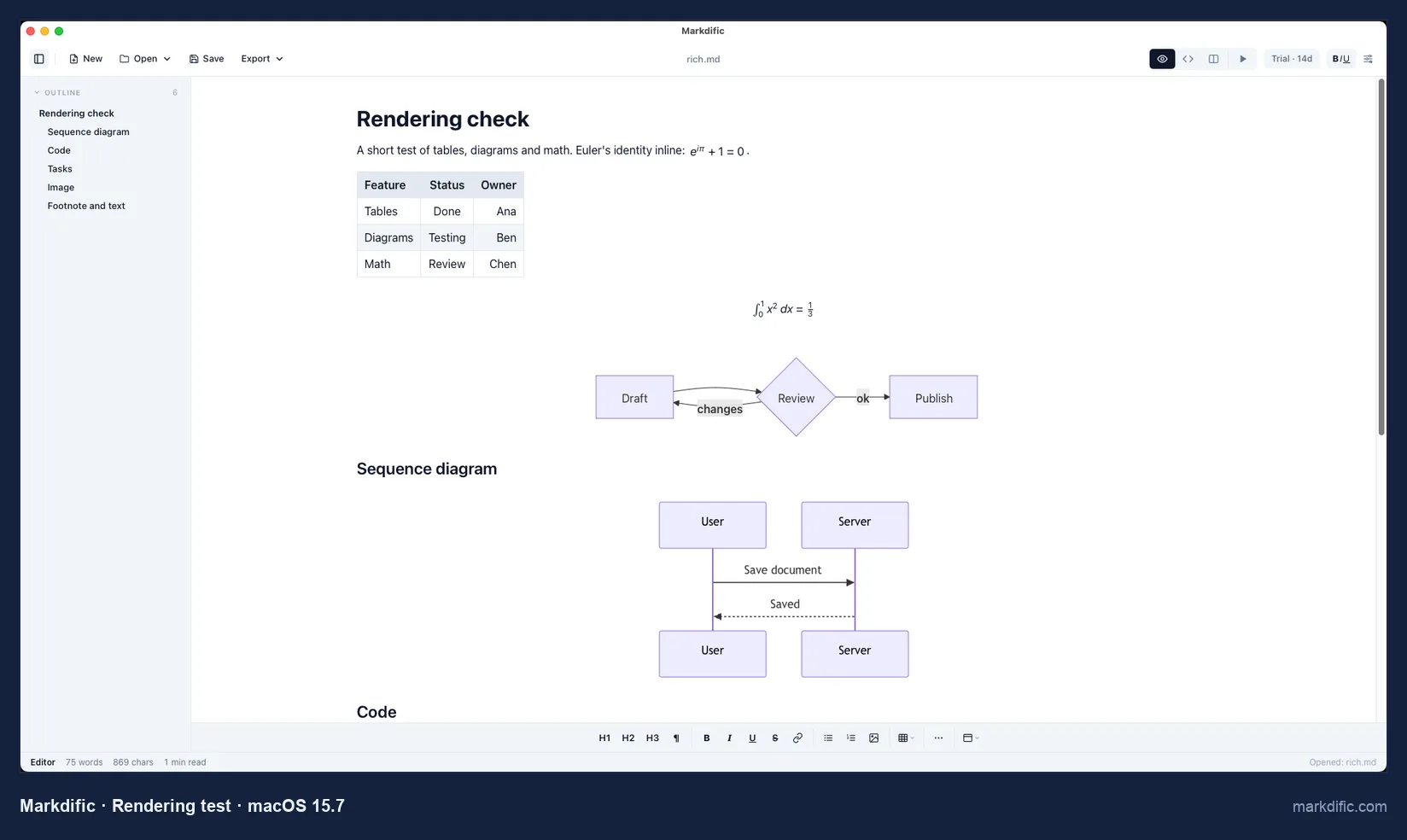
- Download the DMG from the Markdific for Mac page, open it and drag Markdific into Applications. It is a 34 MB universal app for Apple silicon and Intel, signed and notarized by Apple, so macOS opens it without a warning. With Homebrew, run
brew trust markdific/tap, thenbrew install --cask markdific/tap/markdific. - Control-click a .md file and choose Open With > Markdific, or drag the file onto the Markdific window or its Dock icon. Several files open as tabs.
- Press Cmd+1 for the formatted view, Cmd+2 for the Markdown source and Cmd+3 for both side by side.
What it costs: reading .md files is free with no time limit. Editing, autosave and export (PDF, Word, HTML and 11 more formats) run as a 14-day trial, then a one-time $14.99 license covers up to 3 devices.
Limits: it needs macOS 11 or later. It does not reload a file that another app changes while it is open, and very large files open more slowly: a 20,000-line file took about 8 seconds in our test.
Use it when you want to read .md files from Finder as documents, with tables, math and Mermaid diagrams drawn.
Method 2: Preview a .md file with Quick Look
What you see: plain text on its own, or the formatted file once a Markdown extension is installed. Quick Look is the preview you get when you select a file in Finder and press the Space bar. On its own, macOS shows a .md file as plain text, with every # and | visible.
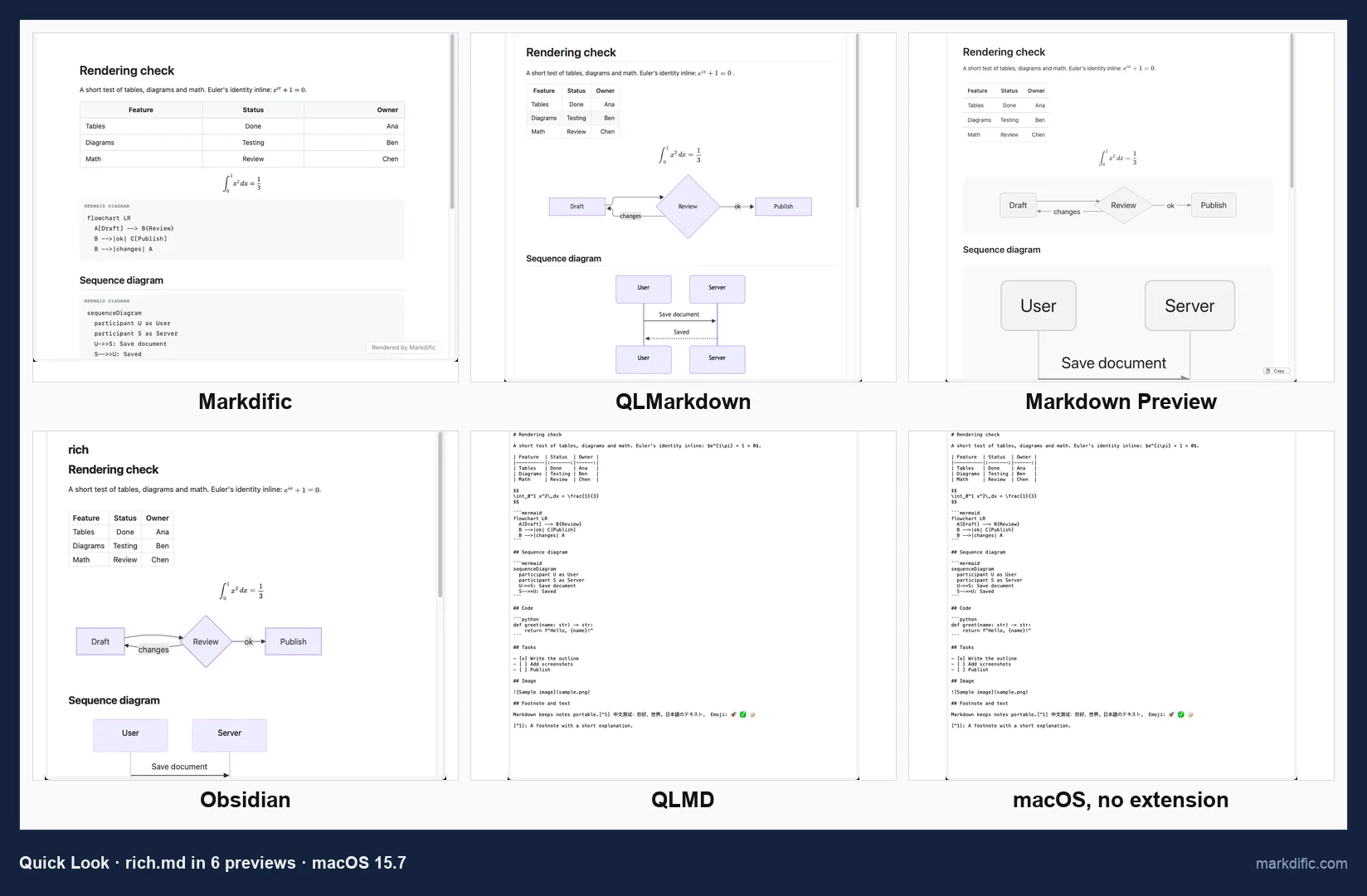
- Select the .md file in Finder.
- Press the Space bar.
- Press Space again, or Esc, to close the preview.
Markdific's extension comes with the free viewer and needs macOS 12 or later. In our tests it showed headings, tables and math; Mermaid diagrams appeared as code, code blocks had no colors and a local image showed a placeholder. Free extensions such as QLMarkdown draw diagrams, code colors and images as well. If you press Space and still see plain text, open Markdific once so macOS registers its preview.
Use it when you only need a quick look and do not want to open an app. More on settings and fixes: Quick Look for Markdown on Mac.
Method 3: Edit a .md file in TextEdit
What you see: plain text with all the symbols. TextEdit is the text editor that comes with every Mac. Control-click the file and choose Open With > TextEdit. You can fix a typo and save with Cmd+S, and the file stays a .md file.
Formatting does not appear: a heading reads ## Budget, a link reads [site](https://…) and a table is a block of pipes and dashes.
Use it when you need to change a few words and have nothing else installed.
Method 4: Open a .md file in VS Code
What you see: the Markdown source, with a formatted preview in its own tab or beside it. Visual Studio Code is a free code editor with a Markdown preview built in.
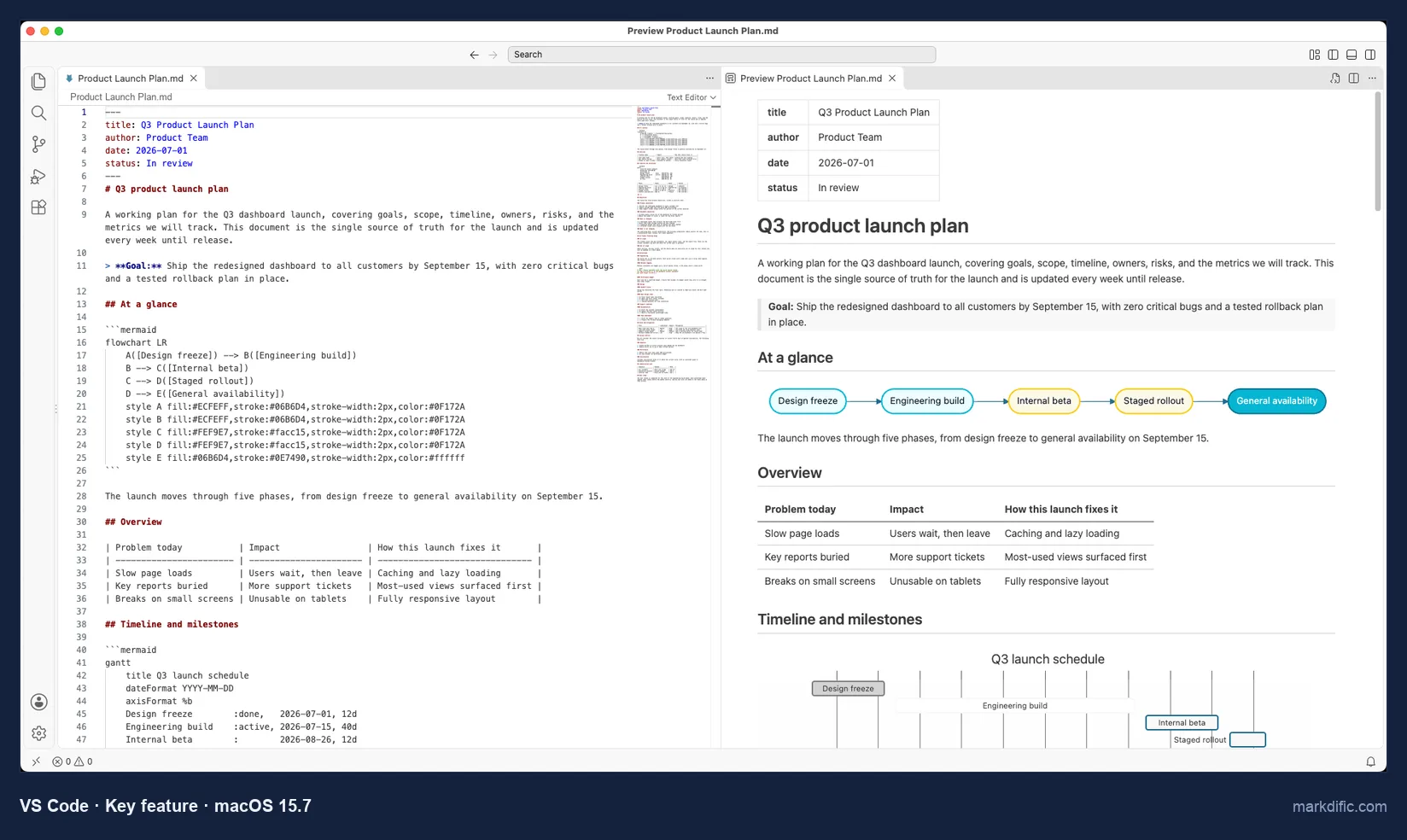
- Open the .md file in VS Code.
- Press Cmd+Shift+V to open the preview in its own tab.
- Or press Cmd+K, then V, to show the preview beside the source.
In our tests the built-in preview drew tables, Mermaid diagrams and math with no extension. The preview is read-only, and the app is a 317 MB download, which is heavy if all you want is to read files from Finder.
Use it when the .md file is part of a code project you already work on in VS Code.
Method 5: Import a .md file into Notes (macOS 26 and later)
What you see: a formatted copy of the file as a note. On macOS 26 (Tahoe) and later, Notes can import Markdown.
- In Notes, choose File > Import Markdown.
- Select one or more .md files and click Import.
- Confirm the import.
According to Apple, Notes converts the Markdown syntax to rich text that keeps the formatting. This creates a copy as a note. It does not open the .md file itself, so changes you make in Notes do not go back to the file. Apple does not list which Markdown elements come through, and we have not tested tables or diagrams in Notes.
Use it when you want to keep the text as a note and do not need to edit the original file.
Method 6: Open a .md file in Safari or Chrome
What you see: plain text, symbols included. Drag the .md file onto a browser window, or press Cmd+O in the browser and choose the file. In our test, Safari and Chrome both showed a local .md file as plain text.
Use it when you only need to read the raw text on a Mac where you cannot install anything.
Method 7: Open a .md file in Terminal
What you see: plain text, unless a command hands the file to an app. These commands work in the Terminal app:
cat notes.mdprints the whole file in the window.less notes.mdshows the file one screen at a time; pressqto quit.open notes.mdopens the file in your default app.open -a Markdific notes.mdopens it in a named app (here Markdific).open -e notes.mdopens it in TextEdit.qlmanage -p notes.mdshows the Quick Look preview from Terminal.
If the filename has spaces, put it in quotes, for example open -a Markdific "Meeting notes.md".
Use it when you work on a server or in scripts, or want a quick check without leaving the command line.
Method 8: Open a .md file in the Markdific online editor
What you see: the formatted document, the source, or both side by side, in a browser tab. Open the Markdific online editor and choose the .md file. The file is read inside your browser and not sent to a server. It does not autosave, so download or copy your changes before you close the tab.
Use it when you are on a work Mac where you cannot install apps and need to see one file formatted.
How do you open a .md file from ChatGPT, Claude or another AI tool?
AI tools often write their answers in Markdown, and many can hand you the result as a .md file. Opening it works like any other .md file once it is saved on your Mac.
- In the chat, ask for the answer as a .md file and use the download button or link the tool shows. The file usually lands in your Downloads folder (in Finder, Go > Downloads or Option+Cmd+L).
- If the tool only shows the text in the chat, copy it, paste it into a new plain text file and save it with a name that ends in .md.
- Control-click the file and choose Open With > Markdific to read it formatted, or press Space for a quick look.
Markdific shows the headings, lists, tables, code blocks and Mermaid diagrams that AI tools tend to produce. Coding tools such as Claude Code also write .md files straight into a project folder, for example a README.md or a plan. Markdific does not refresh when another app or an AI tool rewrites the file while it is open, so close the tab and open the file again to see the new version.
How do you change the default app for .md files on a Mac?
Set this once and a double-click opens every .md file in the app you chose.
- Select any .md file in Finder.
- Choose File > Get Info, or press Cmd+I.
- Click the arrow next to Open with to expand it.
- Choose your app from the pop-up menu, for example Markdific.
- Click Change All, then Continue to confirm.
Apple describes the same steps in Choose an app to open a file on Mac.
Why .md files open in Xcode
If Xcode is installed, it is often the app that opens .md files on a double-click. Xcode lists Markdown as a document type it edits by name, while TextEdit only claims plain text in general, so macOS may prefer Xcode. You see the Markdown source, as you would in a code file. The Get Info steps above stop this.
What if a .md file will not open or shows symbols?
The file opens in TextEdit or Xcode. No app has been chosen for .md files, so macOS picked one that can read text. Follow the default app steps above.
Space shows plain text in Quick Look. No Markdown extension is active. Install a viewer that includes one, open it once and press Space again. The Quick Look guide covers turning extensions on and resetting the preview.
macOS says the app "cannot be opened" because Apple could not verify it. This message is about the app, not the .md file. It appears for apps that are not notarized by Apple; in our tests that included MarkText 0.23.0. On macOS 15 and later, Control-click > Open no longer skips the check. Instead, go to System Settings > Privacy & Security, scroll to Security and click Open Anyway, which Apple offers for about an hour after the blocked attempt. Do this only for apps you trust; the exact wording varies by macOS version.
You cannot see the .md ending. Finder may hide extensions, so "notes.md" shows as "notes". Choose Finder > Settings > Advanced and turn on Show all filename extensions. For one file, use File > Get Info > Name & Extension and clear Hide extension.
The file is really "notes.md.txt". With extensions shown, you may find a .txt added on save, for example when you save pasted text yourself. Rename the file so it ends in .md; the contents do not change.
The file is in iCloud Drive and will not open or preview. With Optimize Mac Storage on, macOS can keep only a placeholder on your Mac, marked with a cloud icon. Control-click the file and choose Download Now, wait for the icon to go, then open it.
Key facts about opening .md files on a Mac
- A .md file opens as plain text in TextEdit, Xcode, Terminal, Safari and Chrome. It shows formatted in Markdific, the Markdific online editor and a VS Code preview.
- Pressing Space on a .md file in Finder shows the raw text until a Markdown extension is installed.
- If Xcode is installed, a double-click may open it there. Get Info > Open with > Change All sets the app you want.
- On macOS 26 and later, Notes can import a Markdown file as a formatted copy, according to Apple. Changes in Notes do not go back to the file.
Which way should you open .md files?
Pick by what you need to do with the file.
| If you want to | Use | Why |
|---|---|---|
| Read a .md file as a formatted document | Markdific | Draws headings, tables, math and Mermaid diagrams; reading is free (editing is a 14-day trial, then $14.99) |
| Check a file without opening an app | Quick Look | Space in Finder; plain text unless a Markdown extension is installed |
| Fix a typo with what came on the Mac | TextEdit | Built in; saves plain text and keeps the .md ending |
| Work on Markdown inside a code project | VS Code | Source and preview side by side, free |
| Keep the text as a note | Notes | macOS 26 or later; imports a formatted copy and leaves the file as it is |
| Read a file from ChatGPT or Claude | Markdific | Shows the tables, code and diagrams AI tools produce; reopen it after the file changes |
| See one file formatted on a Mac where you cannot install apps | Markdific online editor | Runs in the browser; the file is not uploaded |
| Read or open a file from the command line | Terminal | cat and less show text; open -a hands the file to an app |
If you open .md files often, the Markdific for Mac page has the download and the full feature list.
Frequently asked questions
Can you open a .md file on a Mac without installing anything?
Yes. TextEdit, Quick Look, Safari and Terminal all open .md files, but they show the plain Markdown text with its # and ** marks. On macOS 26 (Tahoe) or later, Notes can also import a formatted copy of the file as a note.
Can Apple Notes open .md files?
Yes, on macOS 26 (Tahoe) or later, with File > Import Markdown. Notes turns the file into a formatted note, which is a copy, so edits in Notes do not change the original .md file.
Is there a free Markdown viewer for Mac?
Yes. Markdific opens .md files as formatted documents for free with no time limit, and its Quick Look preview is included. VS Code is a free editor with a Markdown preview panel, and QLMarkdown is a free Quick Look preview for Finder.
Where do .md files from ChatGPT or Claude download to on a Mac?
Usually to the Downloads folder. In Finder, choose Go > Downloads or press Option+Cmd+L, then double-click the .md file or press Space to preview it.
What is a .md file?
A .md file is a plain text file written in Markdown, a set of simple marks for headings, lists, links and tables. Any text editor can open it, and a Markdown viewer shows it formatted. More detail: What is a .md file?
How do I convert a .md file to PDF on a Mac?
Open the file in Markdific, click Export in the toolbar and choose PDF; export is included in the 14-day trial and the $14.99 license. The free Markdown to PDF converter does the same in a browser and does not upload the file.
Related Markdown guides
- How to open and view MD files on Mac, Windows and Linux
- Best Markdown viewers and editors for Mac, tested
- Preview Markdown with Quick Look on Mac
- Markdific for Mac
- Markdown syntax docs
About this article
The Markdific team wrote this article and makes Markdific, which is why it is listed first. We tested the apps on a Mac in October 2026, on macOS 15.7 and macOS 26.0.1. The Notes import is described from Apple's documentation, and we have not tested these steps on macOS 27 yet. Corrections: hi@markdific.com.