
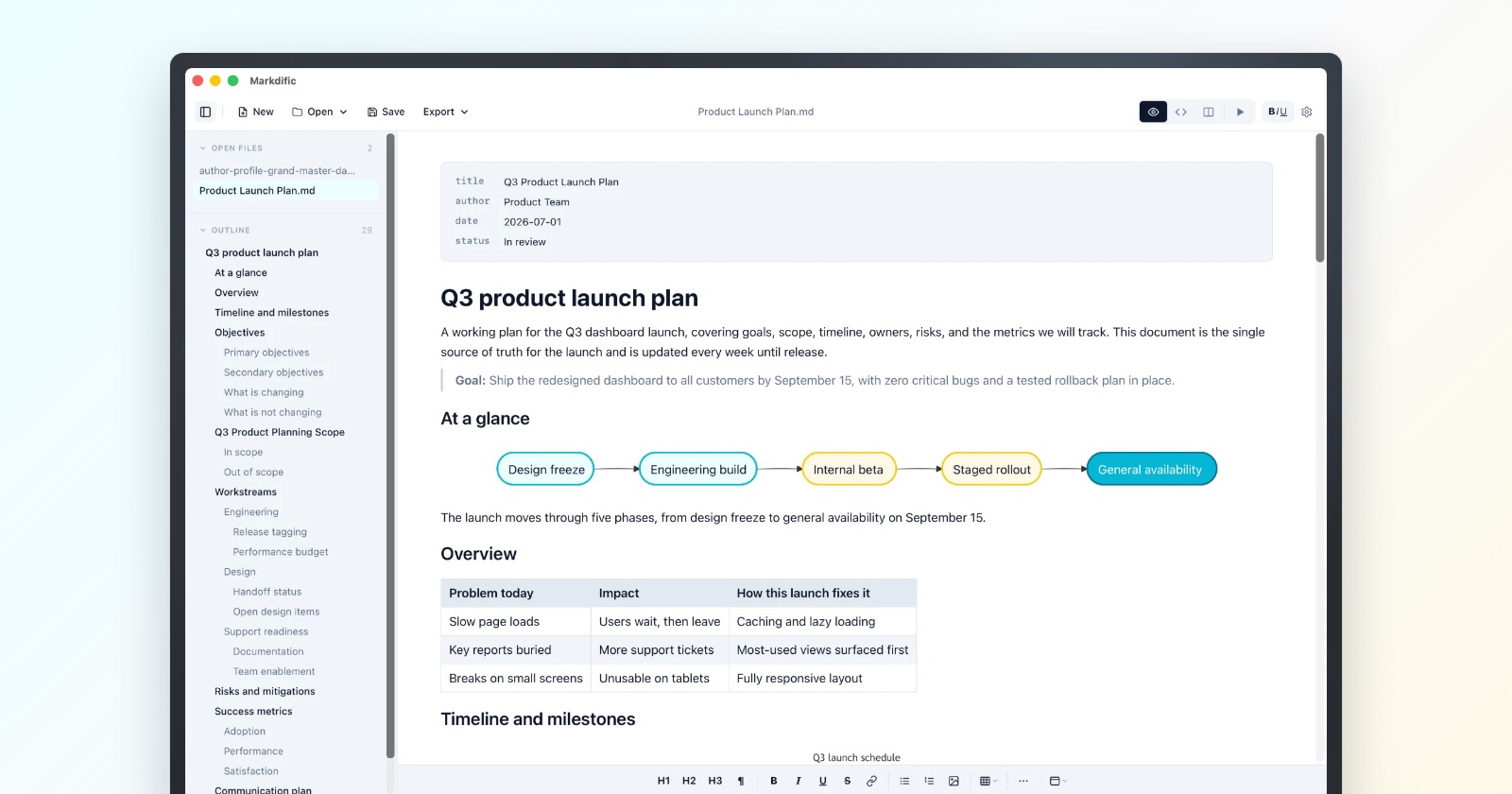
Short answer: macOS has no built-in Markdown preview, so pressing Space on a .md file shows the source text. Markdific's preview comes free with its viewer and editor, so there is nothing extra to install, and it shows headings, tables and math. QLMarkdown is a free, open-source extension that rendered more of our test file, including Mermaid diagrams, code colors and images. After installing either one, open the app once and turn its preview on under Login Items & Extensions.
We make Markdific and list it first. In our Quick Look test, QLMarkdown and Markdown Preview rendered more of the file than Markdific's preview does today.
Key facts
- In our macOS 15.7 test, pressing Space on a .md file without an extension showed the raw text with every
#,|and**visible. - Since macOS 15 Sequoia, old
.qlgeneratorplug-ins no longer load. A Markdown preview now has to be an app extension that ships inside an app. - On macOS 15, 26 and 27, Quick Look extensions are listed in System Settings > General > Login Items & Extensions.
- An extension registers only after its app has been opened once.
- If two Markdown extensions are on, macOS uses one of them, and Apple does not document which. Keep one on.
- QLMarkdown:
brew install --cask qlmarkdown, open it once, then turn it on under Login Items & Extensions > Quick Look.
Turn on a Markdown preview in Finder
The steps are the same for every extension in this guide.
- Install the app and move it to the Applications folder.
- Open the app once. macOS registers the extension on first launch. If macOS asks whether to open an app downloaded from the internet, click Open.
- Find the Quick Look list. On macOS 15 and later, open System Settings > General > Login Items & Extensions, scroll to Extensions and click the Info button next to Quick Look.
- Turn on one Markdown preview and turn off any other Markdown previews in the list, then click Done.
- Test it: select a .md file in Finder and press Space.
The Quick Look list has moved between macOS versions:
| macOS version | Where Quick Look extensions are listed |
|---|---|
| 15 Sequoia, 26 Tahoe, 27 Golden Gate | System Settings > General > Login Items & Extensions > Quick Look (Info button) |
| 13 Ventura, 14 Sonoma | System Settings > Privacy & Security > Extensions > Quick Look |
| 12 Monterey | System Preferences > Extensions > Quick Look |
Turning extensions on or off in Login Items & Extensions needs an administrator account. macOS 27 runs only on Macs with Apple silicon; Intel Macs stay on macOS 26, where the path is the same.
What each preview showed in our test
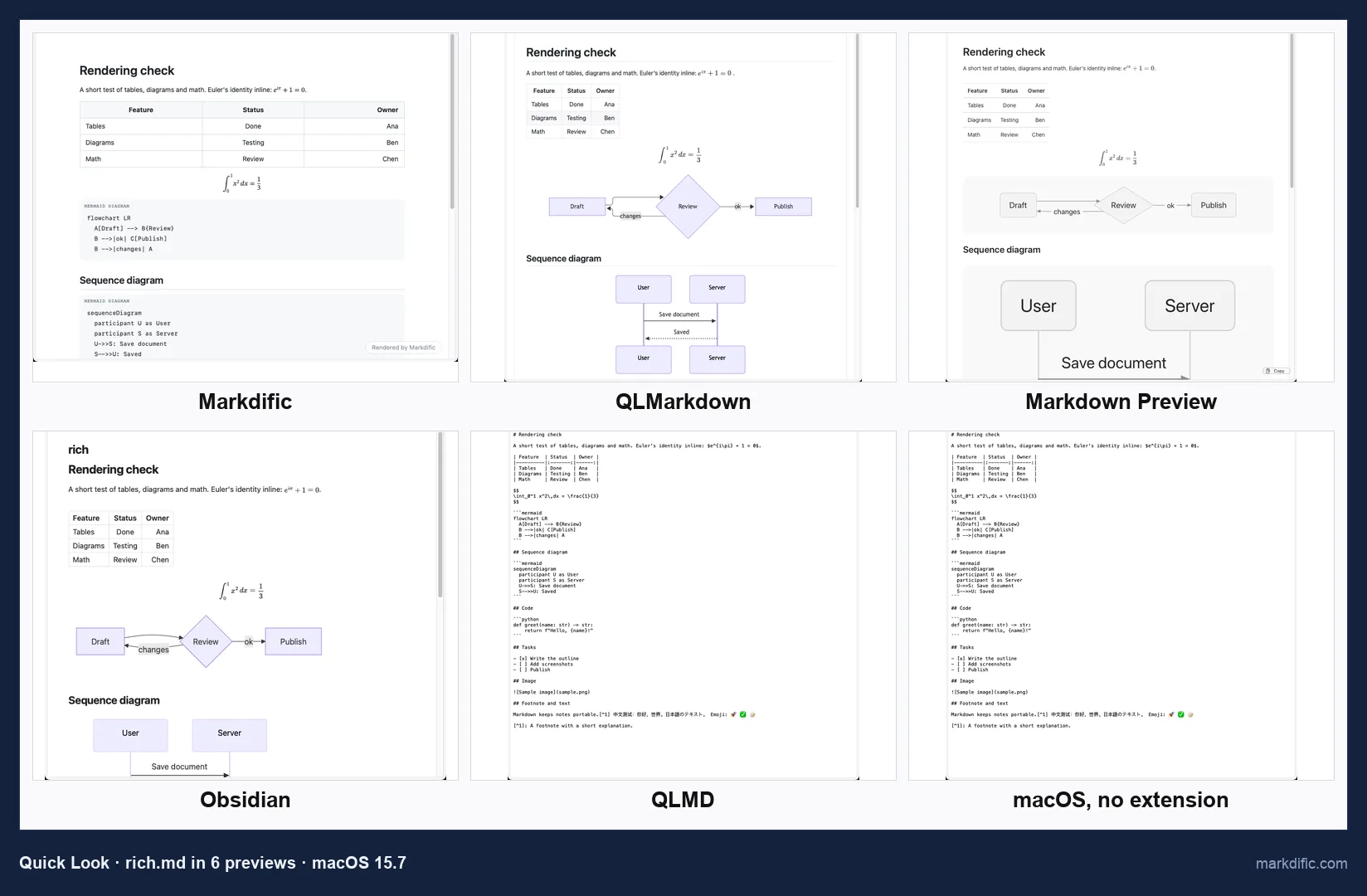
We installed five Markdown Quick Look extensions and tested each one on its own, with the others removed, on macOS 15.7 on 22 October 2026. The test file had a table, inline and block math, two Mermaid diagrams, a code block and a local image.
| Preview (tested) | Price | Rendered | Not rendered |
|---|---|---|---|
| Markdific 1.3.2 (extension 1.1.1) | Free with the viewer | Tables, math | Mermaid (as code), code colors, local image |
| QLMarkdown 1.5.7 | Free | Tables, Mermaid, math, code colors, image | Nothing in our file |
| Markdown Preview 0.0.68 | Free | Tables, Mermaid, math, code colors, image | Nothing in our file |
| Obsidian 1.14.4 | Free | Tables, Mermaid, math, code colors | Image (blank) |
| QLMD 1.0.0 | Not checked | Nothing | Everything (plain text) |
macOS requirements, install steps and known issues for each preview are in the sections below.
Markdific
Markdific is a Markdown viewer and editor for Mac, Windows and Linux. The Mac app has included a Quick Look extension since version 1.2.0, so installing the app is the only setup step.
What it renders: headings, lists, links, task lists, tables, and inline and block math. YAML and TOML front matter is hidden, and the preview follows the system light or dark appearance.
What it does not render yet: Mermaid blocks appear as code under a "Mermaid diagram" label, code blocks are plain monospace, and the local image in our test file showed a placeholder. Images from the web are blocked on purpose, because the preview runs with scripts and remote content turned off.
Why we list it first: we make it, and the preview comes with a full app. Press Space to skim a file, then double-click to open it in Markdific, where Mermaid diagrams, math, code colors and images render. Reading is free with no time limit; editing and export run as a 14-day trial, then cost $14.99 once.
- Install: download the DMG from markdific.com and drag Markdific to Applications, or with Homebrew run
brew trust markdific/tap, thenbrew install --cask markdific/tap/markdific. - macOS: the app runs on macOS 11 or later; the Quick Look preview needs macOS 12 Monterey or later.
- Updates: the extension updates with the app.
QLMarkdown
QLMarkdown by sbarex is a free, open-source (GPL-3.0) Quick Look extension, and it rendered everything in our test file.
What it renders: tables, Mermaid diagrams, math through MathJax, code colors, local images and emoji. It can show YAML front matter as a table, and its themes have light and dark variants. A settings app turns these options on and off.
- Install:
brew install --cask qlmarkdown, or download a release from GitHub. - macOS: 12 or later (Homebrew cask requirement).
- Updates: active; version 1.5.7 was released on 2 October 2026.
- If it is missing from the Quick Look list: the project's FAQ suggests moving the app to the Trash, back to Applications, and opening it again.
QLMarkdown only previews. To edit a file you still need an editor; our Mac editors guide compares 12.
Markdown Preview
Markdown Preview is a free, MIT-licensed app from the pluk-inc project on GitHub. It bundles a Quick Look extension, and its site says Spotlight previews use the same renderer.
What it renders: in our test, tables, Mermaid, math, code colors and the local image, the same as QLMarkdown.
- Install: download the DMG from markdownpreview.app, or run
brew install --cask markdown-preview. - macOS: 15 Sequoia or later, so it does not run on Sonoma or earlier.
- Updates: active; we tested 0.0.68, and 0.0.69 was current on 28 October 2026.
- Name clash: a separate, paid App Store app is called "Markdown Preview - Quick Look" (Anybox, $1.99). The two are different products.
Obsidian
Obsidian added Quick Look previews for Markdown files in desktop version 1.14.3 (29 September 2026). Since 1.14.4, the previews also work while Obsidian is closed.
What it renders: tables, Mermaid, math and code colors. The image area was blank in our test.
- Install: install or update Obsidian. The 1.14.3 changelog says the feature needs the latest installer, so an in-app update of an older install may not add it.
- macOS: 12 or later (Homebrew cask requirement).
- Next to other previews: installing Obsidian adds its preview alongside any you already have. If you also use QLMarkdown or Markdific, keep only one Markdown preview on.
- Reported issue on macOS 27: users on the Obsidian forum report that, with Obsidian 1.14.4, Finder's arrow keys stop working after an Obsidian preview while Finder's Preview Pane is showing. Hiding the Preview Pane restored arrow-key navigation for them, and Obsidian's team said it plans changes in 1.15.
Other Markdown Quick Look previews
QLMD 1.0.0, the fifth extension we tested, installed without errors but showed plain text, the same as macOS with no extension. The three below are listed from their store or vendor pages only; we did not install them.
- Peek by Big Z Labs ($7.99, Mac App Store, macOS 10.15 or later) lists Markdown with MathJax and Mermaid. Its last App Store update, 2.6.4, is from April 2022.
- Marked QL by Brett Terpstra ($9.99, macOS 13 or later) lists MathJax, Mermaid, code colors and front matter options. It is sold separately from Marked.
- Markdown Preview - Quick Look by Anybox ($1.99, macOS 12 or later) lists KaTeX, Mermaid and code colors.
Why Quick Look shows Markdown as plain text
Quick Look picks a previewer by file type. macOS includes previewers for images, PDFs, audio, video, Office documents and plain text, and none for Markdown. A .md file falls back to the plain-text previewer, so you see the source.
A third-party app can add a preview extension for the Markdown file type. Once it is registered and turned on, Space shows the formatted document.
Before macOS 15, many Markdown previews were .qlgenerator plug-ins placed in ~/Library/QuickLook. Apple removed support for those in macOS 15 Sequoia, so a plug-in that worked on Sonoma can stop working after an upgrade. Every preview in this guide is an app extension.
Troubleshooting
Quick Look still shows plain text. Work through these checks in order.
- Check that the app is in Applications and has been opened at least once.
- Check its toggle under Login Items & Extensions > Quick Look.
- Reset Quick Look in Terminal, then relaunch Finder (Option-right-click Finder in the Dock and choose Relaunch):
qlmanage -r
qlmanage -r cache
- Preview a file from Terminal to see whether the extension loads:
qlmanage -p notes.md. - Check the file name. Extensions claim the Markdown file type, so a
.mdor.markdownfile uses them and a.txtfile does not.
The wrong extension shows the preview. When several extensions claim .md files, macOS picks one and Apple does not document the order. Turn off every Markdown preview except the one you want, run qlmanage -r, and relaunch Finder.
To see which preview extensions are registered and where they live, run:
pluginkit -m -p com.apple.quicklook.preview
qlmanage -m is less useful here, because it lists only the old generator plug-ins and not app extensions.
An old plug-in stopped working after a macOS update. A file ending in .qlgenerator in ~/Library/QuickLook or /Library/QuickLook no longer loads on macOS 15 or later. Delete it and install a current app-extension preview from the list above.
macOS blocked the app on first launch. If you closed a warning that says Apple could not verify the app, the app never ran, so its extension never registered. Go to System Settings > Privacy & Security, click Open Anyway, and open the app again. Do this only for software from a source you trust. Markdific and QLMarkdown are signed and notarized, so they open without this step.
Finder arrow keys stop working after a preview. This matches the issue Obsidian users report on macOS 27 (see Obsidian above). Hide Finder's Preview Pane (View > Hide Preview), or turn off Obsidian's extension under Login Items & Extensions > Quick Look and use another preview.
The preview is out of date after editing the file. Quick Look caches previews. Close the preview and press Space again. If it still shows the old content, run qlmanage -r cache.
Quick Look or a Markdown app?
Quick Look is for skimming. You cannot edit, search or export from it. If .md files open in Xcode or TextEdit when you double-click them, see how to open .md files on Mac to set a default app.
Frequently asked questions
Does macOS have a built-in Quick Look preview for Markdown?
No. Without an extension, Quick Look shows a .md file as plain text with the Markdown symbols visible, as it did in our macOS 15.7 test. A formatted preview needs an extension that comes with an app such as Markdific, QLMarkdown, Markdown Preview or Obsidian.
Is QLMarkdown free and safe to install?
It is free and open source under GPL-3.0, and its README says the prebuilt app is signed and notarized. Install it with brew install --cask qlmarkdown or from the GitHub releases page, then open it once.
Why did my Quick Look plugin stop working on macOS Sequoia?
macOS 15 Sequoia no longer loads .qlgenerator plug-ins, so a Markdown preview now has to be an app extension inside an app. Delete the old plug-in, install a current extension such as Markdific or QLMarkdown, open the app once and run qlmanage -r.
Which Quick Look extension shows Mermaid diagrams?
QLMarkdown, Markdown Preview and Obsidian drew Mermaid diagrams in our Quick Look test. Markdific's preview shows Mermaid as labeled code, and the diagrams render when you open the file in the Markdific app.
Where are Quick Look extensions in System Settings?
On macOS 15 Sequoia, 26 Tahoe and 27 Golden Gate, go to System Settings > General > Login Items & Extensions, scroll to Extensions and click the Info button next to Quick Look. On macOS 13 and 14 the list is under Privacy & Security > Extensions, and on macOS 12 under System Preferences > Extensions.
How do I choose which Quick Look extension previews .md files?
Turn off every Markdown preview except the one you want under Login Items & Extensions > Quick Look, run qlmanage -r and relaunch Finder. With two turned on, macOS uses one of them and Apple does not document which.
How do I reset Quick Look on a Mac?
Run qlmanage -r in Terminal to reload the preview extensions and qlmanage -r cache to clear cached previews. Then relaunch Finder: Option-right-click its Dock icon and choose Relaunch.
About this test
The Markdific team wrote this guide and makes Markdific, the first preview listed. The five extensions were tested one at a time on macOS 15.7 (Apple silicon) on 21 and 22 October 2026, each opening the same test file with qlmanage -p. We have not repeated the rendering test on macOS 26 or 27. The settings paths for macOS 15, 26 and 27 come from Apple's Mac User Guide, and the extension list command was checked on macOS 26.0.1 on 28 October 2026. Corrections: hi@markdific.com.
To read and edit Markdown files like these as formatted documents, open them in Markdific, a Markdown viewer and editor for Mac, Windows and Linux.
Related pages
Sources
- QLMarkdown on GitHub (features, license, install, FAQ)
- Markdown Preview (maker, license, macOS requirement)
- Obsidian 1.14.3 changelog and 1.14.4 changelog
- Obsidian forum: Quick Look on macOS 27
- Apple: Login Items & Extensions settings, macOS 27
- Eclectic Light: how Sequoia changed QuickLook
- Homebrew cask data for qlmarkdown, markdown-preview and obsidian (formulae.brew.sh, checked 28 October 2026)