

To write Markdown, change a cell's type to Markdown (use the Cell menu, the toolbar dropdown, or press Esc then M in the classic Notebook), type your text, and run the cell with Shift+Enter to render it.
Markdown cells accept standard Markdown plus GitHub-style tables, inline HTML, and LaTeX math through MathJax. That is what makes the notebook a place to explain results and typeset equations right next to the code that produced them.
Jupyter Markdown at a glance
| Element | You type | Result |
|---|---|---|
| Heading | # Title (space after #) |
H1 through H6 |
| Bold | **text** |
bold text |
| Italic | *text* |
italic text |
| Bulleted list | - item |
a bullet |
| Numbered list | 1. item |
an ordered list |
| Link | [label](https://…) |
a hyperlink |
| Image |  |
an inline image |
| Blockquote | > quoted line |
an indented quote |
| Horizontal rule | --- |
a divider line |
| Table | pipes and hyphens | a GitHub-style table |
| Inline code | `code` |
monospaced text |
| Inline math | $e^{i\pi}+1=0$ |
a typeset expression |
Jupyter Markdown Key facts
- Prose lives in a Markdown cell; you set the type with the Cell menu, the toolbar, or the shortcut
M, then pressShift+Enterto render it. - Markdown cells support the usual syntax:
#headings, bold and italic, nested bulleted and numbered lists, links, blockquotes, and horizontal rules. - Markdown cells support useful extensions such as pipe tables and fenced code blocks, but the exact renderer can vary between Jupyter front ends.
- Fenced code inside a Markdown cell is shown for display, not run; only code cells execute.
- Math uses MathJax:
$...$for an inline expression and a display block for an equation on its own line. - Jupyter Markdown cells can also render supported HTML, including tags such as
<br>and<img>.
Markdown cell, raw cell, or Markdown file?
| Item | What it contains | What Jupyter does with it |
|---|---|---|
| Markdown cell | Markdown source inside a notebook | Renders it as formatted notebook content |
| Raw cell | Unrendered text inside a notebook | Leaves it unchanged for exporters or other tools |
Standalone .md file |
A normal Markdown file on disk | Opens it as text or rendered HTML in JupyterLab |
Choose a Markdown cell for explanations beside code. Use a raw cell only when an export workflow needs content that Jupyter should not render.
Creating and rendering a Markdown cell
The one step people miss is the cell type. A new cell defaults to code, so anything you write there is treated as source and either runs or errors. Switching the cell to Markdown is what turns your text into formatted output.
There are three ways to change the type:
- The Cell menu, where you pick Markdown from the cell-type options.
- The toolbar cell-type dropdown, which lists Code, Markdown, and Raw.
- The keyboard shortcut. Press
Escto enter command mode, then pressM. (PressYto switch a cell back to code.)
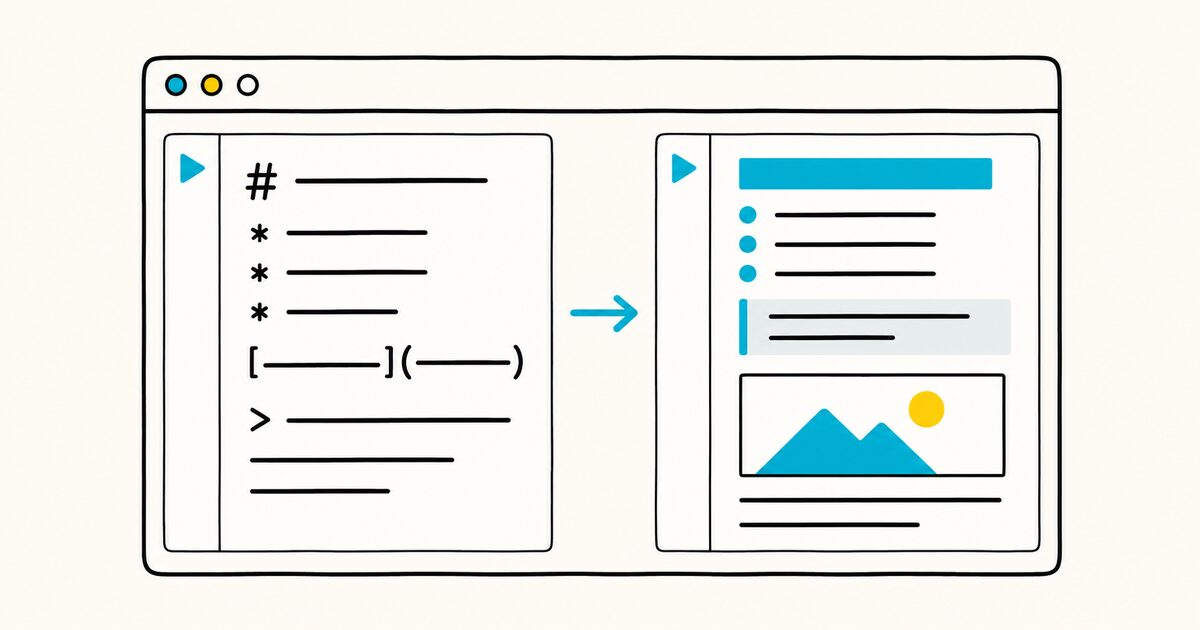
Once the cell is Markdown, type your content and run the cell with Shift+Enter, or use the Run button. The raw text collapses into rendered output: headings get their sizes, lists get their bullets, and math is typeset.
Double-click a rendered Markdown cell to edit it again. JupyterLab and the classic Notebook both use this same Markdown cell, so the syntax below carries between them.
Headings, emphasis, and lists
Headings start a line with one to six # characters followed by a space. The space matters; #Heading without it is treated as plain text.
# Heading 1
## Heading 2
### Heading 3
Emphasis follows the standard rules: a single asterisk for italic, a double asterisk for bold.
Make text *italic* or **bold** by wrapping it in one or two asterisks.
Lists come in two forms, and both nest. Use a hyphen for bullets and a number followed by a period for an ordered list. Indent a child item to create a sublist.
- First item
  - Nested bullet
- Second item

1. Step one
2. Step two
   1. Sub-step
If you need a literal asterisk or another character that Markdown would otherwise read as syntax, put a backslash in front of it, as in \*not italic\*. For the underlying rules, see bold and italic.
Line breaks and new lines
Line breaks are the most common surprise in Jupyter Markdown. Pressing Enter once inside a paragraph does not create a visible break when the cell renders; Markdown joins the two lines into a single flowing line, which is standard behavior.
To force a new line inside a paragraph, end the first line with two trailing spaces, then press Enter. Because Markdown cells also accept HTML, a <br> tag does the same job and is easier to see in your source.
| What you type | Rendered result |
|---|---|
One Enter, no trailing spaces |
Lines flow into one |
Two trailing spaces, then Enter |
A break inside the paragraph |
A <br> tag at the line end |
A break inside the paragraph |
| A blank line between two lines | Two separate paragraphs |
The two-space method is invisible in your editor, which trips people up, so many notebook authors reach for <br> when they want a break they can spot at a glance. For the same rule across Markdown tools, see Markdown line breaks.
Links, images, and blockquotes
Links use the standard bracket-and-parenthesis form: the text in square brackets, the target in parentheses.

[Jupyter's website](https://jupyter.org)
Images use the same shape with a leading exclamation mark, so . You can point at a file in your notebook directory with a relative path, or at a URL.
Jupyter also lets you attach an image directly to a Markdown cell by dragging it in while editing; the attachment is stored in the cell and referenced with an attachment: path, such as . Attached files live inside the notebook and grow its size, so a URL or a repository path is lighter when the image already lives elsewhere.
Blockquotes start a line with >. Stack several > lines for a multi-line quote.
> Readability counts.
> Simple is better than complex.
Tables
Jupyter's Markdown renderer supports pipe tables: use pipes for columns and a row of hyphens under the header.
| Metric | Value |
|--------|-------|
| Rows   | 1,024 |
| Cols   | 12    |
The outer pipes are optional, and cells do not have to line up in your source; the renderer handles the spacing. If you want per-column alignment, add colons to the hyphen row, as in |:---|:---:|---:| for left, center, and right.
Jupyter also allows supported HTML in a Markdown cell. A full <table> can provide row spans, column spans, or other structure that pipe tables cannot express. For portable documents, prefer a Markdown table when it is sufficient.
Fenced code that is shown, not run
This is the distinction worth keeping straight. A code cell runs its contents against the kernel.
A fenced code block inside a Markdown cell is only displayed, formatted with syntax colors but never executed. Use it to show example code, a command, or output you are describing in prose.
Wrap the block in triple backticks and name the language after the opening fence for highlighting.
```python
def f(x):
    return x ** 2
```
The Notebook supports fenced code blocks. Common language names such as python, javascript, and bash usually enable syntax highlighting, although the exact highlighter and language list can vary by front end. Keep runnable code in code cells and reserve fenced blocks for illustration. See fenced code blocks for the full syntax, and use single backticks for inline code inside a sentence.
LaTeX math with MathJax
Math is the feature that sets Jupyter's Markdown apart from a plain document tool, and it is why data and research notebooks lean on Markdown cells so heavily. MathJax renders LaTeX right in the cell.
For an inline expression, wrap the LaTeX in single dollar signs.
The identity $e^{i\pi} + 1 = 0$ ties five constants together.
For an equation on its own centered line, Jupyter's documentation shows the \begin{equation} and \end{equation} form:
\begin{equation}
e^x = \sum_{i=0}^\infty \frac{1}{i!} x^i
\end{equation}
The MathJax display delimiters $$...$$ also produce a centered block and are widely used for the same purpose. Both approaches typeset through the same MathJax engine.
To write a literal dollar sign rather than open a math span, escape it as \$. For the general syntax and more examples, see Markdown math with LaTeX.
HTML inside a Markdown cell
Jupyter allows supported HTML inside a Markdown cell. A <br> forces a line break and <img src="..." width="300"> can size an image.
HTML support depends on the notebook environment, trust settings, and the destination renderer. Use it only when Markdown cannot express what you need, and check the result after exporting or sharing the notebook.
What is Jupyter-specific, and what is portable
Most of what you write in a Markdown cell is standard Markdown, so it travels well. A notebook exported to Markdown, or a .md file opened elsewhere, keeps its headings, lists, tables, links, blockquotes, and fenced code. Two things are worth flagging as notebook conventions rather than universal Markdown:

- Attachment references such as
resolve only inside the notebook that holds the attachment. Move the file elsewhere and the image breaks, because the data lived in the notebook's cell metadata. - LaTeX math renders wherever a MathJax or KaTeX renderer is present. GitHub and many general Markdown viewers now support
$...$and$$...$$, but a plain viewer without a math renderer will show the raw LaTeX.
The basic syntax is portable, but rendering details can still differ between Jupyter, GitHub, and general Markdown editors. Preview the notebook and any exported file in their final destinations.
A practical Markdown cell example
This cell combines prose, a table, math, and code shown for reference:
## Model results

The validation loss fell from **0.42** to **0.31**.

| Run | Loss |
|---|---:|
| Baseline | 0.42 |
| Tuned | 0.31 |

The objective was $L = \frac{1}{n}\sum_i (y_i - \hat{y}_i)^2$.

```python
model.evaluate(validation_data)
```
The Python fence is documentation in this cell. It will be displayed, not executed. Put executable Python in a code cell instead.
Opening notebook Markdown as a document
To share notebook prose outside Jupyter, export it to Markdown or keep a companion .md file. Markdific opens Markdown files on Mac and Windows and exports them to PDF, Word, or HTML.
Check notebook-specific content after export. An attachment: image has no separate file to resolve outside its notebook, and LaTeX math requires a compatible renderer.
FAQ
How do I create a Markdown cell in Jupyter Notebook?
Select a cell, then change its type to Markdown using the Cell menu, the toolbar cell-type dropdown, or the keyboard shortcut: press Esc to enter command mode, then M. Type your text and run the cell with Shift+Enter to render it.
How do I run or render a Markdown cell?
Press Shift+Enter, or use the Run button in the toolbar. The raw Markdown collapses into formatted output. To edit a rendered cell again, double-click it.
How do I add a new line in a Jupyter Markdown cell?
A single Enter does not force a visible break; Markdown joins the lines. End the first line with two trailing spaces, or add a <br> tag, to break inside a paragraph. Leave a blank line between blocks to start a new paragraph.
How do I make a table in a Jupyter Markdown cell?
Use GitHub-style pipe tables: separate columns with | and put a row of hyphens under the header. Add colons in the hyphen row for alignment. For structure that pipe tables cannot handle, drop an HTML <table> into the cell instead.
How do I write math in a Jupyter Markdown cell?
Wrap LaTeX in single dollar signs for an inline expression, such as $e^{i\pi}+1=0$. For a display equation on its own line, use a \begin{equation}...\end{equation} block; the MathJax $$...$$ delimiters also produce a centered block. MathJax renders both.
Does code in a Markdown cell run?
No. A fenced code block in a Markdown cell is shown with syntax colors but never executed. Only code cells run against the kernel. Keep runnable code in code cells and use fenced blocks for illustration.
How do I add an image to a Markdown cell?
Use  with a relative path, a URL, or an attachment: reference. You can also drag an image into a Markdown cell while editing to attach it, though attachments are stored inside the notebook and increase its size.
Can I use HTML in a Jupyter Markdown cell?
Yes. Jupyter Markdown cells can render supported tags such as <br>, <img>, <div>, and <table>. HTML behavior can change with trust settings and the destination renderer, so use it only where Markdown is insufficient.
Sources and verification
JupyterLab behavior was checked on 26 September 2026. Notebook extensions and hosted notebook services may render additional syntax.
Related pages
- Markdown math with LaTeX
- Markdown tables
- Markdown line breaks
- Fenced code blocks
- Markdown on GitHub
- Markdown cheat sheet
- What is a .md file?