
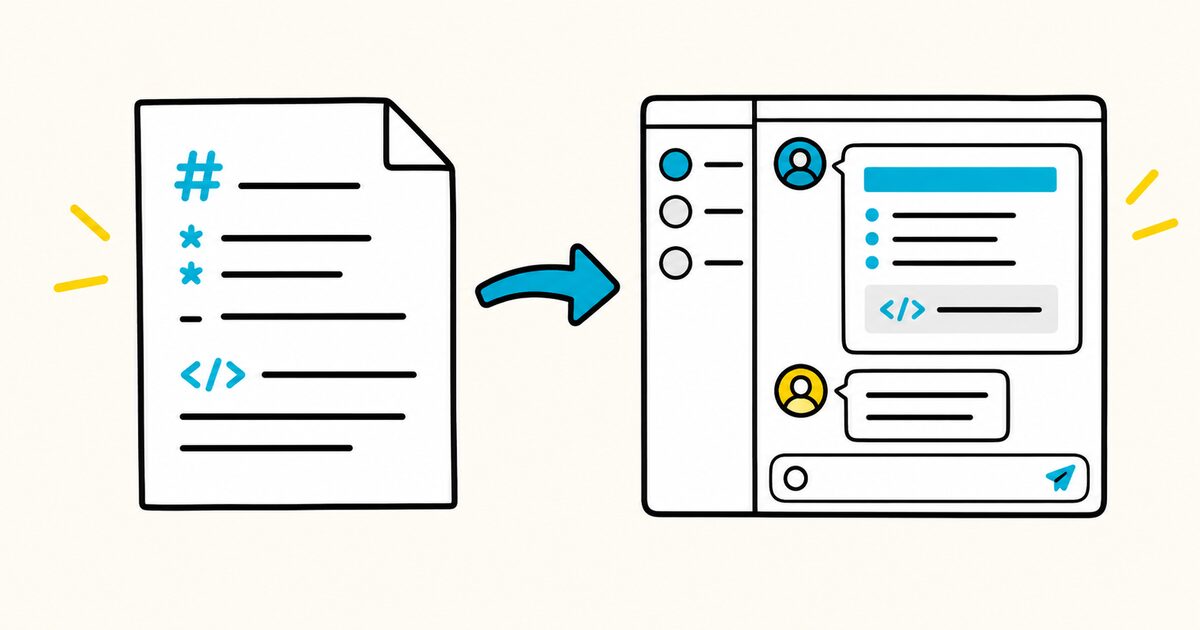
Teams is not a full CommonMark editor, and unsupported syntax may remain literal text. On mobile, Microsoft says you can view Markdown-formatted messages but cannot generate the formatting from the compose box.
Microsoft Teams Markdown syntax reference
| Result | Type this in Teams |
|---|---|
| Bold | *important* |
| Italic | _emphasis_ |
| Strikethrough | ~removed~ |
| Bulleted list | - Item or * Item |
| Numbered list | 1. Item |
| Link | [Markdific](https://markdific.com/) |
| Inline code | `npm run build` |
| Code block | Start with three backticks |
| Heading 1 | # Heading |
| Heading 2 | ## Heading |
| Heading 3 | ### Heading |
| Blockquote | > Quoted text |
Microsoft Teams Markdown Key facts
- Teams uses Markdown-style shortcuts, not a complete CommonMark or GitHub Flavored Markdown parser.
- Formatting appears as a live preview in the desktop and web compose box.
- Teams uses one asterisk for bold and one underscore for italic, which differs from standard Markdown conventions.
- Press
Ctrl+Zon Windows orCommand+Zon macOS to undo an automatic conversion. - The desktop and web apps can generate Markdown-formatted messages. Microsoft says mobile users can view, but not generate, these messages.
- Tables, task lists, footnotes, and Markdown images are not part of the documented Teams syntax.
Format text in a Teams message
Type the shortcut at the start and end of the text:
*Deployment completed*
_Reviewed by the platform team_
~Deploy at 15:00~ Deploy at 16:00
Teams converts the markers as you type. This behavior is different from standard Markdown, where bold normally uses two asterisks:
**Bold in standard Markdown**
If you paste a Markdown document into Teams, review it before sending. Syntax that works in GitHub, Obsidian, or a Markdown editor may stay visible as plain punctuation.
Create lists in Microsoft Teams
Start an unordered item with a hyphen or asterisk followed by a space:
- Confirm the release owner
- Run the smoke tests
- Post the deployment result
For an ordered list, use a number, period, and space:
1. Merge the approved pull request
2. Deploy to staging
3. Verify the checkout flow
Use the expanded formatting toolbar when you need deeper indentation or more control over list layout.
Add a link in a Teams message
Use square brackets for the link text and parentheses for the URL:
[Read the release checklist](https://example.com/release-checklist)
Teams also makes pasted URLs clickable. The Markdown-style form is better when the full URL would make the message difficult to scan.
Share inline code and code blocks
Use one backtick around a command, filename, or short expression:
Run `npm test` before opening the pull request.
For several lines of code, type three backticks and then paste the code:
```
const status = await getStatus();
console.log(status);
```
The code block is useful for logs, configuration, and short examples. For a long file, attach the file or link to the repository instead of placing hundreds of lines in chat.
Add headings and quotes
Teams documents three heading levels:
# Incident update
## Current status
### Next check
Start a line with > to create a blockquote:
> The API error rate returned to normal at 14:25 SGT.
Quotes are useful when separating a decision, customer statement, or copied error from your own explanation.
Example: a concise project update
# Checkout release update

*Status:* Ready for staging

- Pull request approved
- Automated tests passed
- Rollback steps confirmed

*Next step:* Run `pnpm deploy:staging` at 16:00 SGT.

> Do not deploy to production until the payment smoke test passes.

[Open the release checklist](https://example.com/releases/checkout)
This structure works well because it uses only the subset that Teams documents.
What does not reliably work in Teams
Do not assume support for these standard or extended Markdown features:
- tables made with pipes;
- images written as
; - task lists written as
- [ ] Task; - footnotes;
- definition lists;
- heading IDs;
- language identifiers after an opening code fence;
- raw HTML.
Use Teams attachments, Loop components, the formatting toolbar, or a linked Markdown document when you need those features.
Teams Markdown compared with standard Markdown
| Task | Microsoft Teams | Standard Markdown |
|---|---|---|
| Bold | *text* |
**text** or __text__ |
| Italic | _text_ |
*text* or _text_ |
| Strikethrough | ~text~ |
Commonly ~~text~~ in GFM |
| Image | Use an attachment or paste an image |  |
| Table | Use another Teams feature or linked document | GFM pipe table |
| Storage | Converted rich text | Plain-text Markdown source |
The safest approach is to treat Teams syntax as fast message formatting, not as a portable Markdown document format.
Fix Markdown that does not format
The punctuation remains visible
Check that you used Teams syntax, not the equivalent GitHub syntax. For example, try *bold* instead of **bold**.
Add the required space after a list marker or heading marker:
- List item
# Heading
Teams converted text you wanted to keep literal
Press Undo immediately after the conversion. For source code, wrap short text in backticks or use a code block.
A pasted Markdown document looks wrong
Paste it into a code block if people need to see the source. If they need the rendered document, share the rendered output or link to the file in its normal Markdown viewer.
Formatting differs on mobile
Create the formatted message in the desktop or web app. Microsoft currently documents mobile as able to view, but not generate, Markdown-formatted messages.
Frequently asked questions
Does Microsoft Teams support Markdown?
Yes, but only a Teams-specific subset. Microsoft describes it as Markdown-style syntax rather than a complete match for standard Markdown.
Can I paste a Markdown table into Teams?
You can paste the characters, but Teams does not document pipe-table rendering. Use another Teams feature, an image, or a linked document when the table must remain readable.
How do I create a code block in Teams?
Type three backticks at the start of the message area, then paste or type the code. Teams displays a live preview in the compose box.
Can I use Markdown in the Teams mobile app?
Microsoft says mobile users can view Markdown-formatted messages but cannot generate them. Use Teams on desktop or the web to create them.
Sources and verification
Product behavior can change. Check Microsoft’s current support page if a shortcut behaves differently in your tenant.