
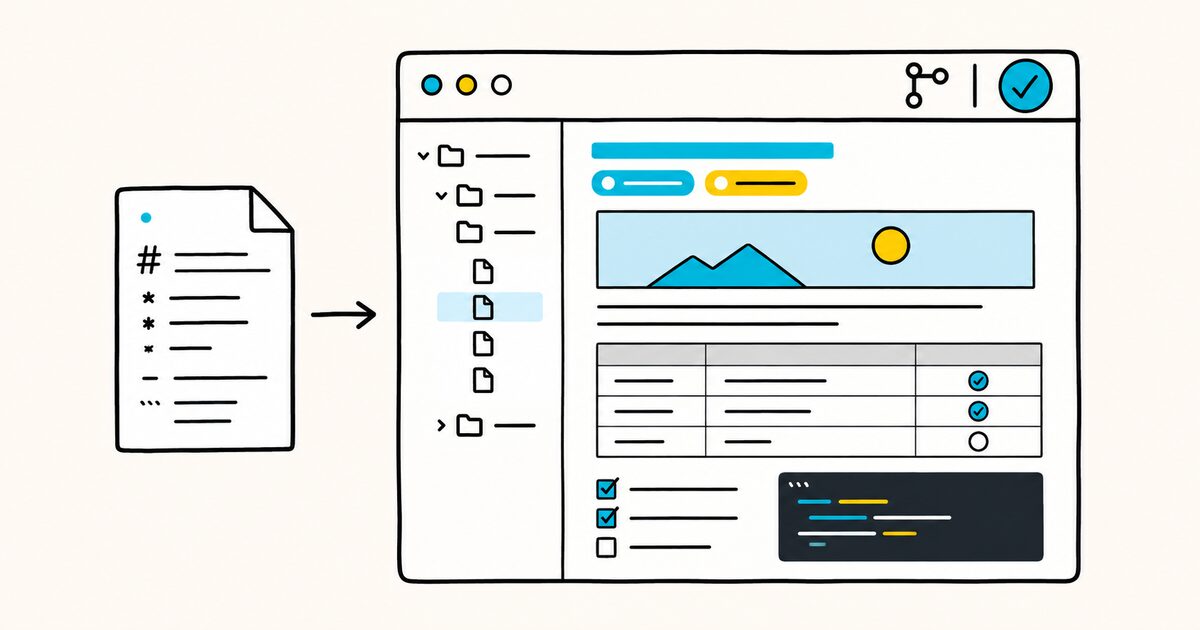
The formal GFM specification adds tables, task lists, strikethrough, and extended autolinks. GitHub's product adds more features on top, including issue references, emoji shortcodes, footnotes, alerts, and diagrams.
Write a .md file, an issue, a pull request comment, or a discussion post, and GitHub parses it as GFM. The catch that trips people up is that the same Markdown does not always render the same way in every one of those places, and this guide is mostly about those differences.
GitHub Markdown at a glance
| Element | Syntax | Notes |
|---|---|---|
| Heading | # H1 to ###### H6 |
Two or more headings generate an automatic outline |
| Bold | **text** or __text__ |
Cmd/Ctrl + B in the editor |
| Italic | *text* or _text_ |
Cmd/Ctrl + I in the editor |
| Strikethrough | ~~text~~ |
GFM extension |
| Inline code | `code` |
Cmd/Ctrl + E in the editor |
| Link | [text](https://example.com) |
Cmd/Ctrl + K in the editor |
| Image |  |
Prefer relative paths for repo images |
| Table | \| a \| b \| with a --- separator row |
GFM extension |
| Task list | - [ ] and - [x] |
Clickable in issues and pull requests |
| Blockquote | > quoted |
Stack > to nest |
| Fenced code | triple backticks + language | Language enables syntax highlighting |
| Alert | > [!NOTE] |
Also TIP, IMPORTANT, WARNING, CAUTION |
| Collapsible | <details><summary>…</summary> |
Closed by default, add open to expand |
GitHub Markdown Key facts
- The formal GFM specification extends CommonMark with tables, task lists, strikethrough, extended autolinks, and a few parser rules.
- GFM renders in
.mdfiles, issues, pull requests, discussions, wikis, gists, and comment boxes, but a handful of features behave differently depending on which of those you are in. - A single newline is handled differently in conversation surfaces and committed
.mdfiles, so preview the final destination. - Tables, task lists, and
~~strikethrough~~are GFM extensions. Mentions and repository references also depend on GitHub context. - Alerts (
> [!NOTE]), Mermaid diagrams, and collapsible<details>sections are GitHub extensions worth knowing for a README. - A README is just a Markdown file named
README.md; GitHub renders it automatically on the folder or repository page.
How GitHub Flavored Markdown works
GFM has a formal specification maintained by GitHub and based on CommonMark. GitHub then adds product features that are documented separately from that specification.
Your everyday Markdown, the headings, lists, links, and emphasis you already know, follows CommonMark. Formal GFM adds tables, task lists, strikethrough, and extended autolinks. GitHub-specific features such as alerts, diagrams, issue references, and emoji sit on top of that renderer.
For a fuller comparison of GFM against CommonMark, MultiMarkdown, and Pandoc, see Markdown flavors compared.
The important mental model: GitHub is not one renderer. A comment box, a rendered .md file, and a wiki page share most of their behavior but not all of it. The next section is the map.
Where GitHub renders Markdown, and what changes
Most basic syntax works everywhere, but repository files and conversations add different context and interactions.
| Surface | What to expect |
|---|---|
Committed .md file or README |
File-oriented rendering, relative repository links, automatic heading outline |
| Issue, pull request, or discussion | Conversation features such as mentions, references, and interactive task tracking |
| Comment editor | Live Preview tab plus conversation-aware references |
| Wiki | Repository wiki rendering; verify advanced extensions in the target wiki before relying on them |
The safest rule is to preview Markdown in the surface where it will be published. A README preview cannot confirm every interaction available in an issue or pull request.
Line breaks. In an issue or a pull request, pressing Enter once gives you a new line, the way a chat app would. Paste that same text into README.md and the two lines collapse into one paragraph.
A .md file follows the stricter Markdown rule, where a visible break needs two spaces at the end of the line, a trailing backslash, or an explicit <br> tag. See Markdown line breaks for the full rule.
References and mentions. Conversation surfaces understand repository context, issue numbers, commit references, and mentions. Test these in the destination repository, especially when content will be copied to another repository or rendered outside GitHub.
Core GitHub Markdown syntax
Headings and the automatic outline
One to six # characters set a heading level. Once a file has two or more headings, GitHub builds a table of contents you reach through the "Outline" button in the file header, so you rarely need to hand-write one for navigation.
# Project name
## Installation
## Usage
Every heading also gets an anchor, which lets you link to a section. GitHub generates the anchor from the heading text with a few rules: lowercase everything, replace spaces with hyphens, drop other punctuation, and strip formatting. So ## Set up becomes #set-up.
Jump to [installation](#installation).
If two headings produce the same anchor, GitHub appends -1, -2, and so on to keep them unique. Rename a heading and its anchor changes with it, which quietly breaks any link pointing at the old text. For headings and anchors in general, see Markdown headings and heading IDs.
Emphasis, including sub, super, and underline
GitHub covers the usual bold and italic, and adds a few styles through a small set of allowed HTML tags.
| Style | Syntax | Output |
|---|---|---|
| Bold | **text** |
text |
| Italic | _text_ |
text |
| Bold and italic | ***text*** |
text |
| Strikethrough | ~~text~~ |
~~text~~ |
| Subscript | H<sub>2</sub>O |
H(2)O |
| Superscript | x<sup>2</sup> |
x squared |
| Underline | <ins>text</ins> |
underlined text |
Strikethrough is pure GFM. Subscript, superscript, and underline lean on the <sub>, <sup>, and <ins> tags, since Markdown has no native syntax for them. More on the first three: bold and italic, strikethrough, and subscript and superscript.
Lists, links, and images
Lists, links, and images follow standard Markdown. Two GitHub-specific habits are worth adopting for repository files.
Use relative links between files in the same repo, not absolute https://github.com/... links. GitHub rewrites relative paths to match whichever branch the reader is on, so the link keeps working in forks and clones.
See the [contributing guide](docs/CONTRIBUTING.md).
Do the same for images you store in the repo. A relative path such as /assets/logo.png survives a fork; a hard-coded URL to one branch does not. Full detail on both: Markdown links and Markdown images.
GitHub Flavored Markdown features
Tables
Pipes separate columns; a row of hyphens under the header turns it into a table. Colons in the separator set alignment.

| Feature | Free | Pro |
|:--------|:----:|----:|
| Export  |  No  | Yes |
| Themes  | Yes  | Yes |
Left, center, and right alignment come from :---, :---:, and ---:. Tables do not wrap or span cells, so keep them lean. The full rules, including how to put a pipe inside a cell, live in Markdown tables.
Task lists
A task list is a checklist GitHub can track. Start each item with - [ ] for open or - [x] for done.
- [x] Draft the spec
- [ ] Review with the team
- [ ] Ship
In an issue or pull request the boxes are clickable, and checking them updates the source Markdown and the progress bar GitHub shows on the item. Reference an issue by number on its own line and GitHub expands it to the issue title.
One quirk: if an item's text starts with a parenthesis, escape it, - [ ] \(optional) clean up, or the parser mistakes it for something else. See Markdown task lists.
Autolinked references
Inside issues, pull requests, and discussions, GitHub turns several shorthand forms into links.
| You type | GitHub links to |
|---|---|
#26 |
Issue or pull request 26 |
GH-26 |
Issue or pull request 26 |
owner/repo#26 |
Issue 26 in another repo |
@octocat |
A user's profile, and notifies them |
@org/team |
A team, and notifies its members |
| A full commit SHA | That commit |
Mentioning a person only notifies them if they can see the repository. A small trick for cross-referencing without creating a back-link on the target: use redirect.github.com in place of github.com in the URL.
Emoji
Type a shortcode between colons, like :rocket: or :tada:, and GitHub renders the emoji. The editor autocompletes as you type the colon.
You can also paste a Unicode emoji directly. See Markdown emoji for the difference between the two approaches.
Footnotes
Footnotes use a caret reference and a matching definition. GitHub collects them at the bottom of the rendered output regardless of where you place the definition.
Markdown is a plain-text format.[^1]

[^1]: Created by John Gruber and Aaron Swartz in 2004.
Footnotes render in files, issues, pull requests, and discussions, but not in wikis. See Markdown footnotes.
Alerts (callouts)
Alerts are colored, icon-tagged blockquotes for information you want to stand out. They come in five types.
> [!NOTE]
> Useful context a reader should not miss.

> [!TIP]
> A shortcut or better way to do something.

> [!IMPORTANT]
> Something required for success.

> [!WARNING]
> Something that risks a mistake.

> [!CAUTION]
> A risky or destructive action.
Each renders with its own color and icon. GitHub's own guidance is to use them sparingly, one or two per document, and to avoid stacking them back to back; a wall of colored boxes stops signaling anything.
Alerts cannot be nested inside other elements. Under the hood they extend the standard blockquote syntax.
Code, diagrams, and math
Fenced code and syntax highlighting
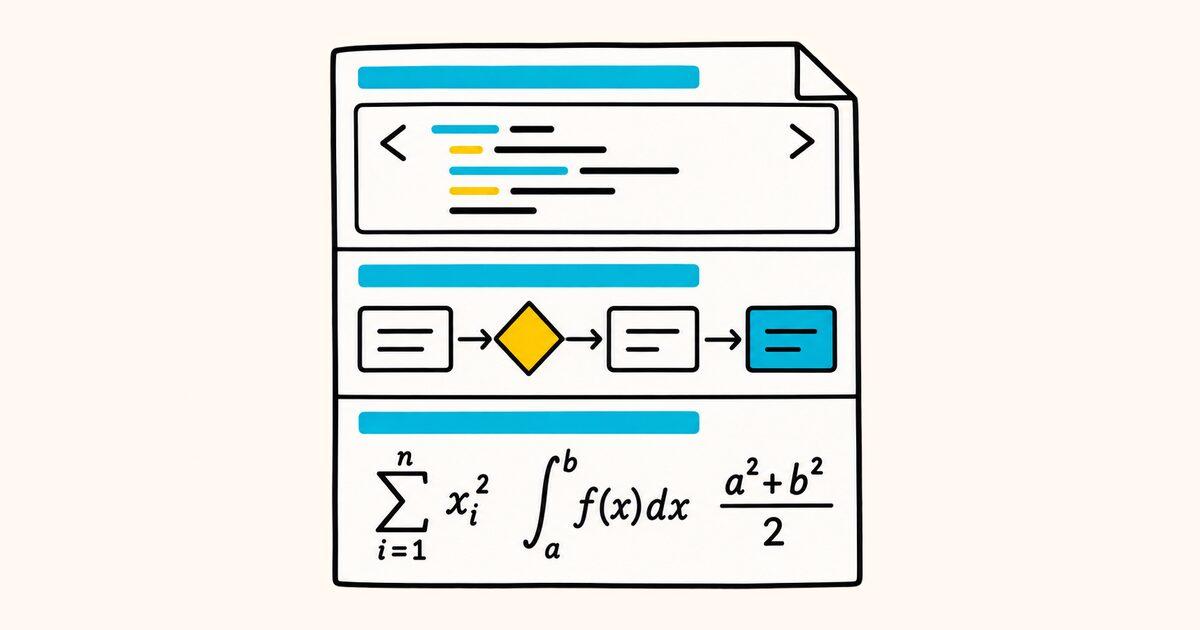
Wrap code in triple backticks, and add a language name after the opening fence to turn on highlighting.
```python
def greet(name):
    return f"Hello, {name}"
```
GitHub uses a library called Linguist to detect the language and color the tokens, so the language name has to match one Linguist knows. To show literal triple backticks inside a block, wrap the whole thing in four backticks. Details and the language-name list: fenced code blocks and syntax highlighting.
Diagrams
GitHub renders four diagram syntaxes from inside a code fence: Mermaid, GeoJSON, TopoJSON, and ASCII STL. Label the fence with the matching identifier.
```mermaid
graph TD;
    A-->B;
    A-->C;
    B-->D;
    C-->D;
```
Mermaid handles flowcharts, sequence diagrams, and more from plain text, which means your diagram lives in version control alongside the code. Diagram rendering works in issues, discussions, pull requests, wikis, and Markdown files. See Mermaid diagrams.
Math
GitHub renders LaTeX math with MathJax. Use single dollar signs for inline math and double dollar signs for a display block, or a ```math fenced block.
The area is $\pi r^2$.

$$
E = mc^2
$$
More patterns are in Markdown math.
HTML inside GitHub Markdown
GitHub allows a subset of raw HTML and strips anything unsafe. Scripts, styles, and most attributes are removed, so you cannot bring in custom CSS or JavaScript. What survives is enough for layout tricks Markdown cannot do on its own.
| You want | Use |
|---|---|
| A collapsible section | <details> and <summary> |
| Subscript or superscript | <sub>, <sup> |
| Underline | <ins> |
| A fixed image width | <img src="…" width="400"> |
| A light and dark image | <picture> with prefers-color-scheme |
| Hidden notes in the source | <!-- comment --> |
An HTML comment is the standard way to leave notes that never appear in the rendered file. See inline HTML in Markdown for what passes through and what gets sanitized.
Collapsible sections
<details> hides content behind a toggle. <summary> sets the label. Add open to start expanded.
<details>
<summary>Environment variables</summary>

- `API_KEY`: your key
- `PORT`: defaults to 3000

</details>
This is handy for long logs, optional setup steps, or a FAQ inside a README, where you want the page short but the detail available on click.
Writing a README that reads well
A README is a Markdown file named README.md. Put one in the repository root and GitHub shows it on the repo home page; put one in any folder and it renders on that folder's page. There is nothing special about the format, only the name and the placement.
A dependable structure for most projects:
| Section | Purpose |
|---|---|
| Title and one-line description | What the project is, in a sentence |
| Badges | Build status, version, license at a glance |
| Screenshot or demo | Show the thing before explaining it |
| Install | The exact commands to get running |
| Usage | The smallest real example |
| Configuration | Options, environment variables |
| Contributing | How to help, linked to a longer file |
| License | What people can do with it |
A few things make a README easier to live with:
- Lead with a working example, not a philosophy. People scan for the command that gets them running.
- Store images in the repo and link them relatively, so screenshots survive forks.
- Use a
<picture>block withprefers-color-schemeif your logo needs a different version on dark backgrounds. - Let GitHub's automatic outline handle navigation for short READMEs; hand-build a table of contents with anchor links only when the file is genuinely long.
- Move deep detail into
docs/and link to it, keeping the front page short.
Because a README is Markdown, you can write and preview it in any Markdown editor before you push. Markdific opens and renders .md files on Mac and Windows with a live preview, so you can see the formatting exactly before it lands on GitHub, then export to PDF, Word, or HTML if you need to share it outside the repo.
Accessibility that survives the preview
- Give images meaningful alt text that explains their purpose.
- Use descriptive link labels instead of “click here”.
- Keep heading levels in a logical order so the outline is useful to keyboard and screen-reader users.
- Do not rely on color alone to communicate status in badges, diagrams, or tables.
- Add a text explanation near complex diagrams and screenshots.
- Use tables for data, not page layout, and keep their headers clear.
Common mistakes and quick fixes
| Problem | Cause | Fix |
|---|---|---|
| Lines run together in a README | .md files ignore single newlines |
End the line with two spaces, a \, or <br> |
| A repository reference does not resolve | It lacks enough repository context | Use a full GitHub URL or an explicit Markdown link |
| Table not rendering | Missing the --- separator row |
Add the hyphen row under the header |
| Code block shows no colors | Missing or misspelled language name | Add a valid language after the opening fence |
| A platform-specific element does not render | It is unsupported on that GitHub surface | Check the feature's current GitHub documentation and preview the destination |
| Section link is broken | Heading text changed, so the anchor did | Update the #anchor to match the new heading |
| Alert renders as a plain quote | Typo in the label or an old surface | Use exact > [!NOTE] casing on a supported surface |
How GitHub Markdown differs from other flavors
If you also write for other tools, keep the boundaries in mind. Tables, task lists, and strikethrough are GFM staples that plain CommonMark does not include.
Alerts, colored #hex chips, @mention and #issue autolinks, and the Mermaid or STL diagram fences are GitHub-specific, so they will not carry over to a generic Markdown renderer or a different platform. Footnotes and definition lists vary by tool.
For a side-by-side of what each flavor supports, see Markdown flavors compared.
Editing tips
The comment editor and file editor both have a Preview tab. Use it to catch a broken table or missing fence before you post.
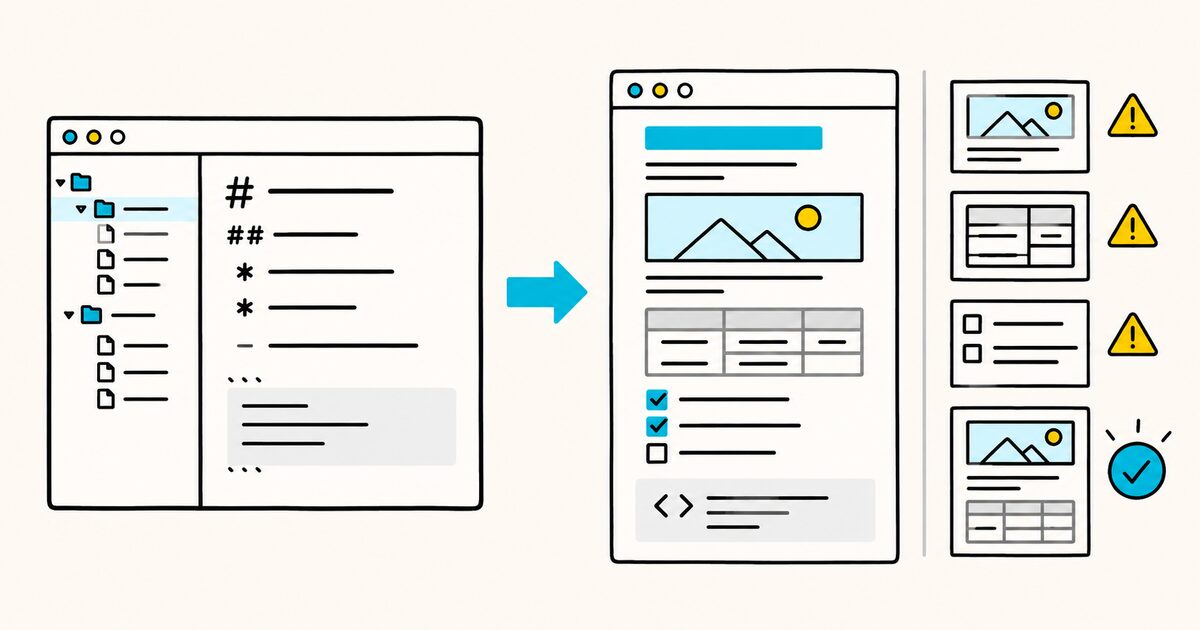
Keyboard shortcuts cover common formatting: Cmd/Ctrl + B for bold, Cmd/Ctrl + I for italic, Cmd/Ctrl + E for inline code, and Cmd/Ctrl + K for a link. GitHub also offers a fixed-width font setting for comment boxes, which helps code and table columns line up while you type.
For a printable summary of the syntax itself, the Markdown cheat sheet covers the elements; this guide covers what GitHub adds on top.
FAQ
What is GitHub Flavored Markdown (GFM)?
GFM is GitHub's CommonMark-based Markdown dialect. Its formal extensions include tables, task lists, strikethrough, and extended autolinks. GitHub also supports product-specific features such as issue references, emoji, footnotes, alerts, and diagrams.
Does Markdown work the same in a README and in issues?
Mostly, with a few exceptions. A single newline becomes a line break in issues, pull requests, and discussions, but not in a .md file. Autolinks like #123 and color chips work in conversations but not in files. Footnotes and alerts work in files but not in wikis.
How do I add a table of contents to a README on GitHub?
For most READMEs you do not need to. Once a file has two or more headings, GitHub generates an outline you open with the "Outline" button. For a long file, hand-build one with a bulleted list of anchor links, where each link points to the lowercase, hyphenated version of a heading, such as [Install](#install).
Why doesn't my line break show up in a README?
Markdown files ignore single newlines and merge the lines into one paragraph. To force a break, end the first line with two spaces, a backslash, or a <br> tag. Issues and pull requests do not have this problem because GitHub adds the break for you there.
How do I add colored text or alerts on GitHub?
GitHub does not support arbitrary colored text in Markdown. For emphasis blocks, use alerts: > [!NOTE], > [!TIP], > [!IMPORTANT], > [!WARNING], or > [!CAUTION]. A color swatch also appears when you put a hex, RGB, or HSL value in backticks, but only in issues, pull requests, and discussions.
Can I use HTML in GitHub Markdown?
Yes, a safe subset. Tags like <details>, <summary>, <sub>, <sup>, <ins>, <img>, and <picture> pass through. GitHub strips scripts, styles, and unsafe attributes, so you cannot add custom CSS or JavaScript.
How do I show a diagram in a GitHub README?
Put the diagram source in a fenced code block labeled with its type. GitHub renders Mermaid, GeoJSON, TopoJSON, and ASCII STL. A ```mermaid block is the most common choice for flowcharts and sequence diagrams, and it works in files, issues, pull requests, discussions, and wikis.
How do I preview Markdown before pushing to GitHub?
Use the Preview tab in GitHub's editor, or write in a Markdown editor first. Markdific renders .md files with a live preview on Mac and Windows, so you can confirm the formatting before you commit, then export to PDF, Word, or HTML if you need a copy outside the repo.
Sources and verification
- GitHub Flavored Markdown specification
- GitHub: Basic writing and formatting syntax
- GitHub: Organizing information with tables
- GitHub: About READMEs
GitHub behavior was checked on 26 September 2026. Preview the exact surface where the content will be published.
Related pages
- Markdown flavors compared
- Markdown tables
- Markdown task lists
- Fenced code blocks
- Mermaid diagrams
- Markdown cheat sheet
- What is a .md file?