
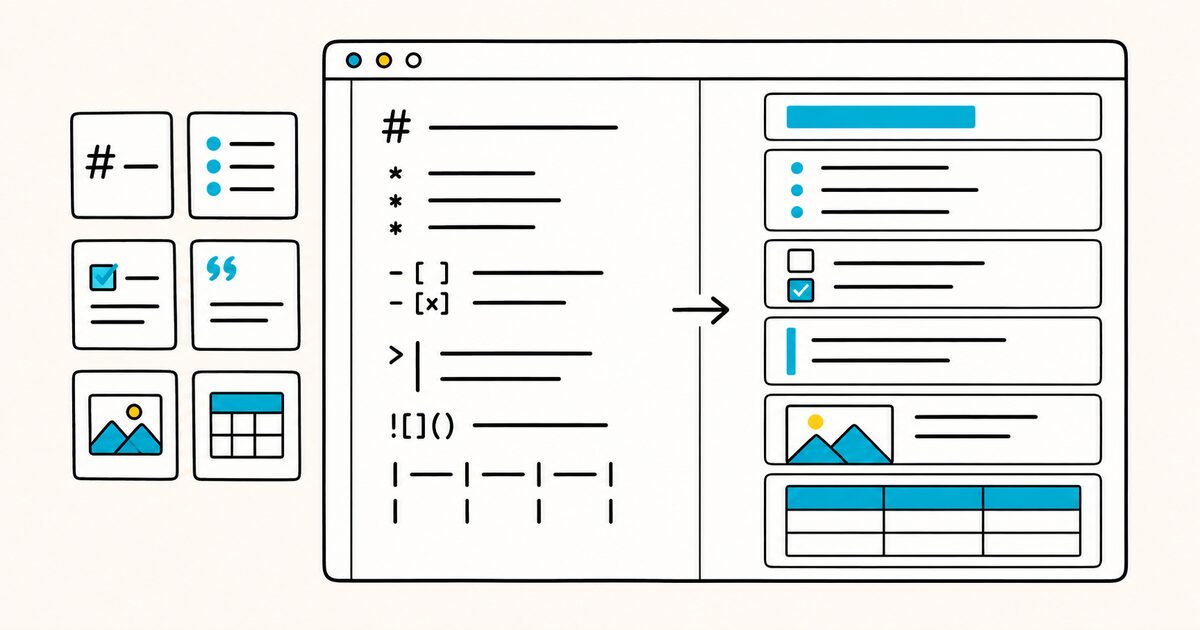
You can also import Markdown files into Notion and export your pages back out to Markdown, with some formatting trade-offs on the way out. This guide covers all three: the typing shortcuts, importing, and exporting.
Notion Markdown shortcuts at a glance
| You type | Notion creates |
|---|---|
**text** |
Bold text |
*text* |
Italic text |
`text` |
Inline code |
~text~ |
Strikethrough |
# |
Heading 1 |
## |
Heading 2 |
### |
Heading 3 |
-, *, or + |
Bulleted list |
1., a., or i. |
Numbered list |
[] |
To-do checkbox |
> |
Toggle list |
" |
Quote block |
--- |
Divider |
Notion Markdown Key facts
- Notion uses Markdown shortcuts for input, but it stores content as blocks, not as a Markdown file.
- Typing
**text**,#,-, or`code`converts to the matching block or style while you type. - Two shortcuts differ from standard Markdown:
>makes a toggle list, and"makes a quote block. - Notion imports
.mdand.markdownfiles and turns each into a page; on Notion Desktop you can also open.mdfiles as a read-only preview. - File import is available on desktop and web, not mobile. The desktop app can open up to ten Markdown files at once as read-only copies.
- Exporting a page as Markdown works, but callout blocks come out as HTML because Markdown has no equivalent.
- Anchor links and nonstandard Markdown extensions do not survive the round trip into Notion.
Does Notion use Markdown?
Not as a file format. Everything on a Notion page is a block, from a paragraph to an image to a toggle, and Notion saves those blocks in its own structure rather than as .md text. The Markdown you type is treated as an input shortcut: Notion watches for the pattern and swaps in the matching block.
This is the key difference from a tool like Obsidian, where the file on disk is Markdown. In Notion, the Markdown is a convenience for typing, not the thing being stored.
That distinction matters most at the edges, when you move content in or out. Inside Notion, you get the speed of Markdown without thinking about it. Crossing the border, in an import or an export, is where formatting can shift, so the later sections spell out what changes.
Formatting shortcuts while you type
Notion recognizes inline Markdown as you write. Wrap text in the marker and it formats when you close it.
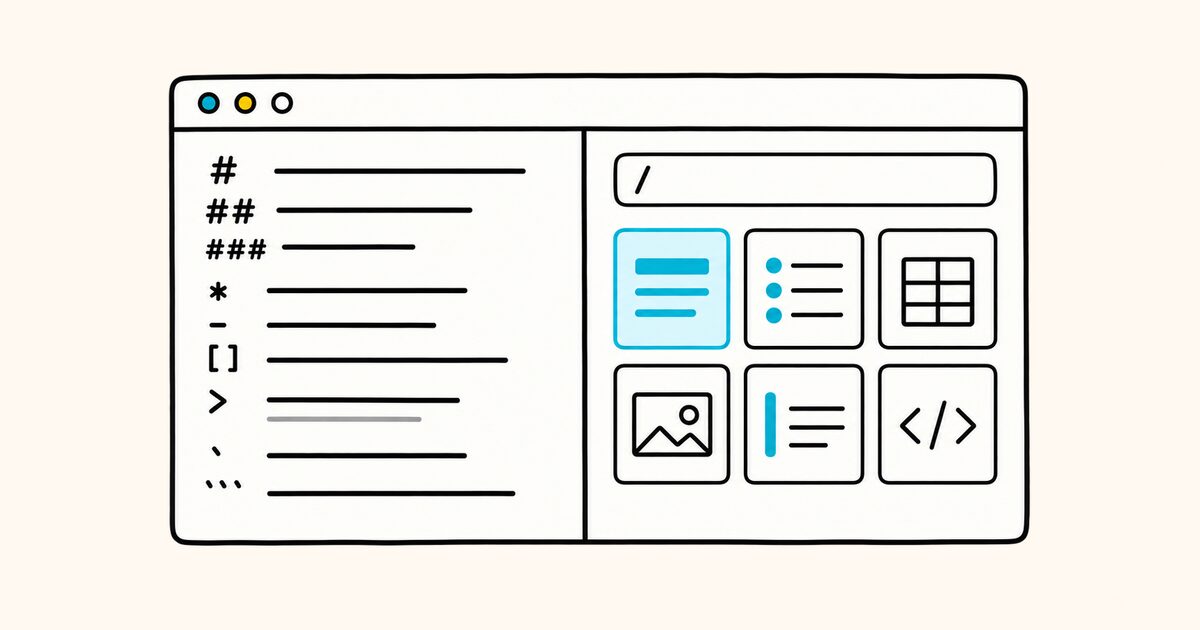
**bold**for bold*italic*for italic`code`for inline code~strikethrough~for strikethrough
At the start of a new line, a few characters plus a space create a block:
#,##,###for the three heading levels-,*, or+then a space for a bulleted list1.,a., ori.for a numbered list[]for a to-do checkbox, with no space inside the brackets---for a divider
Two of these break from what standard Markdown does, and they catch people out:
>then a space makes a toggle list, not a blockquote."then a space makes a quote block.
If you want a genuine blockquote in the sense you would get on GitHub, reach for the " shortcut or the /quote slash command. For the standard behavior these shortcuts imitate, see blockquotes and horizontal rules.
Line breaks and blocks
Pressing Enter starts a new block. To add a line break inside the same block, press Shift and Enter together. This is worth knowing because a plain Enter in Notion behaves more like a new paragraph than a soft wrap, which differs from how a single newline works in a Markdown file.
Slash commands for what Markdown cannot type
Some blocks have no Markdown shortcut, and you insert them from the slash menu instead. Type / and pick from the list.
| Command | Inserts |
|---|---|
/code |
A code block |
/quote |
A quote block |
/toggle |
A toggle list |
/toc |
A table of contents |
/equation, /math, or /latex |
A block TeX equation |
/inline equation |
An inline TeX equation |
Math uses TeX. You can insert a block equation from the slash menu, and for inline math you can wrap TeX in $$...$$ or use the inline equation command. The underlying notation is the same. For that notation, see Markdown math. Callouts are a Notion block with no Markdown syntax at all, which becomes relevant when you export, covered below.
Importing Markdown into Notion
Notion imports Markdown files and turns each one into a page. Go to Settings, then Import, or type / on a page and search for the importer.
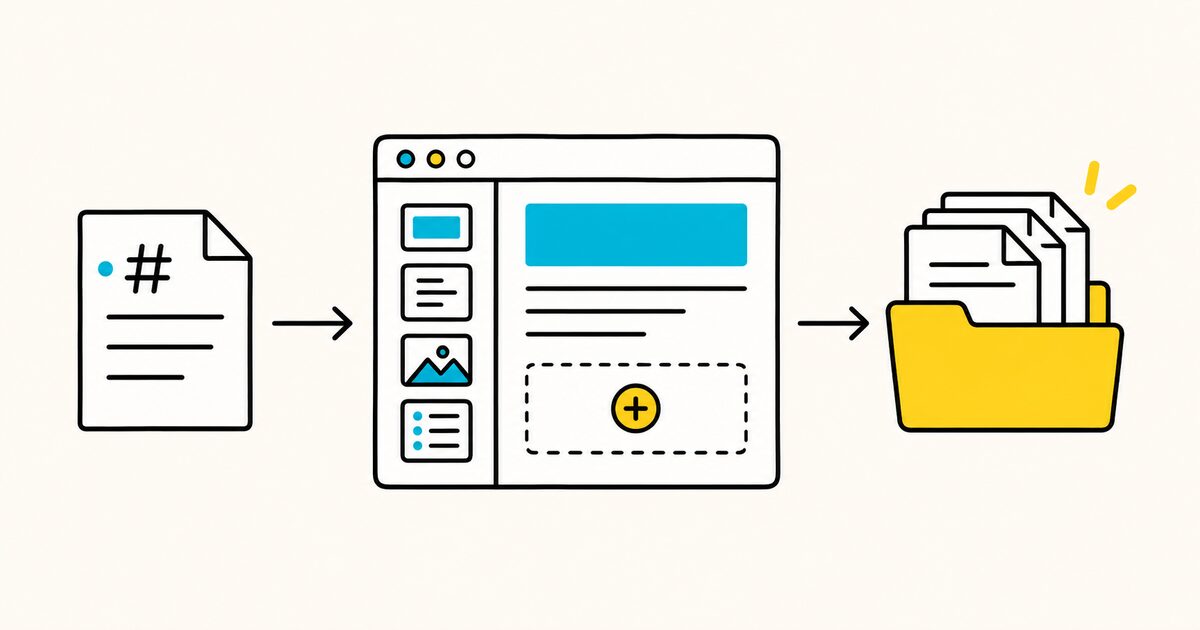
The supported text formats include .txt, .md, and .markdown, alongside .docx, .csv, .html, .pdf, and .zip. For a folder of notes, zip it first and use the ZIP importer, which converts many Markdown files into pages in one pass.
What comes across cleanly, and what does not:
| Imports cleanly | Does not import |
|---|---|
| Plain text and standard Markdown | Anchor links |
| Headings, lists, code blocks | Nonstandard Markdown extensions |
The "nonstandard extensions" line is the one to watch. Tool-specific syntax, the kind Obsidian or a static-site generator adds on top of standard Markdown, may not convert. If your source file sticks to CommonMark-level syntax, the import is predictable.
File size caps apply: 5 MB per file on the Free plan and 50 MB on paid plans, with a rate limit of about 120 file imports every 12 hours. These limits were verified against Notion's help documentation on 26 September 2026 and may change.
Opening a Markdown file without importing
On Notion Desktop you can open a Markdown file to read it with Notion's formatting, without converting it into a permanent page. Right-click the file in Finder or File Explorer and choose Open With, then Notion, and it opens as a read-only preview in a new tab. You can open up to ten at once.
The recognized extensions are .md, .markdown, .mdown, .mkdn, .mkd, and .rmd.
Exporting Notion pages to Markdown
Notion exports pages in three formats: PDF, HTML, and Markdown & CSV. For Markdown, click the ••• menu at the top right of a page, choose Export, and pick Markdown & CSV.
How the export maps out:
- A regular page becomes a
.mdfile. - A full-page database becomes a
.csvfile, with a Markdown file for each of its subpages. - Turning on Include subpages downloads everything as a zip, with images and other assets saved alongside.
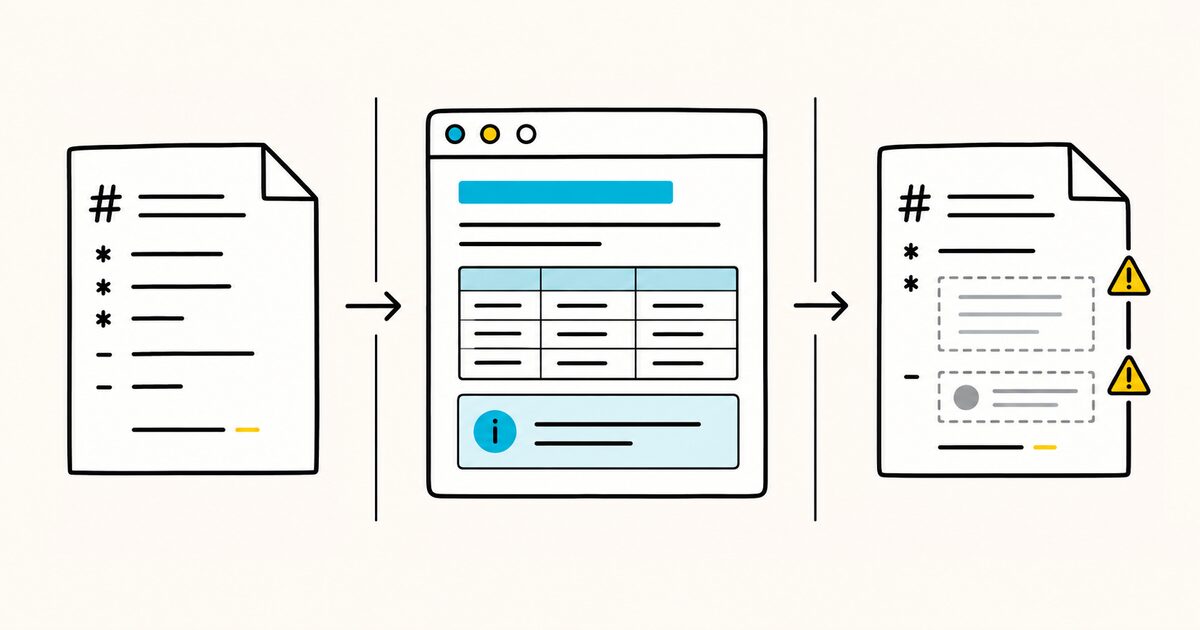
One detail is worth planning around: callout blocks export as HTML, because Markdown has no callout equivalent. So a page that leans on callouts will come out as Markdown with HTML fragments mixed in. If you need clean, portable Markdown, keep the source page to standard blocks, or plan to convert those callouts by hand after export.
What survives a Notion round trip
Put the import and export rules together and the picture is simple. Standard Markdown, headings, lists, code, and links, moves in and out of Notion reliably. The Notion-only or tool-specific pieces are where fidelity drops: callouts turn into HTML on the way out, and anchor links and nonstandard extensions can fall away on the way in.
If portability is the goal, keep the content standard at both ends.
| Content | Into Notion | Out of Notion |
|---|---|---|
| Headings, lists, code, links | Reliable | Reliable |
| Tables | May not convert (a GFM extension) | Databases export as CSV |
| Callouts | No Markdown syntax to import | Export as HTML |
| Anchor links | May not import | Depends on structure |
| Tool-specific extensions | May not import | Not reproduced |
Notion versus a Markdown app
The core difference decides which tool fits which job.
| Notion | A Markdown app | |
|---|---|---|
| What a page is | Blocks in Notion's format | A plain .md file |
| Markdown's role | Typing shortcut | The document itself |
| Where content lives | Notion's cloud | Your disk |
| Portability | Import and export | Open the file anywhere |
If you keep source-of-truth notes as Markdown files and use Notion for collaboration and structure, exporting to Markdown is how you get a portable copy back. Because that export is a plain .md file, you can open and read it in any Markdown tool. Markdific opens and previews .md files on Mac and Windows and exports them to PDF, Word, or HTML, which is one way to turn a Notion export into a shareable document.
It renders standard Markdown, so the cleaner your export, the better it displays; the HTML that Notion emits for callouts will show as raw tags.
FAQ
Does Notion use Markdown?
Notion uses Markdown-style shortcuts for typing, but it does not store pages as Markdown files. Content is saved as blocks in Notion's own format. You can import Markdown into Notion and export pages back out to Markdown, with some formatting trade-offs.
How do I type Markdown in Notion?
Type the marker as you write: **bold**, *italic*, `code`, or ~strikethrough~. At the start of a line, use # for a heading, - for a bullet, 1. for a numbered list, or [] for a to-do. Notion converts each to the matching block.
Why does > create a toggle instead of a quote in Notion?
Notion maps > to a toggle list rather than a blockquote. To make a quote, type " followed by a space, or use the /quote slash command. This is one of the few places Notion's shortcuts differ from standard Markdown.
Can I import a Markdown file into Notion?
Yes. Go to Settings, then Import, and choose Text & Markdown, or type / on a page and search for the importer. Each .md file becomes a page. For many files at once, zip the folder and use the ZIP importer.
Can I open a .md file in Notion without importing it?
On Notion Desktop, right-click the file and choose Open With, then Notion, to open it as a read-only preview. You can open up to ten Markdown files at once, and this does not convert them into permanent pages.
How do I export a Notion page as Markdown?
Open the page's ••• menu, choose Export, and select Markdown & CSV. A regular page exports as a .md file; a database exports as CSV with Markdown files for its subpages. Callout blocks are exported as HTML.
What formatting is lost when exporting Notion to Markdown?
Callouts export as HTML because Markdown has no callout syntax. Databases become CSV rather than Markdown tables. Standard content like headings, lists, code, and links exports cleanly.
Does Notion support standard Markdown tables?
You do not build tables with pipe syntax while typing in Notion; you insert a table or database from the slash menu. Pipe tables are a GitHub Flavored Markdown extension, so a Markdown import may not convert them cleanly. To bring in tabular data, import a CSV, which creates a Notion database.
Sources and verification
Import formats, limits, and desktop preview behavior were checked on 26 September 2026.
Related pages
- Markdown on GitHub
- Markdown in Obsidian
- Markdown flavors compared
- Markdown cheat sheet
- What is a .md file?