
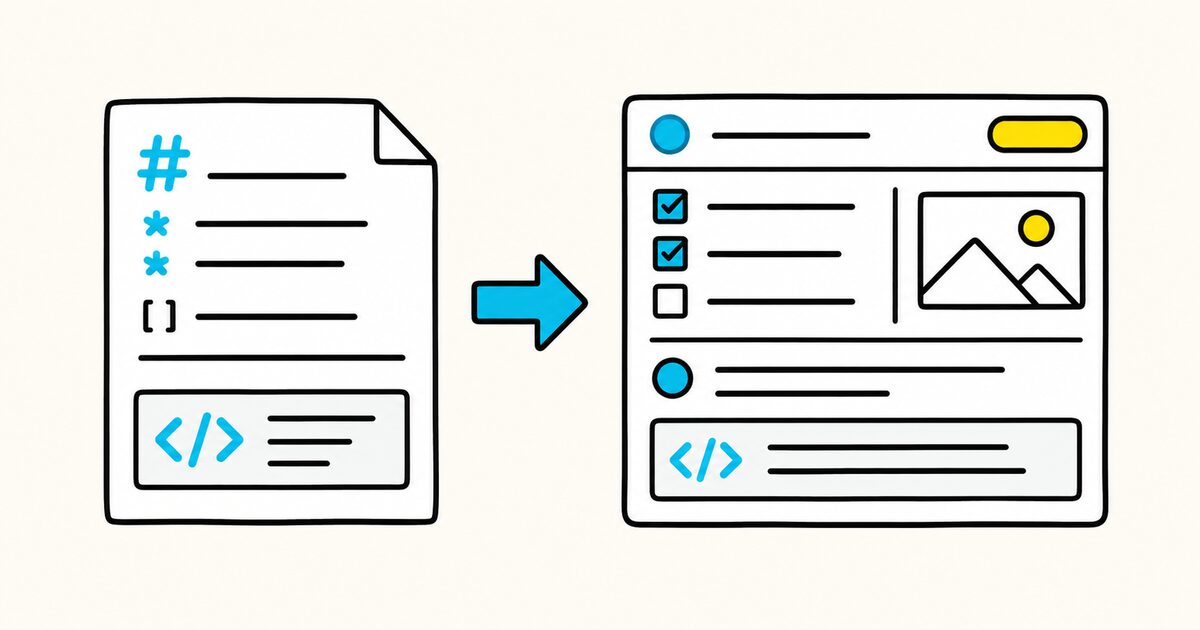
Atlassian now uses “work item” in its current documentation, although many users still search for and say “issue.” The editor converts supported shortcuts as you type or paste them, then stores the result as formatted Jira content.
This is not the same as editing a plain .md file. Atlassian says you can paste raw Markdown into the editor, but you cannot convert the formatted content back into raw Markdown from the editor.
Jira Markdown syntax reference
| Result | Markdown to type |
|---|---|
| Bold | **text** or __text__ |
| Italic | *text* or _text_ |
| Strikethrough | ~~text~~ |
| Inline code | `text` |
| Link | [text](https://example.com) |
| Image from URL |  |
| Heading | # through ###### |
| Bulleted list | - Item or * Item |
| Numbered list | 1. Item or 1) Item |
| Action item | [] followed by Space |
| Blockquote | > Quoted text |
| Horizontal rule | --- or *** |
| Emoji | :emoji-name: |
| Code block | Three backticks: ``` |
Jira Markdown Key facts
- Jira Cloud converts Markdown into rich text as you type.
- Markdown works in supported rich-text fields, not necessarily in every field or third-party app.
- Jira does not provide a built-in conversion from formatted editor content back to raw Markdown.
- The slash command
/opens the insert menu for code, tables, images, and other elements. []followed by Space creates an action item in Atlassian’s editor.- Older Jira documentation and Jira Data Center instances may use Jira wiki markup, which is a different syntax.
Write a useful Jira issue description
A good issue description makes the expected outcome, scope, and verification clear. This example uses syntax documented for Jira Cloud:
# Checkout fails after a declined card

## Summary

Customers cannot submit a second payment after the first card is declined.

## Steps to reproduce

1. Add a product to the cart.
2. Enter a card that will be declined.
3. Submit payment.
4. Replace the card and submit again.

## Actual result

The second request returns `409 payment_attempt_locked`.

## Expected result

The customer can retry with a different card.

## Acceptance criteria

[] A declined attempt does not lock the checkout.
[] A second card can be submitted in the same session.
[] The retry path has an automated regression test.

## Diagnostic output

```
POST /api/payments 409
code=payment_attempt_locked
```
After pasting, check that the editor converted each heading, list, action item, and code block correctly.
Add headings, lists, and action items
Use up to six heading levels:
# Main heading
## Section heading
### Subsection heading
For lists:
- First item
- Second item
  - Nested item

1. First step
2. Second step
Press Tab to indent a list item and Shift+Tab to outdent it.
For an action item, type empty square brackets and then press Space:
[] Verify the production configuration
This is an Atlassian editor shortcut. It is not the same source syntax as a GitHub task list, which normally uses - [ ] Task.
Add links and images
Create a named link with standard Markdown syntax:
[Open the API specification](https://example.com/api-spec)
To insert a remote image by URL:

The URL must be accessible to the people viewing the issue. For private screenshots, use Jira’s attachment or image controls instead of placing a temporary or access-controlled URL in Markdown.
Do not paste secrets, access tokens, customer records, or other sensitive data into an issue or screenshot.
Add inline code and code blocks
Use inline code for a filename, command, field, or short value:
The error is raised by `PaymentAttemptService` when `status=declined`.
Start a block with three backticks for logs or several lines of code:
```
if (attempt.status === "declined") {
  return allowRetry(attempt);
}
```
You can also type /code and choose the code-block element. Use the toolbar or slash command when you need editor-specific options such as a language selector.
Jira Markdown versus Jira wiki markup
Jira Cloud’s current rich-text editor accepts Markdown shortcuts. Older Jira versions, Jira Data Center configurations, API integrations, or imported content may refer to Jira wiki markup.
| Purpose | Markdown-style input | Jira wiki markup often seen in older content |
|---|---|---|
| Heading | ## Heading |
h2. Heading |
| Bold | **bold** |
*bold* |
| Link | [text](https://example.com) |
[text|https://example.com] |
| Code block | Three backticks | {code} block |
Do not silently mix the two formats. Confirm whether you are typing in Jira Cloud’s current rich-text editor, a Data Center instance, an API field, or an integration that expects wiki markup.
Paste Markdown into Jira without losing structure
- Open an issue description or comment that uses the Atlassian rich-text editor.
- Paste a small section first.
- Confirm headings, lists, code blocks, links, and action items.
- Add images through Jira when the source URL is not public and stable.
- Review the rendered issue before saving.
- Keep the original
.mdfile elsewhere if you need portable source or version history.
The last step matters because Jira does not provide a reliable round trip from its rich-text document back to the original Markdown.
Common Jira Markdown problems
Markdown remains visible as plain text
The field may not use the Atlassian rich-text editor, or an app may provide its own editor. Try the issue description or comment field in Jira Cloud, then confirm the behavior with your Jira administrator.
A checklist did not convert
Atlassian documents [] followed by Space as the action-item shortcut. A GitHub-style - [ ] list may not convert in the same way.
An image does not appear
Open the image URL in a private browser window. If it requires a login, expires, blocks hotlinking, or redirects to an HTML page, Jira may not be able to display it. Attach the image directly when access must be controlled.
Pasted code lost its line breaks
Use a fenced code block or insert a code block with /code before pasting.
Old examples use different syntax
They may describe Jira wiki markup or an older editor. Check the product and deployment type before copying syntax.
Frequently asked questions
Does Jira support Markdown?
Jira Cloud’s Atlassian editor supports Markdown input in rich-text fields and converts it into formatted content. It is not a general-purpose Markdown file editor.
Can I export a Jira description as Markdown?
Atlassian’s current support page says raw Markdown can be pasted into the editor, but formatted content cannot be converted back into raw Markdown there. Export workflows may require an API, app, or custom conversion and should be tested separately.
Can Jira render Markdown images?
Jira Cloud documents  for an image from a URL. Use Jira attachments for private, temporary, or access-controlled images.
Is Jira wiki markup the same as Markdown?
No. Some concepts overlap, but the punctuation and processing rules differ.
Sources and verification
Jira behavior can vary by deployment, field type, and installed apps. Verify critical formatting in the Jira environment where the issue will be used.