
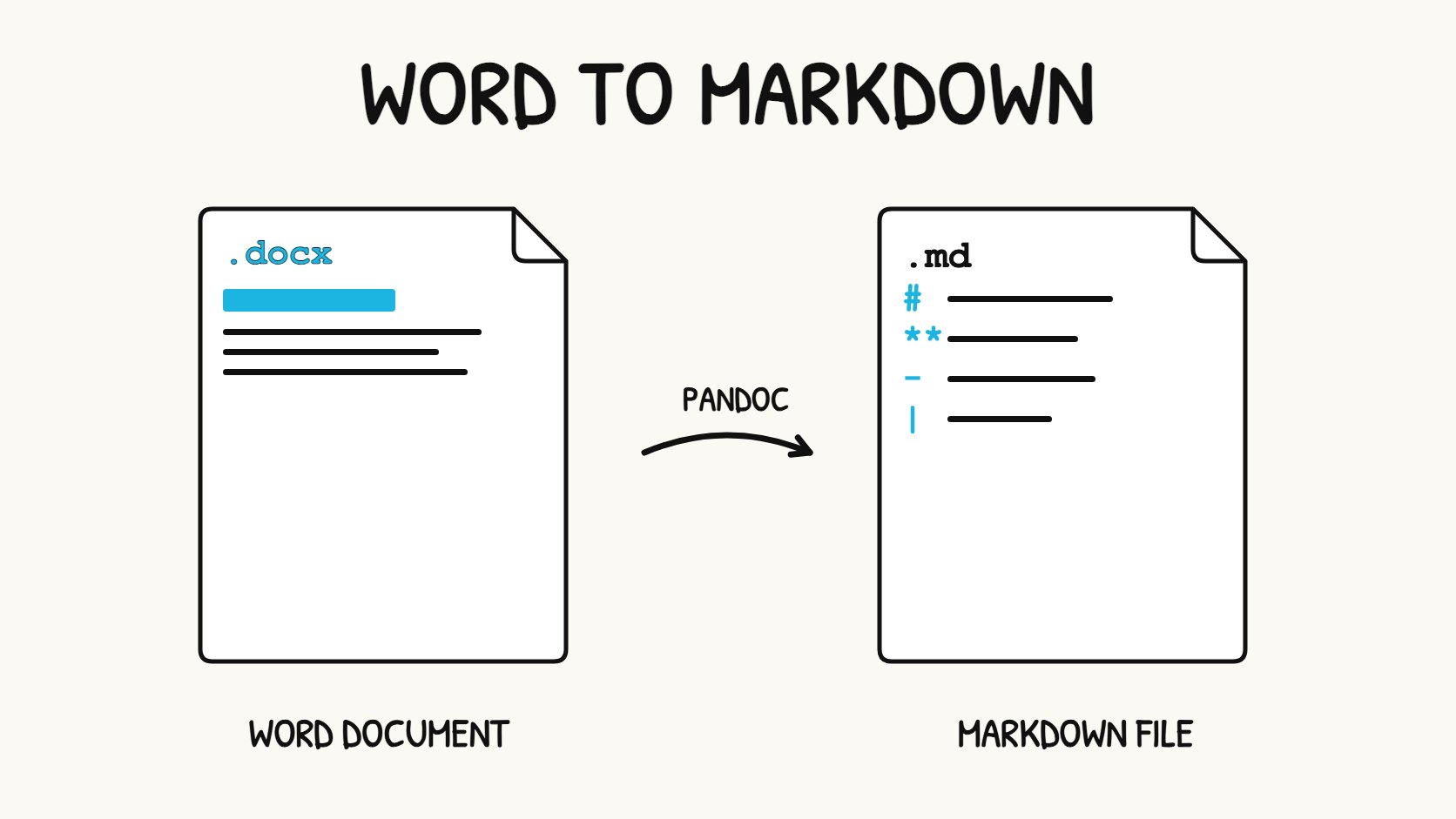
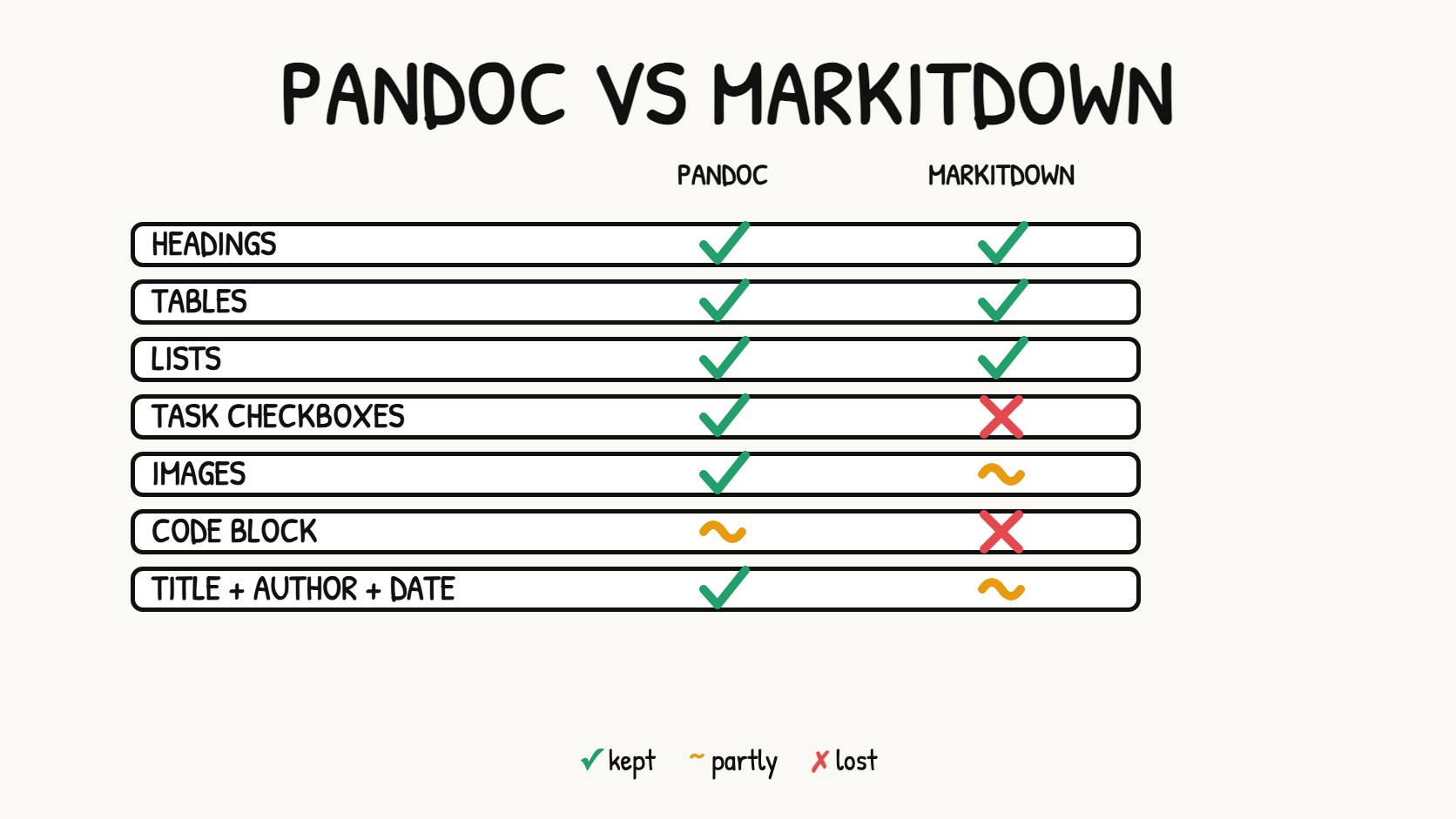
Short answer: Use Pandoc. Run pandoc report.docx -s -t gfm-raw_html --wrap=none --extract-media=media -o report.md. In our test it kept the headings, lists, four tables, task checkboxes, quote and both images, and it brought back the title, author and date. MarkItDown is quicker to run but dropped the checkboxes and quote, and its image links and code block were not usable.
Word to Markdown at a glance
| Question | Answer |
|---|---|
| Best free tool | Pandoc |
| Command | pandoc report.docx -s -t gfm-raw_html --wrap=none --extract-media=media -o report.md |
| Output | A .md file plus a media/ folder with your images |
| Works on | Mac, Windows and Linux |
| Keeps | Headings, bold text, lists, tables, images, quotes, checkboxes |
| Does not keep | Fonts, colours, page layout, headers and footers |
| Check the result in | A Markdown editor with a preview, such as Markdific or the online Markdown editor |
Key facts
- Markdown describes structure (headings, lists, tables), not appearance. Fonts, colours and page layout do not come across.
- Pandoc reads
.docxfiles directly and writes GitHub Flavored Markdown. It runs offline, so your document stays on your computer. - Pandoc relies on Word's built-in styles. Text that only looks like a heading, because it is large and bold, is read as normal text. Use Heading 1, Heading 2 and so on in the source document.
- Images are saved as separate files, so keep the
.mdfile and the image folder together. - Always open the result in a preview before you rely on it. The checks below show what to look at first.
- New to the format? Start with What is Markdown?.
What carries over and what does not
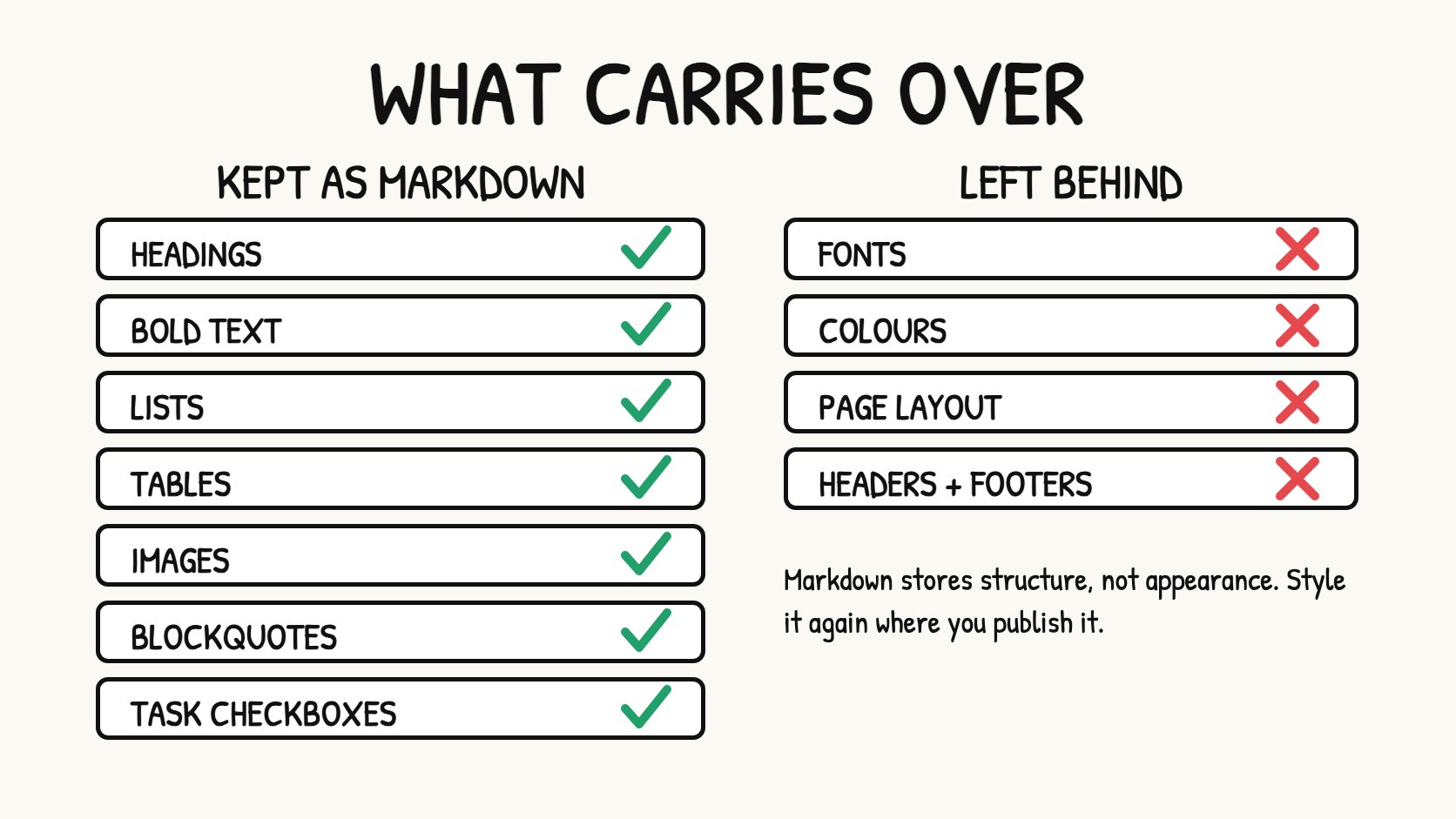
Fonts, colours, page layout, headers and footers have no Markdown equivalent, so they are left behind. If the look matters, style the Markdown again where you publish it, for example in a Markdown editor or on a website with its own theme.
Method 1: convert with Pandoc
1. Install Pandoc.
- Mac:
brew install pandoc(with Homebrew). - Windows: use the installer from the Pandoc installation page.
- Linux: use your package manager, for example
sudo apt install pandoc. Distribution packages can be older than the current release, so checkpandoc --version.
2. Convert the file. Put report.docx in a folder and run:
pandoc report.docx -s -t gfm-raw_html --wrap=none --extract-media=media -o report.md
What each part does:
| Part | What it does |
|---|---|
-s |
Writes a standalone file. For Markdown this adds a front matter block with the title, author and date from the Word file |
-t gfm |
Writes GitHub Flavored Markdown, which supports tables and task lists |
-raw_html |
Stops Pandoc from writing HTML tags into the output |
--wrap=none |
Keeps each paragraph on one line instead of breaking it every 72 characters |
--extract-media=media |
Saves the images from the Word file into a folder |
-o report.md |
Names the output file |
3. Open report.md. From our four-page launch plan, Pandoc wrote this, shortened here:
---
author: Product Team
date: 2026-07-01
title: Q3 Product Launch Plan
---

# Q3 product launch plan

> **Goal:** Ship the redesigned dashboard to all customers by September 15.

## Overview

| Problem today | Impact | How this launch fixes it |
|----|----|----|
| Slow page loads | Users wait, then leave | Caching and lazy loading |

### Open design items

- [x] Final layout specs delivered
- [ ] Dark mode contrast pass
Four things to know about Pandoc's output:
- Images land in
media/media/. Pandoc adds a secondmediafolder, so a link readsmedia/media/rId11.png. The link works. Rename the folder if you want a tidier path. - Captions repeat. Each image caption became a separate line under the image, so delete one of the two.
- Code blocks are indented, not fenced. Word has no language information for code, so Pandoc writes a plain indented block. Add three-backtick fences and a language name if you want colour highlighting.
- Custom document properties can be lost. Our file had a
statusfield in its original front matter. It did not survive the trip through Word.
Method 2: convert with MarkItDown
MarkItDown is a Python tool from Microsoft that converts Office files, PDFs and more into Markdown for use with AI tools.
pip install 'markitdown[docx,pdf]'
markitdown report.docx -o report.md
We used version 0.1.9 with Python 3.13. The headings, bullet lists, numbered lists and all four tables came through correctly. The differences from Pandoc were:
| Item | Pandoc | MarkItDown |
|---|---|---|
| Images | Saved as files with relative links | A shortened data: placeholder, not a usable image path |
| Task checkboxes | - [x] and - [ ] |
Plain bullets, so the checked state is lost |
| Quote | > quote |
Plain paragraph |
| Code block | Indented block | Plain lines. A comment line starting with # now looks like a heading |
| Title, author, date | Front matter block with -s |
Three plain lines at the top |
| List markers | - |
* |
MarkItDown suits quick text extraction, for example before you give a document to an AI tool. For a document you will keep editing, Pandoc's result needs far less fixing.
See the result in Markdific
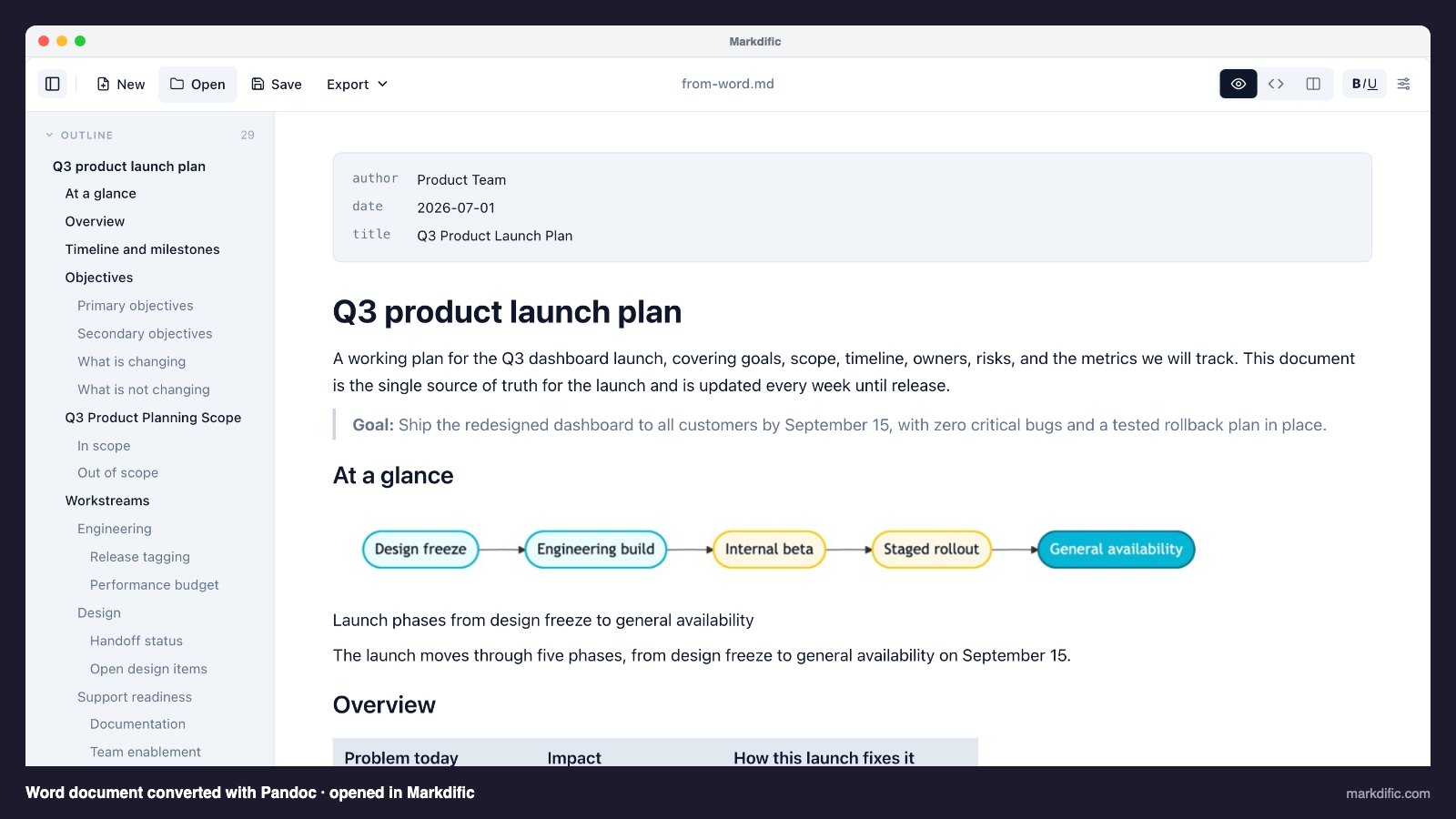
Open the converted .md file in an editor with a preview and compare it with the original Word document. Markdific shows the source and the formatted result, and the free online editor does the same in your browser. Check the tables, any nested lists and any code first. They are the items most likely to need a fix.
How the two tools compare
After you convert, check these things
- Headings. Confirm each Word heading became a
#heading at the right level. - Tables. Open the preview and check that no cell merged or split.
- Images. Check that every image loads, and keep the image folder next to the
.mdfile. - Code. Add fences and language names to any code.
- Duplicated lines. Remove repeated captions and extra blank lines.
- Front matter. Add any fields that were lost, such as
status. - Links. If your document has links, click a few to confirm they still work.
What we did not test
Our Word file was made from Markdown with Pandoc, which is the only way we could produce a fixed, shareable test document. A file written by hand in Word, especially with manual formatting, merged table cells, tracked changes, comments, equations or text boxes, can convert less cleanly. Run your own document through the tool and read the result before you trust it.
Frequently asked questions
What is the best way to convert Word to Markdown?
Pandoc. It runs on Mac, Windows and Linux, is free, and gave the cleanest result in our test, including saved images, task checkboxes and the title block.
Can I convert a .docx file to Markdown online?
Yes, but a local tool such as Pandoc keeps your document on your own computer. Check what any online converter does with your file before you upload anything private.
Why did my headings not become Markdown headings?
Pandoc reads Word's built-in Heading styles. If you made text look like a heading with a large font and bold, it is treated as normal text. Apply Heading 1, Heading 2 and so on in Word and convert again.
Where did my images go?
With --extract-media=media, Pandoc saves them in a media folder next to the output file. Keep that folder beside the .md file or the images will not show.
Can I go the other way and convert Markdown to Word?
Yes. Pandoc does that too with pandoc report.md -o report.docx, and Markdific can export a document to Word. The Pandoc User's Guide lists the other formats it can write.
Does the conversion change my original Word file?
No. The tools read the .docx and write a new .md file. The original stays as it was.
About this test
We ran the commands above on macOS on 25 October 2026 with Pandoc 3.12.1 and MarkItDown 0.1.9. The test document is a four-page product launch plan with front matter, two diagrams, four tables, task lists and a code block. No tool maker paid for a place in this article.