
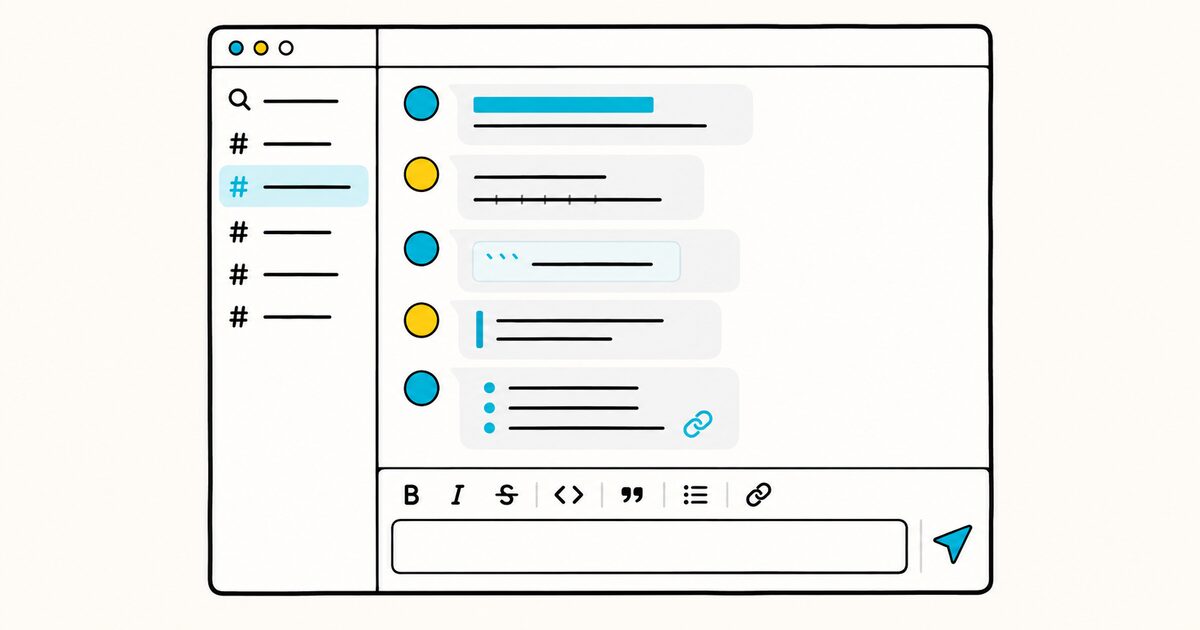
For ordinary messages, the common trap is bold: Slack uses one asterisk, *like this*, while standard Markdown uses two. The standard-Markdown Block Kit option is for apps, not a replacement for the normal message composer.
| Surface | Intended user | Syntax |
|---|---|---|
| Message composer | People writing in Slack | Toolbar or Slack markup |
| App text object | Developers publishing app messages | Slack mrkdwn |
Block Kit markdown block |
Apps, including AI-generated responses | Standard Markdown subset |
Slack message formatting at a glance
Here is the markup Slack documents for messages. Every row below comes from Slack's own help pages.
| Element | You type | Result |
|---|---|---|
| Bold | *text* |
text |
| Italic | _text_ |
text |
| Strikethrough | ~text~ |
~~text~~ |
| Inline code | `text` |
text |
| Code block | ```text``` |
a fixed-width block |
| Block quote | > text |
an indented quote |
| Link | [text](the link) |
a linked label |
| Ordered list | 1. then a space |
a numbered list |
| Bulleted list | * then a space |
a bulleted list |
Underline is available too, but only from the toolbar; Slack does not document a markup character for it.
Slack Markdown Key facts
- Slack formatting is called mrkdwn; it is inspired by Markdown but is not the same syntax, so copying a
.mdfile into a message will not carry your formatting. - Bold uses a single asterisk,
*bold*, not the double asterisk of standard Markdown. This is the single biggest difference to remember. - Italic is underscores,
_italic_, and strikethrough is a single tilde,~strikethrough~, again differing from the double tilde most Markdown tools use. - Slack shows a formatting toolbar by default, and you can turn on a "Format messages with markup" preference to type the symbols instead.
- Inline code uses single backticks, and a code block uses three backticks; block quotes use a leading angle bracket,
> quoted. - Ordinary messages and
mrkdwndo not support Markdown headings or tables. The app-only Block Kitmarkdownblock supports more standard Markdown features.
Slack uses mrkdwn, not standard Markdown
The reason a Markdown veteran gets tripped up in Slack is that the emphasis characters are reassigned. In standard Markdown, one asterisk means italic and two mean bold.
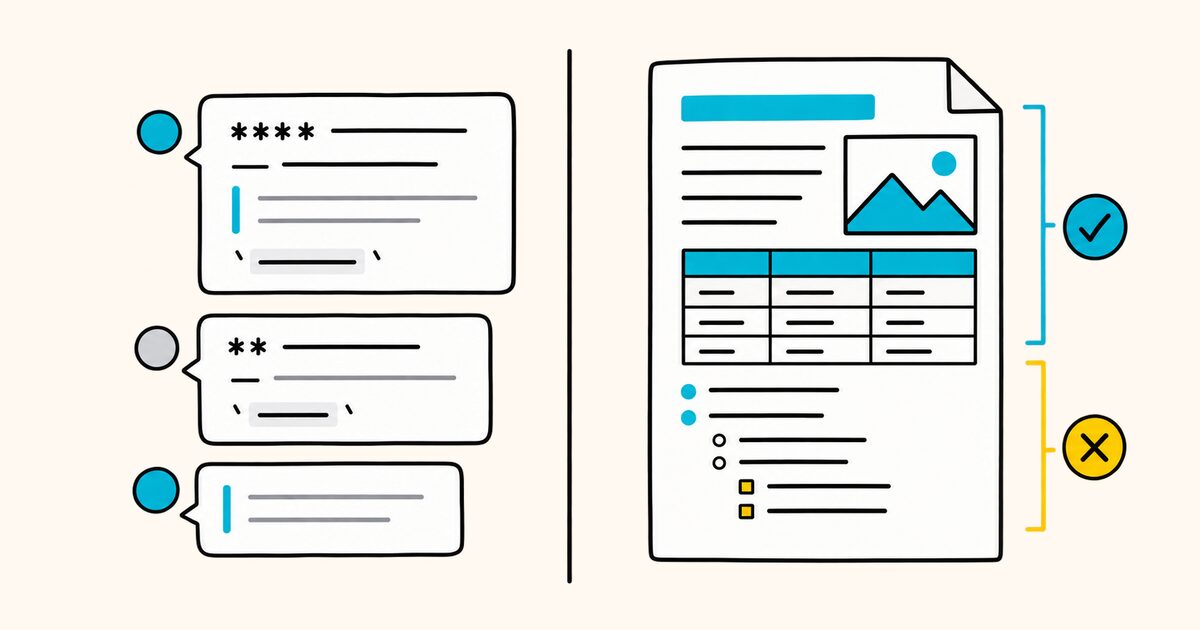
Slack collapses that: one asterisk means bold, and italic moves to underscores. The table below lines up the two systems so you can see exactly where they part ways.
| What you want | Standard Markdown | Slack mrkdwn |
|---|---|---|
| Bold | **text** |
*text* |
| Italic | *text* or _text_ |
_text_ |
| Strikethrough | ~~text~~ |
~text~ |
| Inline code | `text` |
`text` |
| Code block | ```code``` |
```code``` |
| Block quote | > text |
> text |
| Heading | # Heading |
not supported |
| Table | pipes and dashes | not supported |
| Image |  |
not supported |
Three rows match, which is why the difference is easy to miss. Inline code, code blocks, and block quotes work the same way in both systems. Emphasis is where the systems collide, and the last three rows are features Slack messages simply do not have.
Type **bold** in Slack and you will see the literal asterisks around your word, not bold text. For a wider comparison of how different tools handle the same syntax, see Markdown flavors compared.
The formatting toolbar and markup mode
Slack gives you two ways to format a message, and the default is not the one Markdown users expect.
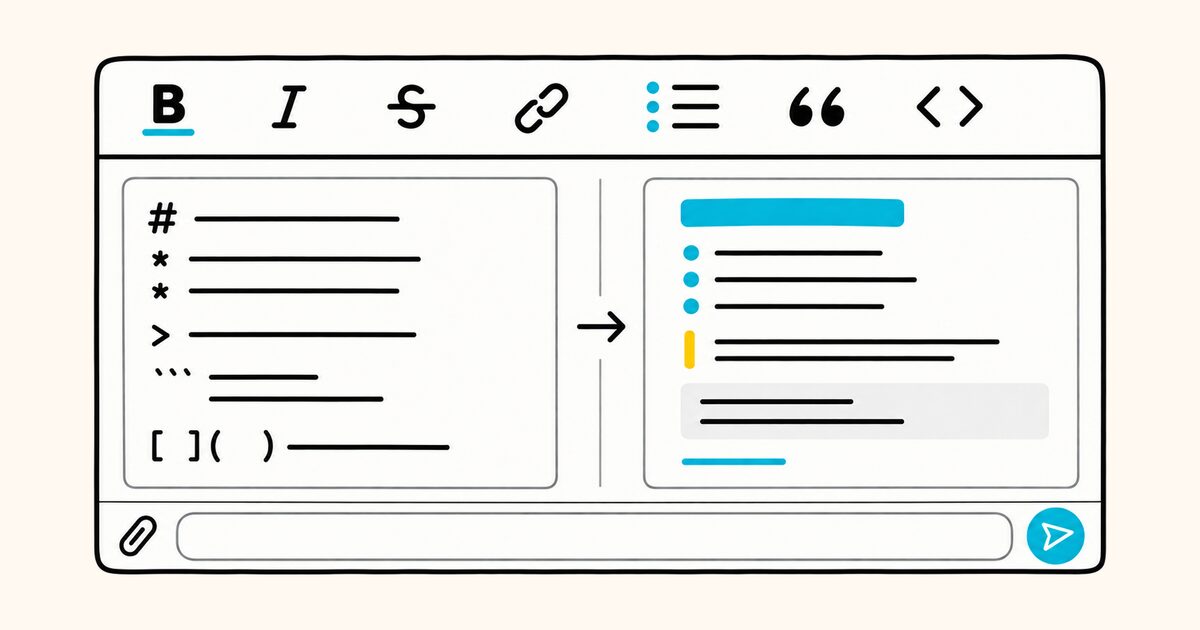
The formatting toolbar (default). By default, a toolbar sits in the message field with buttons for bold, italics, underline, strikethrough, code, block quote, code block, an ordered list, and a bulleted list.
Highlight your text, click an option, and Slack styles it immediately so you see the result before you send. You can apply more than one option to the same text. A formatting icon in the message field hides or shows the toolbar.
Markup mode (opt-in). If you would rather type the symbols, Slack has a preference for that.
Turn it on under your profile picture, then Preferences, then Advanced, and check "Format messages with markup" under Input Options. With this on, you type the markup characters directly, and Slack applies the formatting once you send the message rather than as you type. Two side effects come with markup mode: messages you copy and paste come in as plain text, and Slack stops auto-formatting bulleted, numbered, and indented lists for you.
So the toolbar is Slack's WYSIWYG path, and the markup preference is the type-the-symbols path. Both produce the same styled message; they differ only in how you get there and when the formatting appears.
Bold, italic, and strikethrough
These three are where the syntax surprises people, so it is worth seeing them together.
*This is bold.*
_This is italic._
~This is struck through.~
Notice the counts. Bold is one asterisk on each side. Italic swaps to underscores.
Strikethrough is one tilde on each side, where standard Markdown and GitHub both use two. You can combine them by nesting, for example *_bold and italic_*, though heavy nesting gets hard to read in a chat message. For how emphasis works in standard Markdown, see bold and italic and strikethrough.
Code and code blocks
Code is the friendliest part of Slack formatting for a Markdown user, because it matches what you already know. Wrap a short snippet in single backticks for inline code.
Run `npm install` first.
For a longer block, wrap the whole thing in three backticks. Slack renders it in a fixed-width font inside a shaded box, which keeps indentation and spacing intact.
```
function greet(name) {
  return "Hello, " + name;
}
```
One difference from GitHub worth knowing: Slack code blocks do not do syntax highlighting from a language label. You can add a word after the opening backticks, but Slack will treat it as the first line of the block rather than coloring your code.
Keep the fence plain. For how fenced blocks behave in standard Markdown, see fenced code blocks.
Block quotes
A block quote uses a leading angle bracket, the same as standard Markdown.
> This is a quoted line.
Slack indents the quoted text and adds a vertical bar down the side. To quote several lines as one block, put an angle bracket in front of the passage.
This is handy for pasting someone's earlier message when you reply. See Markdown blockquotes for the general rule.
Lists
Slack supports ordered and bulleted lists, and how you make them depends on which mode you are in.
With the default toolbar, click the ordered-list or bulleted-list button, or use Slack's auto-formatting: type 1. followed by a space to start a numbered list, or * followed by a space to start a bullet. Slack converts the line into a list item and continues the list as you press Enter.
1. First step
2. Second step
3. Third step
If you turn on the markup preference, remember that Slack stops applying this automatic list formatting. In that mode you type the list characters and they format on send. Keep in mind that Slack's Enter key sends the message by default; press Shift and Enter together to start a new line within the same message, which is what you need when building a list by hand.
Links
When you type or paste a raw URL, Slack turns it into a clickable link on its own. To show a friendly label instead of the bare address, Slack uses the same bracket-then-parenthesis shape as standard Markdown.
[our roadmap](https://example.com/roadmap)
That renders as a link reading "our roadmap" pointing at the URL. For the standard Markdown version of the same idea, see Markdown links.
What ordinary Slack messages do not support
Ordinary Slack messages have no syntax for several things Markdown users reach for out of habit.
- Headings. There is no
#heading syntax in a Slack message. To make a line stand out, bold it. Slack's toolbar has no heading button either. - Tables. Slack does not render Markdown tables. Pipes and dashes stay as literal characters. For anything tabular, people usually fall back to a code block for alignment or attach a file.
- Images by syntax. The
image syntax does nothing in a message. You add images by uploading a file or pasting one in, not by writing Markdown. - Nested or complex structures. Slack formatting is deliberately shallow, aimed at quick, readable chat rather than documents.
If you need tables, headings, or embedded images, those belong in a Slack canvas or a real document, not a message. For how those elements work in standard Markdown, see Markdown tables and the general Markdown cheat sheet.
Standard Markdown in Block Kit apps
Slack's Block Kit has a separate markdown block for app-generated content. It accepts standard Markdown rather than ordinary mrkdwn.
The block supports:
- bold and italic text;
- headings;
- ordered and unordered lists;
- task lists;
- tables and dividers;
- inline code and fenced code with language-specific highlighting;
- links and block quotes.
Markdown image syntax does not embed an image in this block. Slack converts the alt text into a hyperlink instead. Across all markdown blocks in one payload, the documented cumulative limit is 12,000 characters.
This does not mean a person can paste a Markdown table into the normal composer. It means an app can send a Block Kit payload containing a markdown block.
For developer-published mrkdwn, links also use Slack's API form, such as <https://example.com|label>, rather than the composer's [label](URL) form. Escape literal &, <, and > as &, <, and > when they are not control characters.
Writing Markdown outside Slack
Slack's mrkdwn only lives inside Slack. A .md file you write for a README, a wiki, or documentation follows standard Markdown rules, where bold is **double asterisks** and headings and tables are part of the language. The two do not mix: paste standard Markdown into Slack and the double asterisks and pipes show up as raw characters, and paste Slack markup into a .md file and your single-asterisk bold becomes italic.
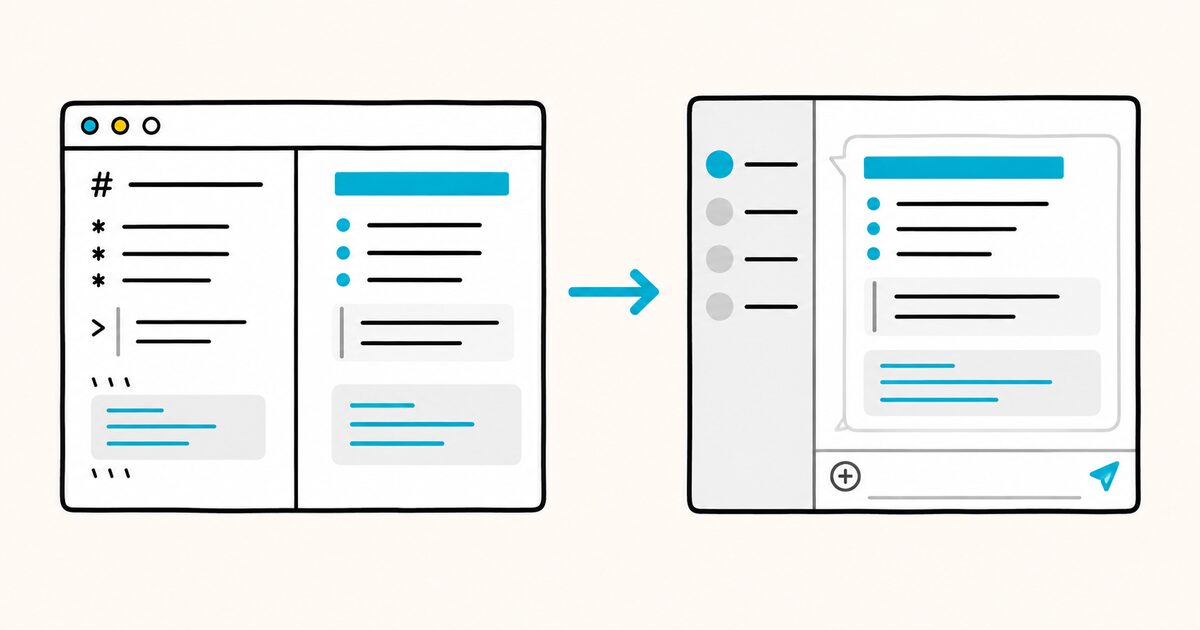
That is where a dedicated editor helps. Markdific opens and previews .md files on Mac and Windows with a live preview, so you can write standard Markdown, see it render, and export to PDF, Word, or HTML when you need to share it.
Markdific renders standard Markdown, not Slack's dialect, so treat it as the tool for your files and documents while Slack's own composer handles chat. Keeping the two straight, standard Markdown for files and mrkdwn for Slack messages, is the whole trick.
FAQ
Does Slack use standard Markdown?
No. Slack uses its own formatting called mrkdwn, which is inspired by Markdown but reassigns some characters. The clearest example is bold, which is a single asterisk in Slack and a double asterisk in standard Markdown.
Why is bold a single asterisk in Slack?
Slack chose a simpler set of rules for chat. One asterisk makes text bold, and underscores make it italic. Standard Markdown instead uses one asterisk for italic and two for bold, so the same character means different things in each system.
How do I make text bold in Slack?
Surround the text with single asterisks, like *your text*. You can also highlight the text and click the bold button in the formatting toolbar, which does the same thing without typing symbols.
Does Slack support headings in messages?
No. Slack messages have no heading syntax, and the toolbar has no heading option. To make a line stand out, put it in bold. Headings belong in a Slack canvas or a separate document.
How do I write a code block in Slack?
Wrap the code in three backticks, the same as a standard Markdown fence. Slack shows it in a fixed-width shaded box. Unlike GitHub, Slack does not add syntax highlighting from a language label, so keep the fence plain.
What is the difference between the formatting toolbar and markup in Slack?
The toolbar is Slack's default. You highlight text and click a button, and the styling appears right away. Markup is an opt-in preference where you type the symbols instead, and the formatting is applied when you send the message.
Can I use Markdown tables or images in Slack messages?
No. Slack does not render Markdown tables, and the image syntax does nothing in a message. Add images by uploading or pasting a file, and use a code block or an attachment when you need aligned columns.
How do I turn on markup formatting in Slack?
Click your profile picture, open Preferences, select Advanced, and under Input Options check the box for "Format messages with markup." After that you type the markup characters and Slack formats the message on send.
Sources and verification
- Slack: Format messages with markup
- Slack developer documentation: Formatting message text
- Slack developer documentation: Markdown block
- Slack changelog: Expanded Block Kit Markdown support
Composer and developer-surface behavior was checked on 26 September 2026.
Related pages
- Markdown on GitHub
- Markdown flavors compared
- Bold and italic
- Strikethrough
- Fenced code blocks
- Markdown blockquotes
- Markdown cheat sheet