
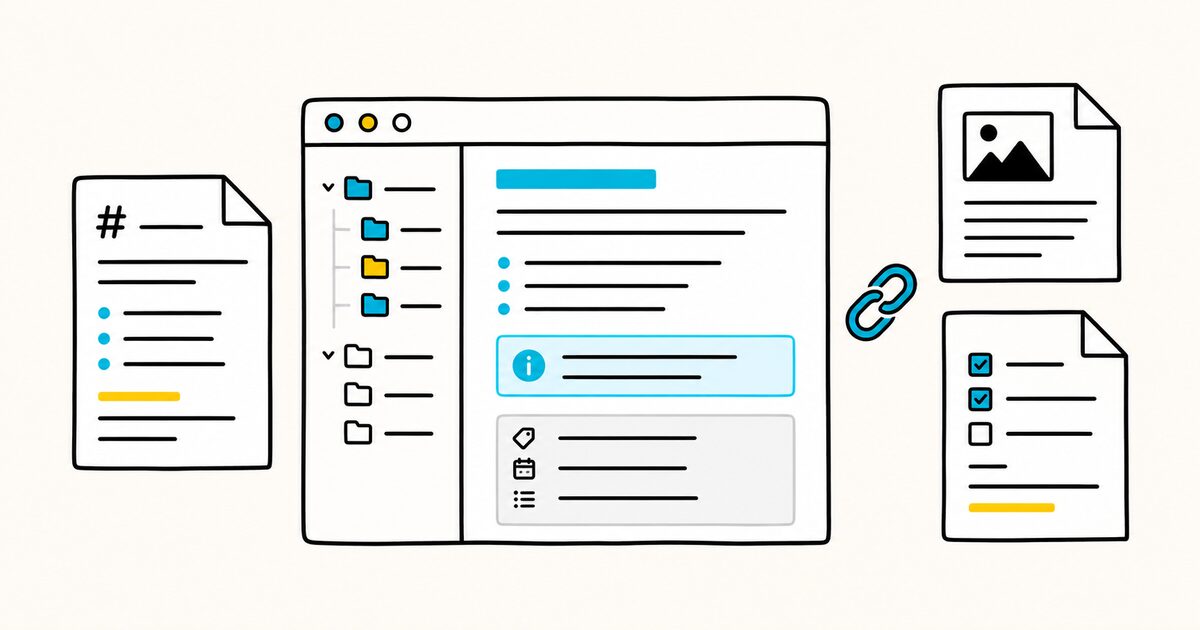
Standard Markdown handles headings, emphasis, lists, links, and code. Obsidian adds features for connected notes, including [[wikilinks]], ![[embeds]], callouts, properties, tags, and block references.
Some Obsidian features do not render in other Markdown apps. This guide shows which syntax is portable and which is specific to an Obsidian vault.
Obsidian Markdown at a glance
| Element | Syntax | Notes |
|---|---|---|
| Heading | # H1 to ###### H6 |
Appears in the Outline view |
| Bold | **text** |
Standard Markdown |
| Italic | *text* |
Standard Markdown |
| Highlight | ==text== |
Obsidian extension |
| Internal link | [[Note name]] |
Wikilink, used by default |
| Link to heading | [[Note#Heading]] |
Links to a section |
| Link to block | [[Note#^blockid]] |
Obsidian block reference |
| Embed | ![[Note name]] |
Displays linked content inline |
| Callout | > [!note] Title |
Supports built-in types and folding |
| Tag | #project |
Can be nested with / |
| Comment | %% hidden %% |
Visible only while editing |
| Property | YAML inside --- fences |
Structured note metadata |
Obsidian Markdown Key facts
- Obsidian notes are ordinary
.mdfiles stored locally, built on CommonMark with GitHub Flavored Markdown features layered on top. - Links between notes use wikilinks,
[[Note name]], and you can switch the whole vault to standard Markdown links in settings. ![[Note name]]embeds one note, heading, or block inside another, and the embed updates when the source changes.- Callouts use
> [!note]blockquote syntax, with more than a dozen built-in types and a foldable option. - Highlights (
==text==), block references (^id), embeds, and comments (%% %%) are Obsidian conventions that do not render on GitHub or in plain Markdown. - Properties are YAML front matter at the top of a note. They can hold structured fields such as tags, aliases, and dates.
Choose between Obsidian and standard Markdown
Use Obsidian syntax when a note will remain inside the vault. Wikilinks, embeds, block references, and callouts make linking and reuse easier. Obsidian can also update internal links when files are renamed.
Prefer standard Markdown when the same file must render on GitHub, a documentation site, or another editor.
To make Obsidian create Markdown links by default:
- Open Settings.
- Select Files and links.
- Disable Use [[Wikilinks]].
You can still type [[ to search for a note. Obsidian inserts your selection as a Markdown link.
For mixed use, keep the note body portable and reserve Obsidian-only syntax for internal working notes. Test the file in the destination renderer before publishing it.
How Obsidian extends Markdown
Three layers stack up.
- The bottom is CommonMark, the standardized core of Markdown.
- The middle adds GitHub Flavored Markdown features such as tables, task lists, and strikethrough.
- The top is what Obsidian adds for linked note-taking: wikilinks, embeds, callouts, tags, block references, and comments.
For how the standard layers compare across tools, see Markdown flavors compared.
The files remain readable as plain text and can be opened in another editor.
Obsidian-specific features are less portable. Wikilinks and embeds may appear as raw text in an editor that only supports standard Markdown. See what carries to GitHub for a feature-by-feature comparison.
Standard Markdown formatting in Obsidian
Headings, emphasis, lists, quotes, and code work the way they do in standard Markdown, so this part is quick.
Obsidian also supports highlighting with double equals signs: ==like this==. GitHub does not support this syntax. Bold, italic, and strikethrough work normally.
See bold and italic, strikethrough, and highlight for the underlying rules.
Task lists get a small Obsidian twist. The standard - [ ] and - [x] both work, and you can toggle a checkbox in Reading view by clicking it.
Obsidian also treats any character between the brackets as a custom marker, so - [/] or - [?] render as their own states rather than errors, which themes and plugins use for partial or deferred tasks. More on the standard behavior: Markdown task lists.
Code blocks use the usual triple backticks with a language name, but the highlighter underneath is Prism, not the Linguist engine GitHub uses, so the exact colors and the set of recognized language names differ slightly. See fenced code blocks and syntax highlighting.
Line breaks and the strict setting
By default, pressing Enter once continues the same paragraph in the rendered note, which is standard Markdown behavior. To force a break inside a paragraph, end the line with two spaces or press Shift and Enter together.
Obsidian also has a "Strict line breaks" toggle under Settings, Editor. Turning it on makes Obsidian follow the standard spec exactly, where a single newline joins the two lines into one. The behavior comes down to three cases:
| What you type | Rendered result |
|---|---|
| Single Enter, no trailing spaces | Lines join into one |
| Two trailing spaces, then Enter | A line break inside the paragraph |
| A blank line between the lines | Two separate paragraphs |
For the same rule in general Markdown, see Markdown line breaks.
Link notes with wikilinks or Markdown links
Links are what turn a folder of files into a connected vault. Obsidian gives you two link formats and several targets.
Wikilinks and Markdown links
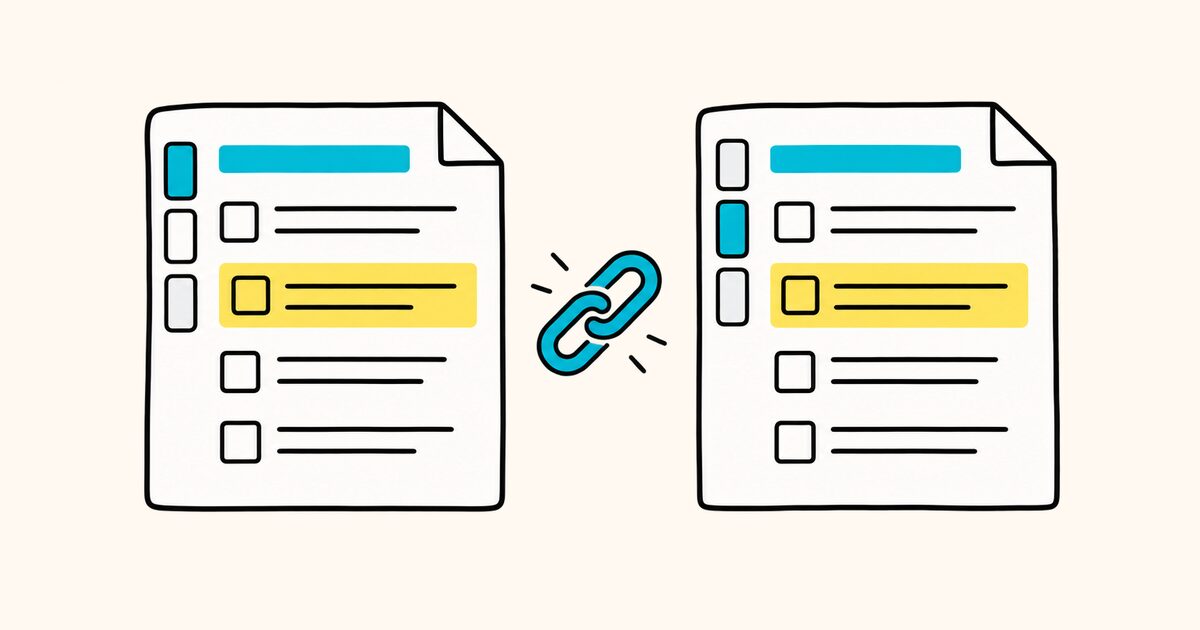
The default format is a wikilink: [[Three laws of motion]].
Obsidian also accepts a standard Markdown link: [Three laws of motion](Three%20laws%20of%20motion.md). Both formats can point to the same note.
If portability matters, disable wikilinks under Settings → Files and links. Obsidian will then generate Markdown links while still letting you search by typing [[.
To link into a folder, include the path from the vault root with forward slashes, [[Projects/Three laws of motion]], on any operating system.
Linking to headings and blocks
You can point a link at a specific place inside a note, not just the note itself.
| Target | Syntax |
|---|---|
| A note | [[Note name]] |
| A heading | [[Note name#Heading]] |
| A subheading | [[Note name#Heading#Subheading]] |
| A block | [[Note name#^blockid]] |
| Same-note heading | [[#Heading]] |
A block is any single paragraph, list item, quote, or table. To create a target, type a caret and an identifier at the end of a paragraph, some text ^my-id, then link to it with [[Note name#^my-id]].
Obsidian suggests the identifier as you type the caret, so you rarely type it by hand. Block references are convenient, and they are also the least portable feature here: they are specific to Obsidian and will not resolve in another Markdown tool.
Display text and aliases
Add a vertical bar to change the displayed text. For example, [[Three laws of motion|Newton's laws]] displays “Newton's laws” but opens the same note.
For a name used throughout the vault, add it to the target note's aliases property instead of repeating the display text in every link.
What happens when a note is renamed
Obsidian can update links when you rename a file. Check Settings → Files and links → Automatically update internal links. If it is disabled, renamed notes can leave unresolved links. This setting affects link maintenance, not whether the linked file itself remains readable as Markdown.
Embedding and transclusion
Put an exclamation mark in front of an internal link and Obsidian embeds the target inline rather than linking to it. The embed stays in sync with the source, so editing the original updates every place it appears.
| To embed | Syntax |
|---|---|
| A whole note | ![[Note name]] |
| A heading section | ![[Note name#Heading]] |
| A single block | ![[Note name#^blockid]] |
| An image | ![[Diagram.png]] |
| A resized image | ![[Diagram.png\|400]] |
| A PDF page | ![[Report.pdf#page=3]] |
Image sizing uses the same |width x height form as a wikilink, and giving only a width scales the image proportionally. Audio files and Obsidian canvases embed the same way.
This is transclusion: one source, reused in many notes, updated once. No standard-Markdown tool renders it, so an embedded note shows up as plain ![[...]] text elsewhere.
Callouts
Callouts are colored, icon-tagged blocks for notes you want to stand out. Start a blockquote and put a type identifier in brackets on the first line.
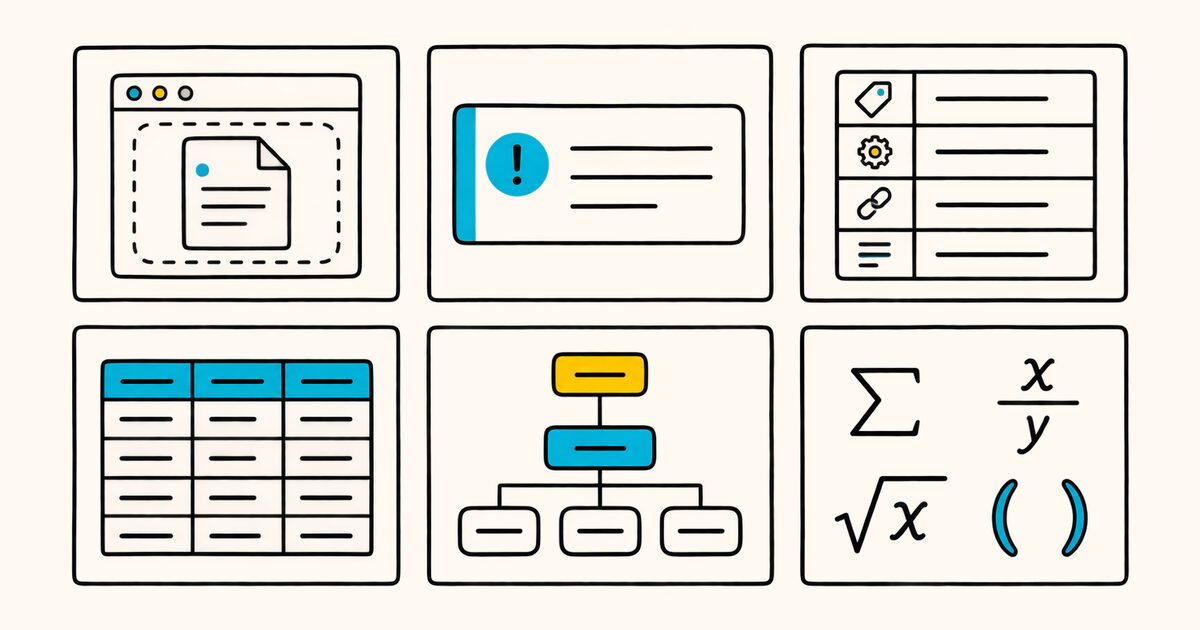
> [!info] Here's a callout title
> It supports **Markdown**, [[wikilinks]], and embeds.
The text after the identifier becomes the title. You can omit the body for a title-only callout.
Add - or + after the identifier to make the callout foldable. > [!faq]- starts collapsed, while > [!faq]+ starts open. Callouts can also be nested.
Obsidian ships with a wide set of types, each with its own color and icon. The identifier is case-insensitive, and any type it does not recognize falls back to the plain note style.
| Type | Aliases |
|---|---|
note |
|
abstract |
summary, tldr |
info |
|
todo |
|
tip |
hint, important |
success |
check, done |
question |
help, faq |
warning |
caution, attention |
failure |
fail, missing |
danger |
error |
bug |
|
example |
|
quote |
cite |
GitHub uses similar callout syntax but supports only five types: NOTE, TIP, IMPORTANT, WARNING, and CAUTION. Obsidian types such as [!bug] and [!question] will not appear as styled boxes on GitHub.
Callouts extend standard blockquotes. Obsidian also lets you define custom types with CSS.
Tags
A tag is a hash followed by a keyword, such as #meeting. Tags can appear in the note body or in the note's properties.
Use a forward slash to create a hierarchy, such as #inbox/to-read. A search for the parent tag also matches its children.
A few format rules are easy to trip on:
- No spaces. Use
#camelCase,#snake_case, or#kebab-caseinstead. - A tag needs at least one non-numeric character, so
#1984is not a tag but#y1984is. - Tags are case-insensitive, so
#tagand#TAGare the same tag.
This is a real difference from GitHub, where a # in a Markdown file is either a heading or plain text, never a tag.
Properties and YAML front matter
Properties are structured metadata stored as YAML front matter between two --- fences at the top of a note. Type --- on the first line, or use the Add file property command. Obsidian then shows an editable table of fields.
---
title: A New Hope
year: 1977
tags:
  - film
  - sci-fi
aliases:
  - Episode IV
favorite: true
---
Each property has a type that controls its input and how Obsidian handles it.
| Type | Example value |
|---|---|
| Text | A New Hope |
| List | a set of lines, each with - |
| Number | 1977 |
| Checkbox | true or false |
| Date | 2020-08-21 |
| Date and time | 2020-08-21T10:30:00 |
| Tags | a list, one tag per line |
Three property names are built in: tags, aliases, and cssclasses.
Markdown is not rendered inside property values. Properties are intended to remain short and machine-readable.
Wrap an internal link in quotes when it appears in a property: link: "[[Episode IV]]". For the general syntax, see Markdown front matter.
A practical note example
This example combines portable Markdown with a few clearly identifiable Obsidian extensions:
---
title: Website launch checklist
status: active
tags:
  - project/website
aliases:
  - Launch checklist
---

# Website launch checklist

Related brief: [[Website brief]]

## Tasks

- [ ] Check page titles
- [ ] Test the contact form
- [ ] Review redirects

> [!warning] Before publishing
> Back up the current site and record the rollback steps.

## Reference

![[Website brief#Acceptance criteria]]
The heading, task list, and YAML structure are broadly portable. The wikilink, callout styling, and embedded heading depend on Obsidian-aware rendering.
Tables, diagrams, and math
Tables use the standard pipe-and-hyphen syntax. Colons in the header row control alignment.
Inside a table cell, escape the vertical bar in a wikilink alias or resized image. Otherwise, the parser treats it as a column break. See Markdown tables.
Diagrams use a mermaid code block, the same as many other tools, and Obsidian adds an internal-link class you can attach to nodes so a diagram box links to a note. See Mermaid diagrams.
Math uses MathJax: single dollar signs for an inline expression, $e^{2i\pi} = 1$, and double dollar signs for a display block. See Markdown math.
Footnotes and comments
Footnotes work as usual with [^1] references and definitions, plus an inline form, ^[like this], that renders only in Reading view. See Markdown footnotes.
Comments are Obsidian-specific. Wrap text in double percent signs, %%hidden%%, and it shows only while editing, never in Reading view or on a published site.
The block form spans multiple lines between %% fences. On GitHub the equivalent is an HTML comment, <!-- -->, so comments do not carry across the two tools.
What carries to GitHub, and what does not
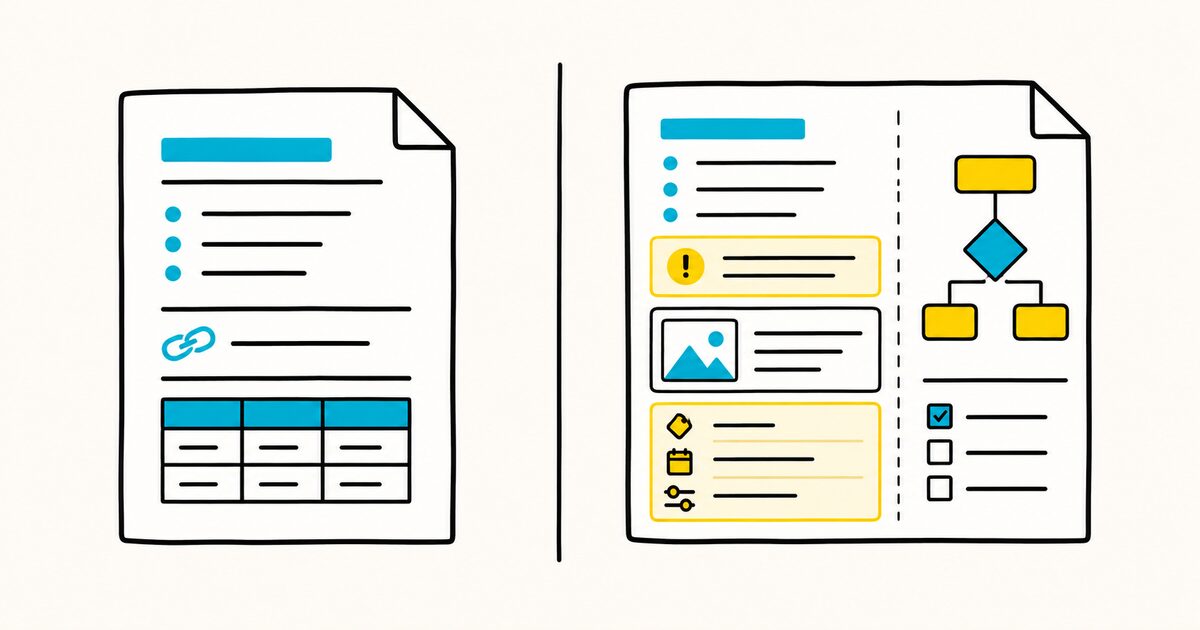
This is the part that saves you from surprises. Everything built on the standard layers travels well; the Obsidian-only layer does not.
| Feature | Works outside Obsidian? |
|---|---|
| Headings, bold, italic, lists, quotes | Yes, standard Markdown |
| Tables, task lists, strikethrough | Yes, GitHub Flavored Markdown |
| Fenced code and syntax highlighting | Yes, though colors differ by renderer |
| Footnotes | Usually, tool depending |
Highlight ==text== |
No, Obsidian and a few others only |
Wikilinks [[Note]] |
No, Obsidian convention |
Embeds ![[Note]] |
No, Obsidian only |
Block references ^id |
No, Obsidian only |
Callouts > [!type] |
Partly, GitHub supports five types |
Comments %% %% |
No, use <!-- --> on GitHub |
Tags #tag |
No, plain text elsewhere |
If a note needs to live on GitHub or in another Markdown tool, lean on the standard layers and treat the Obsidian extensions as vault-only conveniences. For the GitHub side of this, see Markdown on GitHub.
Obsidian versus GitHub Markdown
A quick side-by-side for the features that differ most.
| Feature | Obsidian | GitHub |
|---|---|---|
| Links between docs | [[wikilinks]] |
relative [text](path) |
| Transclusion | ![[embeds]], live |
Not supported |
| Callout types | 13 or more | 5 |
| Comments | %% %% |
<!-- --> |
| Highlight | ==text== |
Not supported |
| Block references | ^id |
Not supported |
| Highlighter engine | Prism | Linguist |
| Tags | first-class #tag |
plain text in files |
Opening Obsidian notes elsewhere
A vault is a folder of .md files, so another Markdown editor can open the notes directly.
Standard headings, lists, tables, and code usually render as expected. Obsidian-only syntax such as [[wikilinks]], ![[embeds]], and %% comments %% may appear as raw text.
Markdific can preview .md files on Mac and Windows and export them to PDF, Word, or HTML.
Standard Markdown is the safest choice for this workflow. Check the preview before exporting because Obsidian-specific syntax may remain visible as plain text.
Common Obsidian Markdown problems
A wikilink does not open the expected note
Use the vault-relative folder path when two notes have the same name, for example [[Projects/Launch plan]]. Avoid #, |, ^, :, %%, [[, and ]] in filenames because they can conflict with link syntax. If a file was renamed, check the automatic link-update setting.
A Markdown link breaks when the filename contains spaces
Encode spaces as %20, for example [Launch plan](Projects/Launch%20plan.md), or let Obsidian create the link through autocomplete. Wikilinks do not require percent-encoded spaces.
A table breaks around a wikilink or resized image
The pipe character also separates table columns. Escape the pipe inside the cell: [[Note\|Label]] or ![[image.png\|300]].
A callout displays as an ordinary quote
Put the callout identifier on the first quoted line and keep > at the start of each body line:
> [!warning] Check this
> The second line also needs a quote marker.
Other Markdown renderers may support only a subset of Obsidian's callout types.
Properties appear as raw YAML
The opening --- must be the first line of the note, with a matching closing ---. If a property contains an internal link, quote the value. Invalid indentation or tabs can also prevent YAML from parsing as expected.
Source mode and Reading view look different
Source mode shows the file's markup. Live Preview hides some markup while you edit, and Reading view renders the note. Syntax highlighting, inline footnotes, embeds, and plugins can behave differently between views, so check Reading view when verifying the final appearance.
Official Obsidian references
FAQ
What is Obsidian Flavored Markdown?
It is Obsidian's dialect of Markdown: the CommonMark core plus GitHub Flavored Markdown features, plus Obsidian's own additions such as wikilinks, embeds, callouts, tags, and block references. Standard Markdown works as expected, and the extensions render only inside Obsidian.
Are Obsidian notes just Markdown files?
Yes. Every note is a plain-text .md file stored in a folder on your device, called a vault. You can open, edit, back up, or move those files with any tool, which is why Obsidian content is portable at the standard-Markdown level.
How do I link notes in Obsidian?
Type [[ and pick a note to create a wikilink, like [[Project plan]]. Add # for a heading, [[Project plan#Goals]], or #^ for a block, [[Project plan#^abc123]]. You can also use standard Markdown links if you turn off wikilinks in settings.
What is the difference between wikilinks and Markdown links in Obsidian?
Wikilinks use the compact [[Note name]] form and are the Obsidian default. Markdown links use the standard [text](path) form and are more portable to other tools. Both point to the same note, and you choose which Obsidian generates under Settings, Files and links.
How do I embed one note inside another in Obsidian?
Put an exclamation mark before an internal link: ![[Note name]] embeds the whole note, ![[Note name#Heading]] embeds a section, and ![[image.png]] embeds an image. The embedded content stays in sync with its source and updates when the source changes.
What are callouts in Obsidian?
Callouts are labeled blocks for tips, warnings, and other asides. Start with > [!tip] Title, then add quoted body lines. Add - or + after the type to control folding.
Will my Obsidian Markdown work on GitHub?
The standard parts will: headings, lists, tables, task lists, code, and links. The Obsidian-only parts will not render on GitHub, including wikilinks, embeds, block references, ==highlights==, %% comments %%, and callout types beyond GitHub's five. Keep a note portable by sticking to standard syntax.
How do I add properties to an Obsidian note?
Type --- on the first line of the note, or run the Add file property command. Obsidian shows an editable metadata table stored as YAML at the top of the file. Properties can hold text, lists, numbers, checkboxes, dates, and tags.
Related pages
- Markdown on GitHub
- Markdown flavors compared
- Markdown highlight
- Markdown front matter
- Markdown cheat sheet
- What is a .md file?