
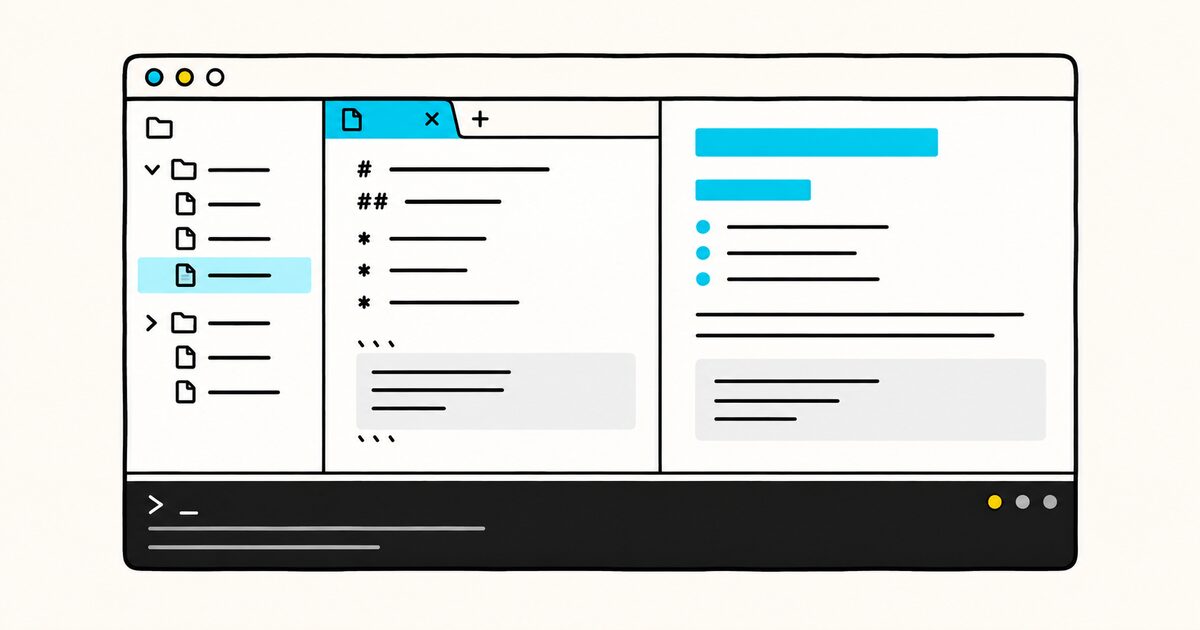
Save a file with the .md extension and you get a side-by-side preview, an outline of your headings, link autocomplete, and editing tools that most writing apps do not have, like renaming a heading and updating every link to it at once.
The preview follows the CommonMark specification through a parser called markdown-it, so it renders standard Markdown rather than the full GitHub Flavored Markdown set, and extensions fill any gaps. This guide covers the preview, the editing features that make VS Code good for Markdown, and where you will want an extension.
VS Code Markdown shortcuts at a glance
| Action | Windows / Linux | Mac |
|---|---|---|
| Open preview | Ctrl+Shift+V | Cmd+Shift+V |
| Open preview to the side | Ctrl+K V | Cmd+K V |
| Go to header in file | Ctrl+Shift+O | Cmd+Shift+O |
| Go to header in workspace | Ctrl+T | Cmd+T |
| Find all references | Shift+Alt+F12 | Shift+Alt+F12 |
| Rename header or link | F2 | F2 |
| Trigger suggestions | Ctrl+Space | Ctrl+Space |
VS Code Markdown Key facts
- VS Code supports Markdown with no extension needed: editing, preview, outline, and link tools are built in.
- Open the preview with Ctrl+Shift+V (Cmd+Shift+V on Mac), or a side-by-side preview with Ctrl+K V (Cmd+K V on Mac).
- The built-in preview renders Mermaid diagrams and, using KaTeX, math written with dollar-sign syntax.
- VS Code targets CommonMark through the markdown-it parser, not GitHub Flavored Markdown, so some GFM extras need an extension.
- Rename a heading with F2 and VS Code updates every link that points to it; moving a file can update its links too.
- The preview runs in a strict security mode that blocks scripts and insecure images by default.
A five-minute Markdown workflow
- Create or open a file ending in
.md. - Press Ctrl+K V on Windows/Linux or Cmd+K V on Mac for a side-by-side preview.
- Add headings and links, using autocomplete for local paths and heading anchors.
- Paste or drag an image and confirm where VS Code saves the copied file.
- Enable
markdown.validate.enabledto catch broken local links. - Preview the final file in its publishing destination, such as GitHub, before committing.
The Markdown preview
The preview is the feature most people open VS Code Markdown for. Press Ctrl+Shift+V (Cmd+Shift+V on Mac) to toggle between the source and the rendered view, or Ctrl+K V (Cmd+K V on Mac) to open the preview beside your file so you can write and watch it update live. You can also right-click the editor tab and choose Open Preview.
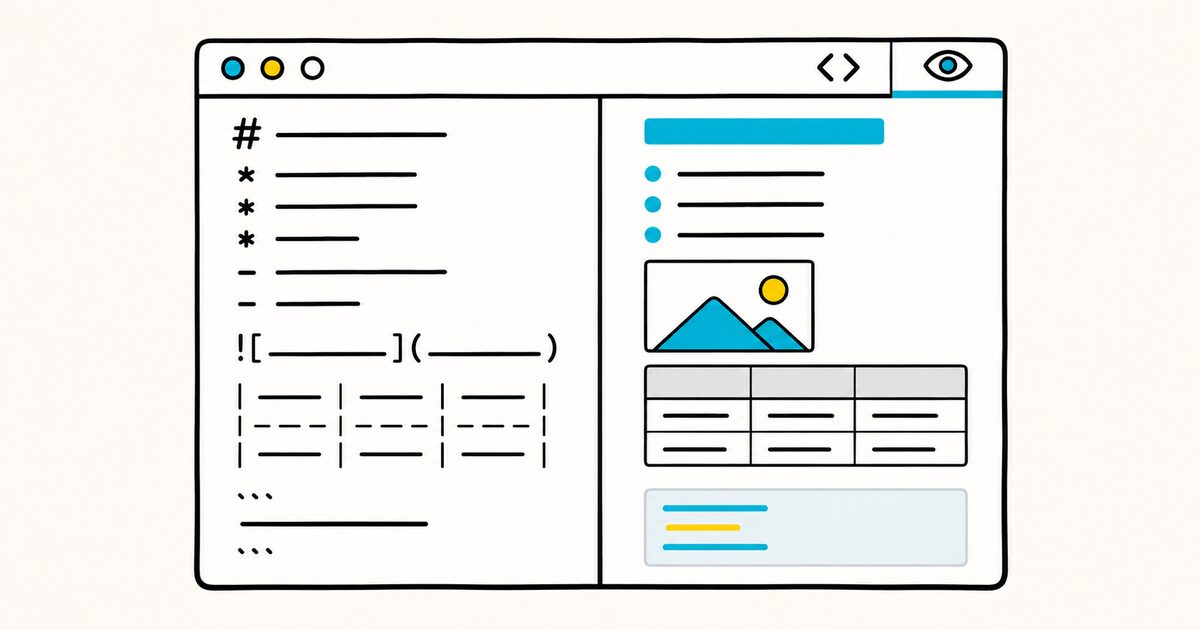
The editor and preview stay in sync as you work. Scroll the source and the preview follows; scroll the preview and the source follows.
The line your cursor is on shows as a faint marker in the preview's left margin, and double-clicking any element in the preview jumps the editor to the matching line. If you want a preview to stay pinned to one file while you edit others, run Markdown: Toggle Preview Locking.
VS Code can also render a Markdown diff in the preview, showing the rendered document with changes highlighted rather than the raw source, which is useful when reviewing edits from source control.
Mermaid diagrams and math
Two things that usually need a plugin work in the built-in preview.
Mermaid diagrams render from a mermaid fenced code block, and you can pan and zoom larger diagrams inside the preview. See Mermaid diagrams for the syntax.
Math renders through KaTeX. Wrap an inline expression in single dollar signs, $x^2$, and a block in double dollar signs.
You can turn this off with the markdown.math.enabled setting. For the notation, see Markdown math.
Editing features worth knowing
This is where VS Code pulls ahead of a plain writing app for anything longer than a quick note.
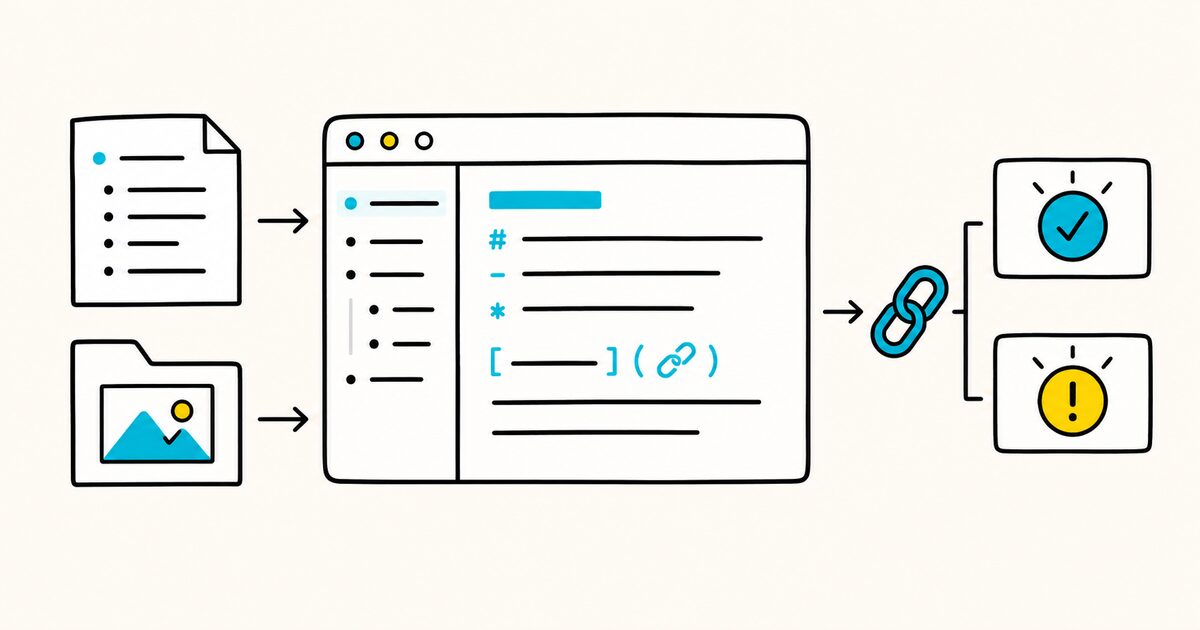
Document outline. The Outline view at the bottom of the Explorer shows your heading hierarchy, giving you a live table of contents you can click through. See Markdown headings for how that hierarchy is built.
Jump to a heading. Ctrl+Shift+O (Cmd+Shift+O on Mac) lists the headers in the current file so you can filter and jump. Ctrl+T (Cmd+T on Mac) searches headers across every Markdown file in the workspace.
Link and image IntelliSense. As you type a path in a link or image, VS Code suggests files and folders. Paths starting with / resolve from the workspace root; ./ or a bare name resolves from the current file. Type # in a link to autocomplete headings in the same file, or ## to pull in headers from anywhere in the workspace. For the underlying syntax, see Markdown links and Markdown images.
Insert files by drag or paste. Drag a file from the Explorer into your document while holding Shift to drop in a link, or copy and paste an image and choose to insert it as Markdown. VS Code can copy pasted images into your workspace automatically, and the markdown.copyFiles.destination setting controls where they land.
Smart selection. Shift+Alt+Right expands the selection outward through the document structure, headers, lists, quotes, code blocks, paragraphs, and Shift+Alt+Left shrinks it back.
Keeping links healthy
Broken internal links are the quiet failure mode of a big Markdown project, and VS Code has three tools for them.
Rename symbol. Put the cursor on a heading and press F2. Type a new name and VS Code updates the heading and every link that pointed to it. F2 on an internal link renames the target file and fixes the links to it.
Find all references. Shift+Alt+F12 shows everywhere a heading or link is referenced across the workspace, so you can see what a change will affect before you make it.
Link validation. VS Code can check that your local links actually resolve, catching links to a renamed heading or a deleted file. It is off by default; enable it with "markdown.validate.enabled": true. Validation is local only, so external http links are not checked.
There is also an automatic option: with markdown.updateLinksOnFileMove.enabled set, VS Code updates Markdown links when you move or rename a linked file, either silently or after a prompt.
Preview target and GitHub differences
VS Code's built-in renderer is based on markdown-it and targets CommonMark behavior, with additional built-in features such as math and Mermaid. It is not an exact copy of every GitHub rendering surface.
Features such as task lists, autolinks, HTML handling, and repository-specific references can therefore behave differently after the file reaches GitHub.
The fix is an extension. The Marketplace has Markdown extensions that add GFM features, table of contents generation, linting, spell checking, and export to other formats.
If your Markdown is headed for GitHub, it is worth previewing there too, or installing an extension that matches GitHub's rendering, so what you see locally matches what ships. For how the flavors differ, see Markdown flavors compared and Markdown on GitHub.
Preview security
For safety, the preview restricts what it will load. The default level, Strict, disables script execution and blocks images served over plain http. When something is blocked, an alert appears in the top right of the preview.

| Level | Behavior |
|---|---|
| Strict (default) | Blocks scripts and http images |
| Allow insecure content | Scripts stay disabled, http content allowed |
| Disable | Turns off the extra security in the preview |
Run Markdown: Change preview security settings to switch levels. Strict is the right default unless you fully trust every file in the workspace.
Customizing the experience
Custom preview styles. The markdown.styles setting takes a list of CSS files to load into the preview, so you can match its look to a house style or to a publishing target.
Keep trailing spaces for line breaks. Markdown needs two trailing spaces to force a hard line break, but VS Code may be set to trim trailing whitespace on save. To keep them in Markdown files only, add this to your settings:
{
  "[markdown]": {
    "files.trimTrailingWhitespace": false
  }
}
See Markdown line breaks for why those two spaces matter. VS Code also ships a Doc Writer profile template that bundles writing-focused extensions and settings if you want a ready-made setup.
When the preview looks wrong
| Problem | What to check |
|---|---|
| Preview does not open | Confirm the file uses the .md extension and run “Markdown: Open Preview” |
| Image is missing | Check the relative path and preview security warning |
| Local link is broken | Enable Markdown link validation and confirm filename case |
| GitHub looks different | Test in GitHub because its renderer and repository features differ |
| Raw HTML is blocked | Keep strict security unless the workspace and content are trusted |
| Formatting changed after an extension install | Disable Markdown extensions one at a time to find the renderer conflict |
VS Code compared with GitHub and Obsidian
Each tool has a different job, which is why their Markdown behaves differently.
| VS Code | GitHub | Obsidian | |
|---|---|---|---|
| Primary role | Code and text editor | Hosting and review | Connected notes |
| Markdown target | CommonMark | GitHub Flavored Markdown | CommonMark plus its own |
| Preview | Built in, live | On the site | Built in, live |
| Best for | Editing files and docs | READMEs and issues | A personal knowledge base |
VS Code is the editor; GitHub is where the file is rendered for others; Obsidian is a note system built on Markdown files.
Editing Markdown outside a code editor
VS Code is built for code, and its Markdown tools reflect that: link refactoring, validation, and workspace search.
For plain reading or sharing with someone who does not use a code editor, a focused Markdown app is lighter. Markdific opens and renders .md files on Mac and Windows and exports them to PDF, Word, or HTML.
FAQ
How do I preview Markdown in VS Code?
Press Ctrl+Shift+V (Cmd+Shift+V on Mac) to open the preview, or Ctrl+K V (Cmd+K V on Mac) to open it beside your file. The preview updates live as you type, and the editor and preview scroll in sync.
Does VS Code support Markdown without an extension?
Yes. Editing, the live preview, the document outline, link IntelliSense, and link validation are all built in. You only need an extension for extras like full GitHub Flavored Markdown, linting, or export.
Does VS Code support GitHub Flavored Markdown?
Not fully in the built-in preview. VS Code targets the CommonMark specification through the markdown-it parser. For GFM-specific behavior, install a Markdown extension or preview the file on GitHub itself.
How do I render Mermaid diagrams in VS Code?
The built-in preview renders Mermaid diagrams from a fenced code block labeled mermaid, with no extension required. You can pan and zoom larger diagrams inside the preview.
How do I show math in the VS Code Markdown preview?
The preview renders math with KaTeX. Use single dollar signs for inline math and double dollar signs for a block. You can disable it with the markdown.math.enabled setting.
How do I stop VS Code from breaking my Markdown links when I rename a heading?
Use Rename Symbol. Put the cursor on the heading, press F2, and type the new name. VS Code updates the heading and every link that points to it. Pressing F2 on an internal link renames the target file and fixes its links.
Why are my Markdown line breaks disappearing in VS Code?
A hard line break needs two spaces at the end of a line, and VS Code may trim trailing whitespace on save. Add a files.trimTrailingWhitespace override for Markdown to keep them.
How do I check for broken links in my Markdown?
Turn on link validation with the markdown.validate.enabled setting. VS Code then flags links to headings or files that do not exist. It checks local links only, not external web links.
Sources and verification
- Visual Studio Code: Markdown and Visual Studio Code
- Visual Studio Code: Supported platforms and requirements
Built-in Markdown behavior was checked on 26 September 2026. Extensions can replace or change the preview.
Related pages
- Markdown on GitHub
- Markdown in Obsidian
- Mermaid diagrams
- Markdown flavors compared
- Markdown cheat sheet
- What is a .md file?